

Appearance

The form builder
Open a form from Components → NXForms → Forms by selecting its title, or create one with New form or From template.
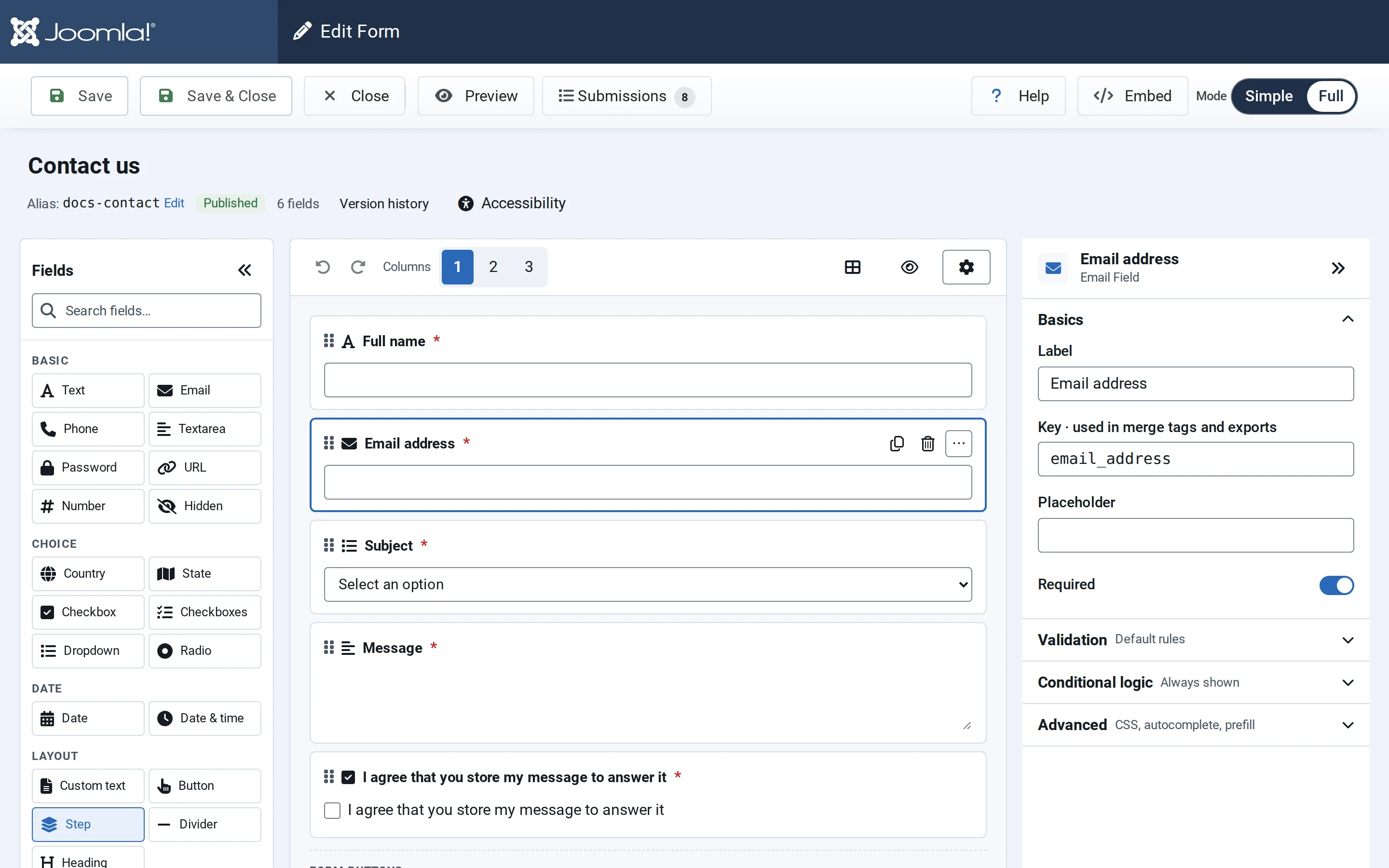
- Toolbar: Save, Save & Close, Close, Preview, Submissions with the number of entries, Help and Embed.
- Title row: the form's title, its alias, whether it's published, the number of fields, Version history and Accessibility.
- Fields on the left: every field type, grouped as Basic, Choice, Date, Layout and Advanced. Search fields… finds one by name.
- The canvas in the middle shows each field with its real input. Above it: Undo, Redo, Columns and the form settings (gear icon).
- Field settings on the right, for the selected field.
Add, move and remove fields
- Add: select a field type in Fields. It goes right after the selected field, or at the end of the form. You can also drag a field type onto the canvas; a line shows where it will land.
- Move: drag a field, use the arrow buttons on it, or press Alt+↑ and Alt+↓.
- Remove: use the bin button or press Delete. A message such as "Phone removed." offers Undo for at least ten seconds.
- Buttons stay in the Form buttons area under the fields, where visitors see them too.
See Fields for every field type and its settings.
Undo and redo
Undo and Redo sit at the start of the canvas header. They cover adding, removing, moving and editing fields and steps, the form title and the form settings; applying a template counts as one step. The builder keeps the last 100 steps, also after you save.
| Shortcut | Windows and Linux | Mac |
|---|---|---|
| Undo | Ctrl+Z | ⌘Z |
| Redo | Ctrl+Shift+Z or Ctrl+Y | ⌘⇧Z |
| Save | Ctrl+S | ⌘S |
Inside a text box, Ctrl+Z undoes only your typing, as usual.
Save
Save stores the fields and the form settings together. Next to it the toolbar says Unsaved changes or Saved at with the time. Save & Close saves and returns to the Forms list.
Form settings
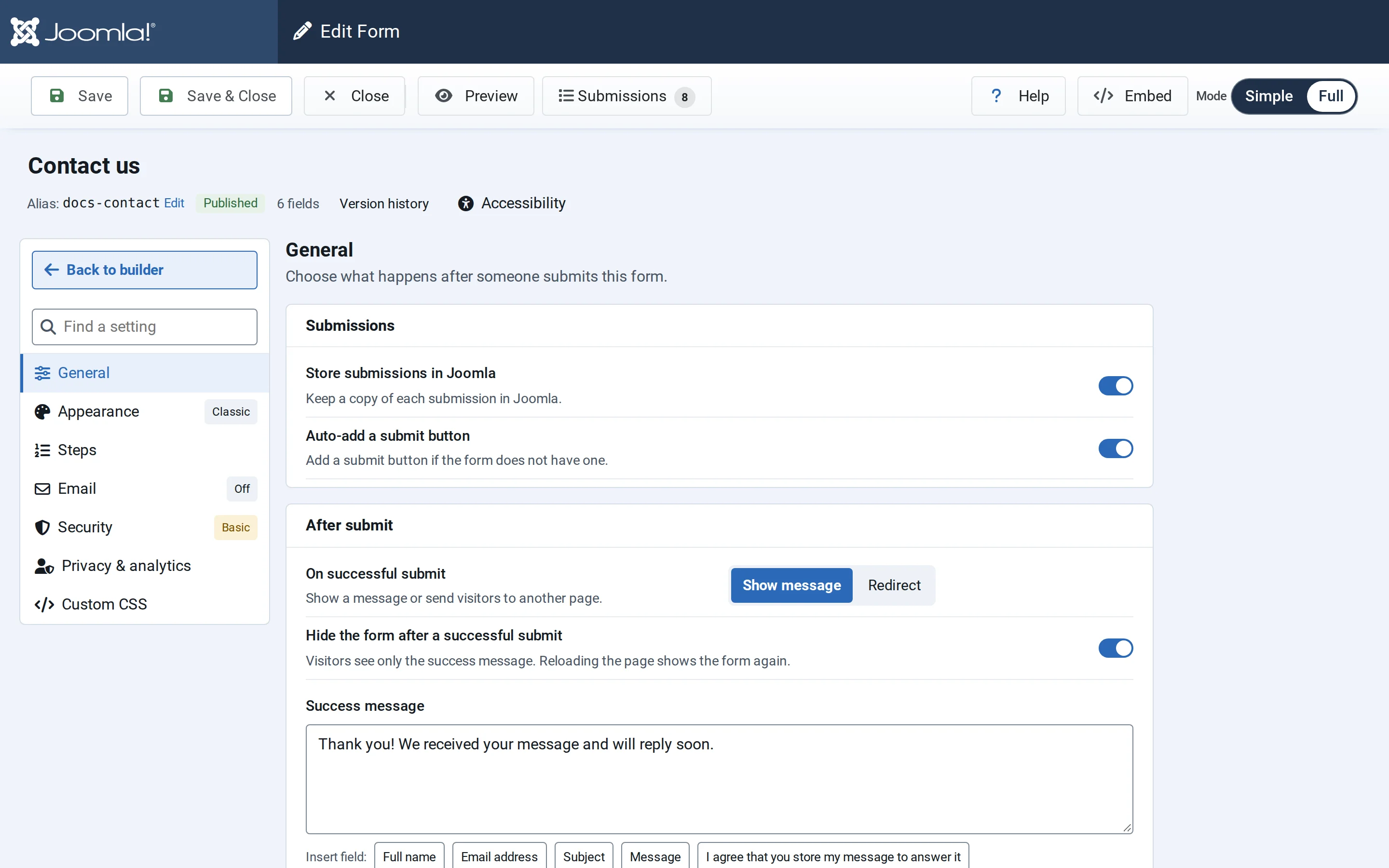
The gear icon opens the form's settings as a full page. The sections are listed on the left with a short status, and Find a setting searches all of them. Back to builder returns to the canvas; Save stores everything.
| Section | What it controls |
|---|---|
| General | Storing entries, the submit button, what happens after a submit: see Messages and redirects |
| Appearance | Theme, accent colour, colour scheme: see Themes and styling |
| Steps | How a multi-step form moves between steps: see Multi-step forms |
| Notification and confirmation emails: see Emails | |
| Security | Honeypot, time trap, CAPTCHA and rate limits: see Spam protection |
| Privacy & analytics | How visitors' IP addresses are stored, public file links and Google Analytics events: see Privacy and retention |
| Custom CSS | Styles for this form only: see Themes and styling |
NXForms Pro adds Joomla actions, Integrations, Payments, API access and Save & resume.
Simple and Full mode
The Mode switch in the toolbar shows only the essential options (Simple) or everything (Full). It never changes the form. Each administrator's choice is remembered; Options → General sets the default for everyone else, which is Simple.
In Simple mode, form settings show After submit, Look, Steps, Email and Spam protection, with a list of other features that are switched on. Full mode also shows field keys, the alias and shortcode in the Forms list, and technical details.
Version history
Once a form is saved, Version history in the title row lists its last 20 saved versions, newest first, with the time, who saved it and the number of fields. Restore loads an older version into the builder as one step you can undo. Nothing changes on your site until you save.
Preview and embed
Show preview above the canvas, or Preview in the toolbar, shows the form as visitors will see it. On a wide screen it sits beside the canvas and follows every change; on a smaller screen it opens over the builder. The preview is approximate, because your site template may style the form differently, and nothing is sent or uploaded from it.
- More room: drag the handle between the canvas and the preview to make the preview wider or narrower; with the handle selected, the arrow keys do the same. The « and » buttons collapse the field list and the field settings.
- Open large preview (the arrows icon) shows the preview over the whole builder. Desktop, Tablet and Phone show it at those screen widths. Close large preview returns to the builder.
- Appearance tries themes, accent colours and colour schemes without changing the form.
- View on site opens the saved, published form on your site in a new tab. Changes you haven't saved aren't there yet.
- Embed copies the form's shortcode, creates a module for it, or copies its direct link. See Menu items, modules, articles and popups.