

Appearance

File uploads and privacy
The File upload field lets visitors attach a file, such as a CV or a photo.
Set up the field
Select the field and open Field configuration to choose which file types are allowed and the largest file size.
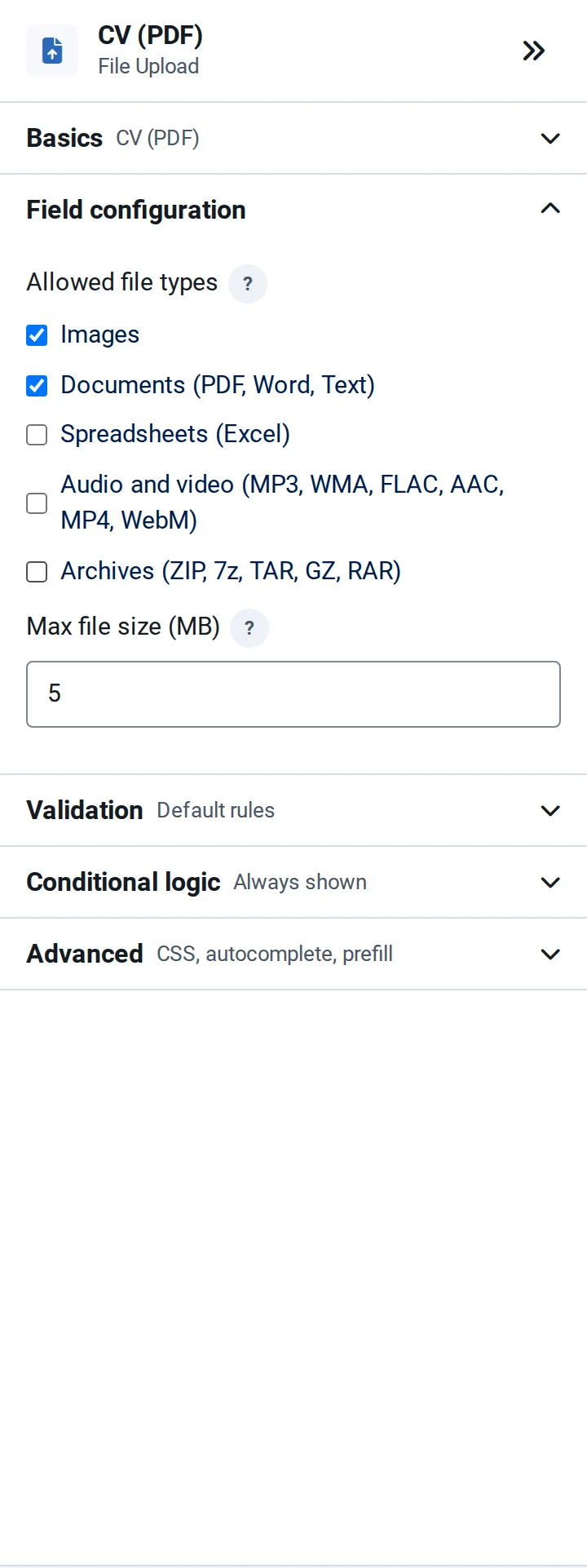
NXForms checks every file on the server: its extension must be on the allowed list, its content must match its type, and it gets a new file name. Files that fail are rejected.
Uploads are private
Uploaded files are stored in media/nxforms-uploads, and only a signed-in administrator can open them, from the entry in Submissions. A visitor can't open another visitor's file, even with its address.
Your web server must block the folder
The folder carries rules that tell the web server to refuse direct requests. Apache, LiteSpeed and IIS read them. nginx, and Apache with AllowOverride None, don't: there, the server configuration must block the folder itself. For nginx:
nginx
location ^~ /media/nxforms-uploads/ {
    deny all;
}NXForms doesn't check this for you. To test it, open https://www.example.com/media/nxforms-uploads/ (with your domain): you should get an error, not a file list or a file.
Public file links
Some uses need files that open without a login: an article image created by the Joomla Article integration, or a service such as Zapier that downloads the file. For those forms, switch on Public file links in the Privacy & analytics section of the form settings, shown in Full mode. That form's new uploads are then stored in images/nxforms and anyone with a file's address can open it.
After moving from NXP Easy Forms
Files imported from NXP Easy Forms are public, as they were there. The import's result screen offers Make uploaded files private, which moves the files of forms without public file links to private storage and updates the links in their entries. Images that articles show stay public. See Moving from NXP Easy Forms.