

Appearance

Templates
A template gives a new form its fields in one step: a contact form, an event registration, a job application, a booking request and more.
Start from a template
- In Components → NXForms → Forms, select From template.
- In an empty form, select Start from a template on the canvas.
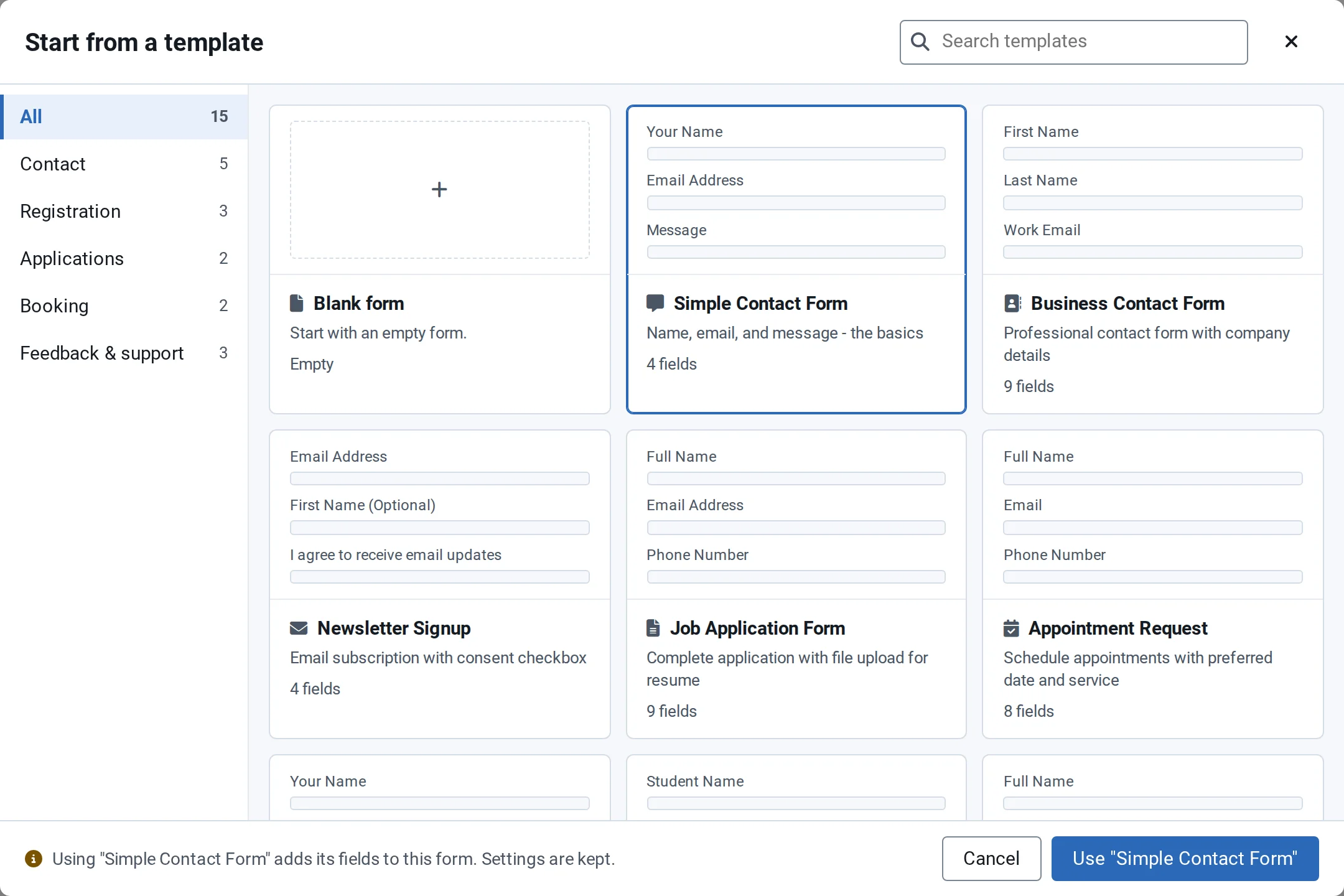
The gallery groups templates into Contact, Registration, Applications, Booking and Feedback & support; Search templates finds one by name. Each card previews the template's first fields and how many it has. Blank form is always first.
Choosing a card only selects it. Select Use "…" to apply it, or Cancel to keep the form as it is. The gallery works fully from the keyboard.
What applying a template changes
- It replaces the form's fields with the template's fields.
- It changes only the settings the template defines, and the gallery lists those settings sections before you apply it. Your other settings, and a success message you wrote yourself, are kept.
- It counts as one step, so Undo brings the previous fields back.
Templates in NXForms Pro
With NXForms Pro, the gallery also offers Payments and Calculators templates and templates that use Pro features, such as user registration and login. Payment templates leave payments switched off, in Stripe test mode, until you switch them on; the User Login template also switches off notification emails and stored entries.