

Appearance

Calculations Pro
A Calculation field shows a value worked out from other answers, such as a total, a quote or a score. It updates while the visitor fills in the form. Calculation fields come with NXForms Pro.
When the form is sent, NXForms works the value out again on the server from the formula and the answers. What the visitor's browser shows is never trusted, so a changed page can't change a total.
Fields you can calculate with
- Number, Slider and Rating
- Dropdown, when its option values are plain numbers such as
12.50 - Price: a fixed amount that you set and the visitor can't change. A form can have one Price field.
- Other Calculation fields, so one total can build on another
An empty answer, or a field hidden by conditional logic, counts as 0.
Write the formula
Add a Calculation field and open Field configuration in its settings.
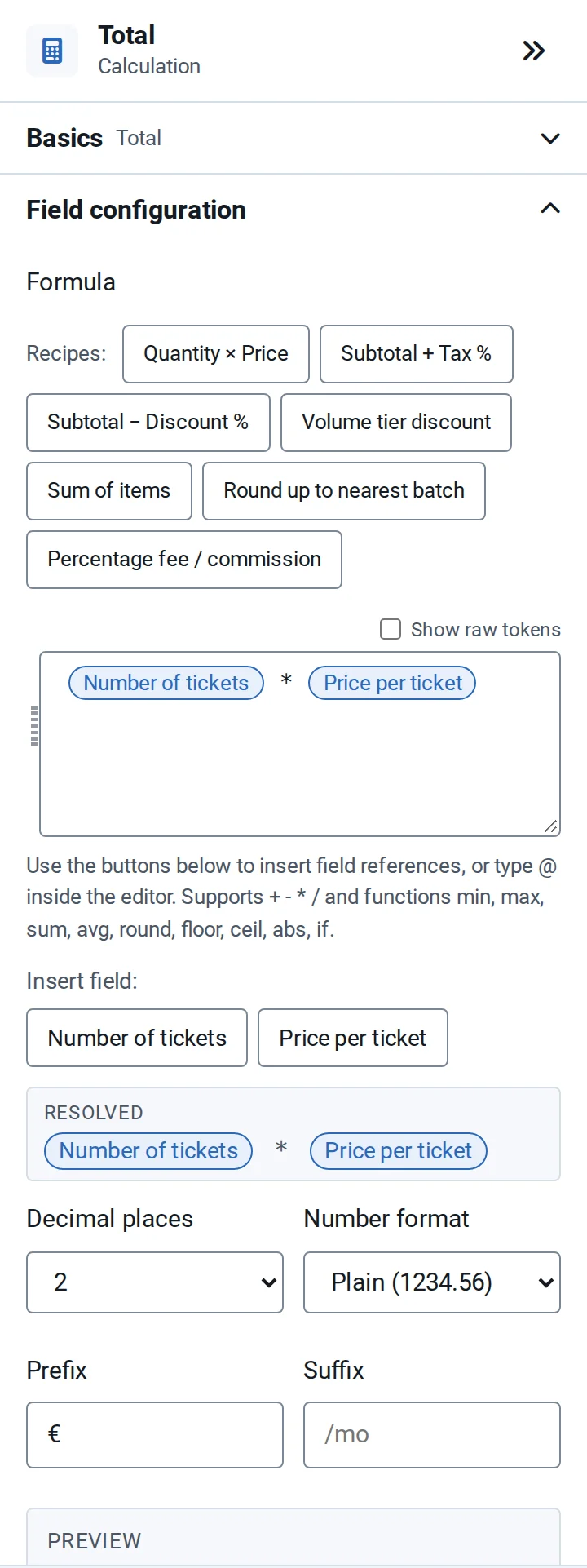
- Recipes fill in common formulas, such as Quantity × Price, Subtotal + Tax % or Percentage fee / commission. Adjust them after.
- Insert field adds a field to the formula, or type @ in the formula box.
- Use
+,-,*,/and parentheses, and the functionsmin,max,sum,avg,round,floor,ceilandabs. if(condition, then, else)chooses between two values. The condition compares two values with>,<,>=,<=,==or!=. For example, with Number of tickets and Subtotal inserted as fields,if(Number of tickets >= 10, Subtotal * 0.9, Subtotal)takes 10% off from 10 tickets.
Resolved below the box shows the formula as NXForms reads it. If a calculation can't be worked out, for example after dividing by zero, the field shows nothing, and other calculations that use it count it as 0.
Format the result
- Decimal places: 0 to 4, 2 by default.
- Number format: Plain (1234.56), US (1,234.56), EU (1.234,56) or Space (1 234,56).
- Prefix and Suffix: up to 10 characters each, such as
€or/mo.
Charge the total
A form that takes payments can charge a Calculation field or the Price field. Every Number field the charged total depends on needs a Min and a Max, so a visitor can't type a huge amount.