

Appearance

Payments Pro
A form can take a payment with Stripe or PayPal when it's sent: a fixed amount, a Price field, or a total from a Calculation field. Payments come with NXForms Pro.
The visitor enters card details on the provider's own page, never on your site. The entry is stored as Pending payment, and its emails, integrations and Joomla actions run only once the payment is confirmed.
1. Add your provider's keys
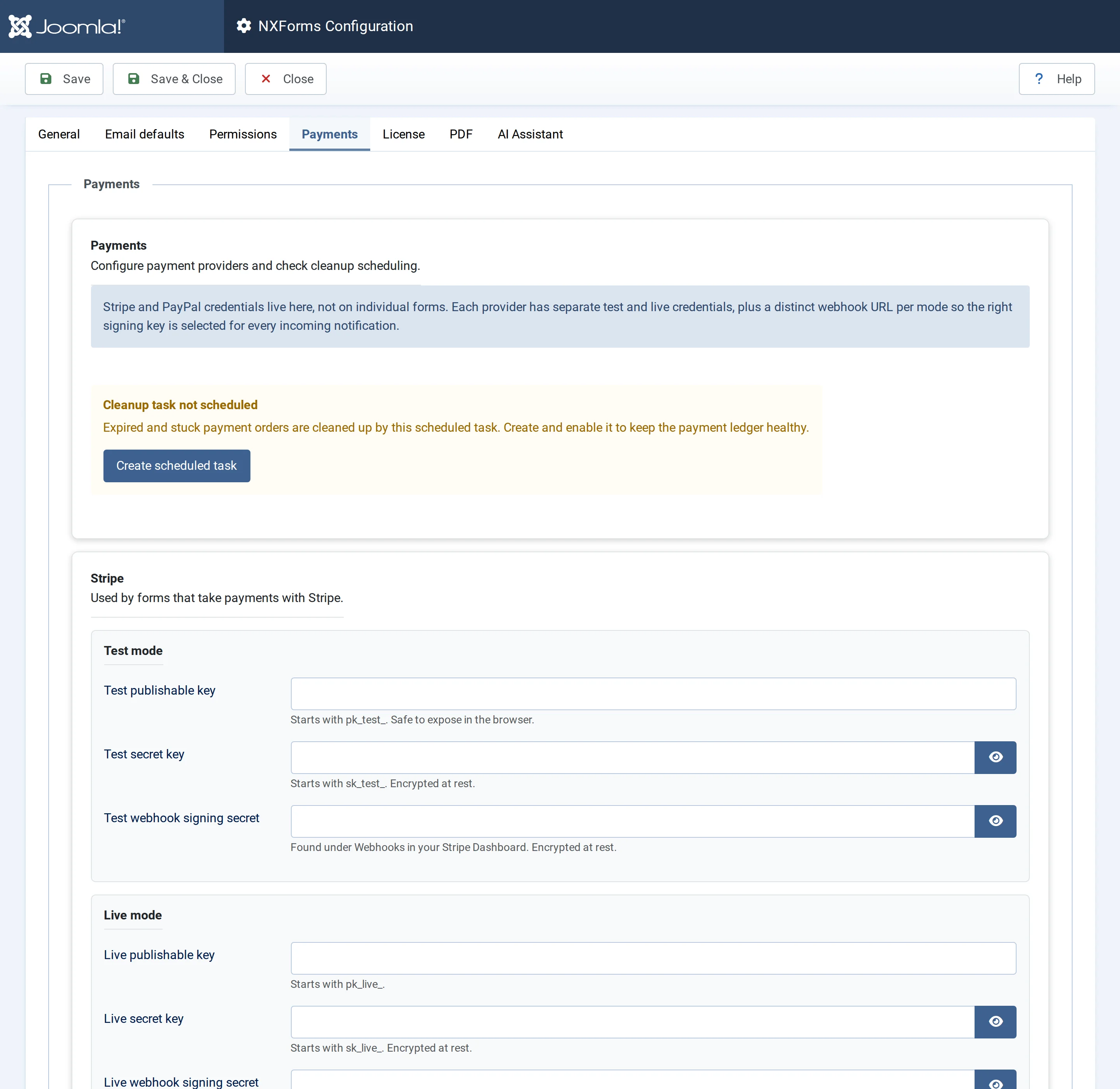
Go to Components → NXForms → Options → Payments. The keys are set once for all forms, and each provider has separate test and live keys.
| Stripe | PayPal |
|---|---|
| Publishable key, secret key and webhook signing secret, for test and live | Client ID, client secret and webhook ID, for sandbox (test) and live |
Secret keys are stored encrypted, and a saved one isn't shown again. Remove stored credential on save deletes one.
2. Register the webhooks
The provider tells your site about each payment through a webhook. In the provider's dashboard, create an endpoint for each mode, with your site's address in place of https://www.example.com:
| Provider | Test | Live |
|---|---|---|
| Stripe | https://www.example.com/index.php?option=com_nxforms&task=addon.run&action=payments.stripe_webhook_test | …&action=payments.stripe_webhook_live |
| PayPal | https://www.example.com/index.php?option=com_nxforms&task=addon.run&action=payments.paypal_webhook_test | …&action=payments.paypal_webhook_live |
Choose these events:
- Stripe:
checkout.session.completed,checkout.session.async_payment_succeeded,checkout.session.async_payment_failed,checkout.session.expiredandcharge.refunded. Use the API version that the Payments tab names. - PayPal:
CHECKOUT.ORDER.APPROVED,PAYMENT.CAPTURE.COMPLETED,PAYMENT.CAPTURE.DENIEDandPAYMENT.CAPTURE.REFUNDED.
Put Stripe's signing secret, or PayPal's webhook ID, in the matching box in Options.
3. Schedule the cleanup task
Until it exists, the Payments tab shows Cleanup task not scheduled. Select Create scheduled task, or create NXForms — Payments cleanup under System → Scheduled Tasks. It marks unpaid orders as expired, sorts out payments that got stuck, and catches up on webhooks that weren't processed.
4. Switch payments on for a form
Open the form's settings and choose Payments. The section is shown in Full mode.
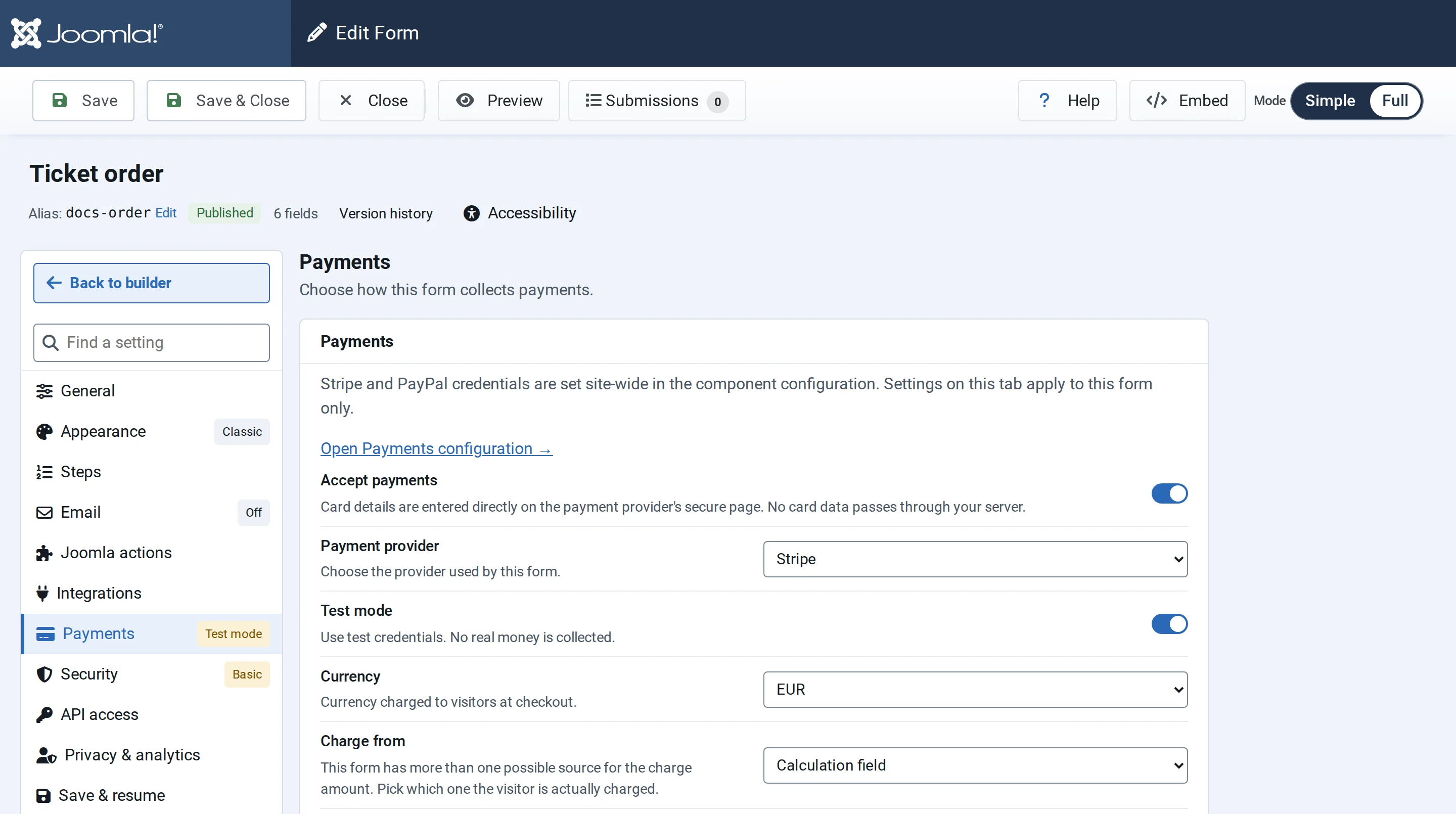
- Accept payments, the Payment provider and Test mode. In test mode the test keys are used and no real money is collected.
- Currency, for example EUR or USD.
- Charge from: Fixed amount, Price field or Calculation field, shown when the form has more than one of these.
- Payment description: shown on the payment page and in receipts, for example
Payment for {{form_title}}. - On cancel redirect: where a visitor who cancels goes. Leave it blank to return to the form.
The amount must be above zero and at most 999,999.99. Each currency also has a minimum that the provider accepts, for example 0.50 in USD or EUR.
When the total comes from a calculation, every Number field it uses needs a Min and a Max. Otherwise payments stay off for the form, unless you tick I accept the unbounded-charge risk.
What the visitor sees
- Stripe: after sending the form, the visitor goes to Stripe's payment page, then back to your site.
- PayPal: after sending the form, the visitor pays with PayPal's buttons on your page.
After paying, the visitor sees the form's success message, or goes to its redirect page. A visitor who cancels sees "Payment was cancelled." or goes to the On cancel redirect page.
Payment status
Each entry in Submissions has a payment status, shown in Full mode:
| Status | Means |
|---|---|
| Pending payment | The form was sent; the visitor hasn't paid yet |
| Processing payment | The provider is still confirming the payment |
| Paid | The payment is confirmed |
| Payment failed | The provider declined the payment |
| Payment expired | The visitor didn't finish paying in time |
| Refunded | The payment was refunded in the provider's dashboard |
Refunds are made in the provider's dashboard; the entry then shows Refunded.
A form that takes payments can't be sent through the Form API, only in a browser.