

Appearance

HubSpot Pro
Sends each entry to a form in your HubSpot account, as if the visitor had filled in that HubSpot form. HubSpot then creates or updates the contact. It comes with NXForms Pro.
What you need
- An Access token: a service key, or an older private app token. The hint under the box says where to create it in HubSpot.
- Your HubSpot account's Portal ID.
- The Form GUID of a HubSpot form that has the fields you want to fill.
Set it up
In the form's settings, open Integrations and select HubSpot.
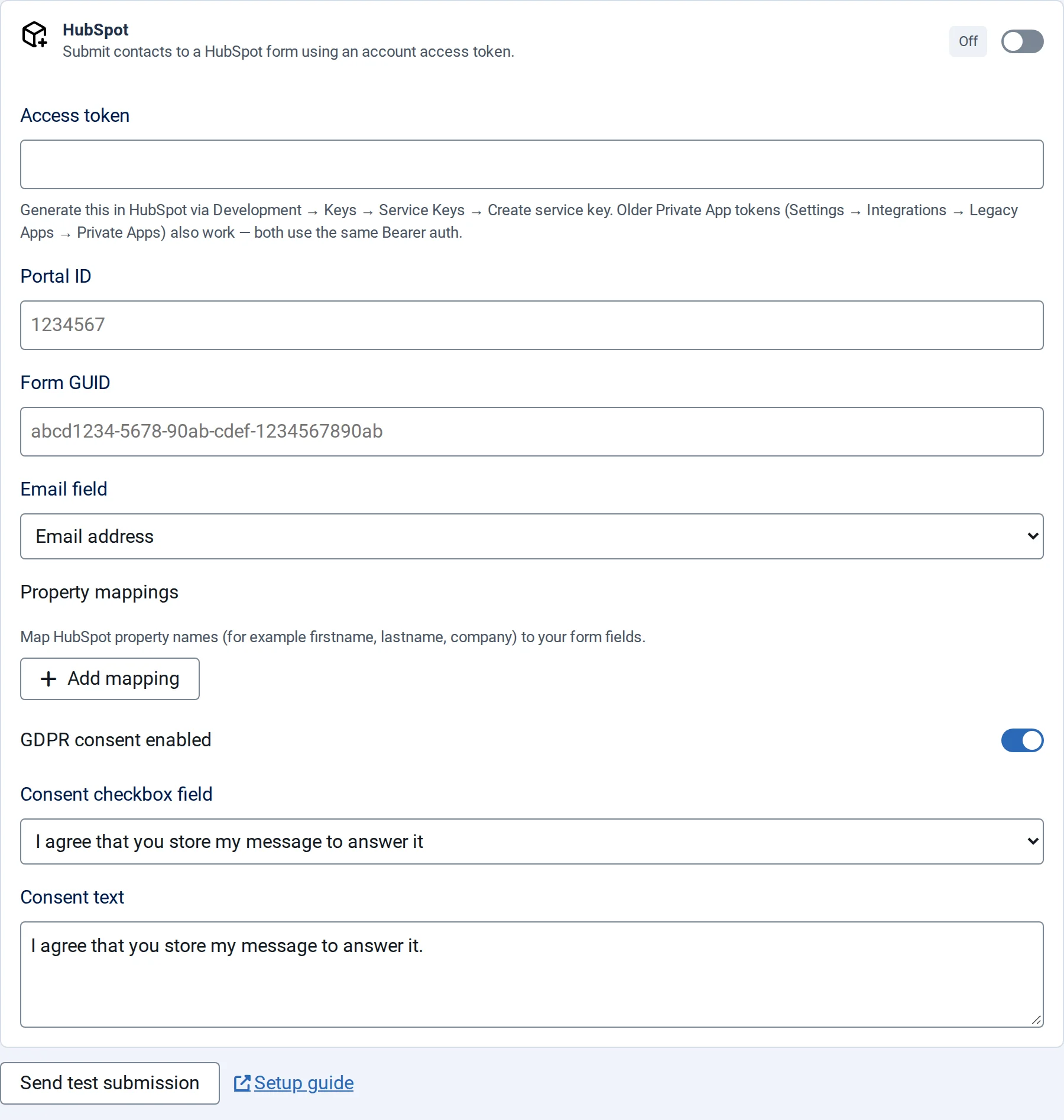
- Switch on Enable HubSpot and fill in the Access token, Portal ID and Form GUID.
- Choose the Email field.
- Under Property mappings, select Add mapping for each other answer: type the HubSpot property's internal name, such as
firstname,lastnameorcompany, and choose the form field. - Save the form.
What is sent
The email address and the mapped answers; empty answers are left out. NXForms also sends the page address, the form's title, and HubSpot's tracking cookie when the visitor's browser has one.
GDPR consent
Switch on GDPR consent enabled and choose the Consent checkbox field: the form's checkbox in which the visitor agrees to have their data processed. Put the same wording in Consent text.
When the visitor ticks that checkbox, NXForms tells HubSpot that they agreed, using your Consent text. When the checkbox isn't ticked, or no field is chosen, the entry is still sent, without consent.