

Appearance

Accessibility
An accessible form can be filled in with a keyboard alone, read aloud by a screen reader, and understood on a small screen. NXForms does a lot of this for you; the builder's tips point out what only you can fix, such as a missing label.
Accessibility tips
The Accessibility button in the form's title row shows how many important tips the form has. Select it to open the list:
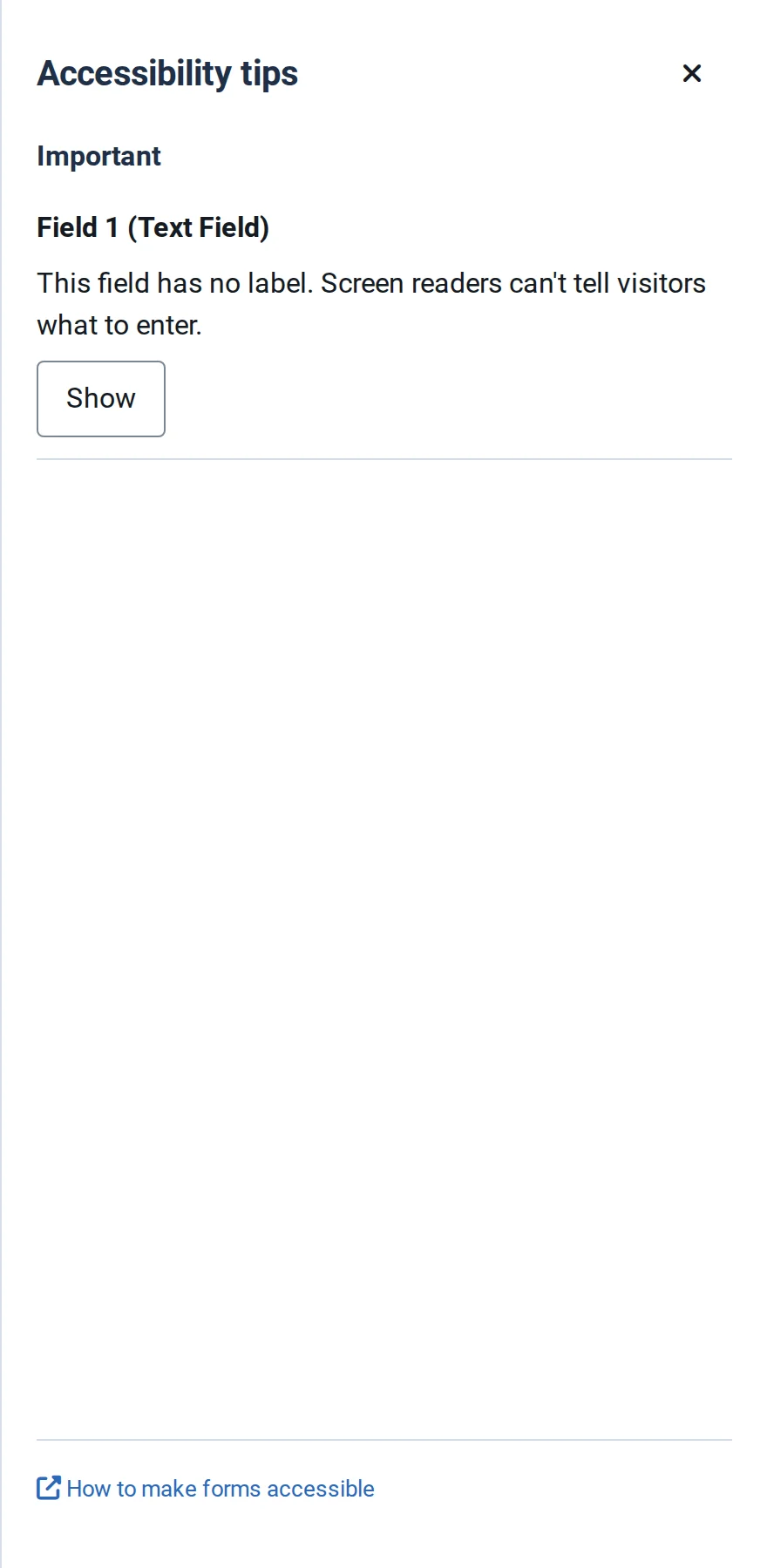
Show opens the setting that fixes a tip, switching to Full mode if that setting is only there. The list updates as you edit, and tips never stop you from saving.
Important
- A field without a label. Screen readers can't tell visitors what to enter.
- An image without alt text (or still with the old default "Product photograph"). Mark an image as decorative if it carries no information; screen readers then skip it.
- An accent colour on which button text is hard to read (contrast below 4.5:1).
Suggestions
- A button without a label, or two fields with the same label.
- A heading that skips a level, or a step without a title.
- A dropdown, radio or checkbox list with fewer than two choices.
- A field that asks for a name, email, phone number, address or similar without an Autocomplete purpose, so browsers can't fill it in.
What NXForms does for visitors
- Every field has a visible label, connected to its input. Required fields are marked, and the form explains the marks: see Themes and styling.
- When a submission fails, a "There is a problem" summary receives focus and links to each field with an error. Each error has an icon, text and a red border, and is announced with its field.
- Radio buttons and checkboxes are grouped under their question.
- In multi-step forms, each step change moves focus to the new step and announces its position.
- On phones, inputs are at least 44 px tall with 16 px text.
- The builder announces moves, deletions and undo steps to screen readers.
What stays your job
- Write labels and help text that say plainly what you need.
- Use Custom text for instructions, not placeholders, because placeholders disappear as soon as someone types.
- Check your own Custom CSS and template for contrast and focus outlines.
- Try the form yourself with only the keyboard, and on a phone.
The tips help you avoid the most common problems. They don't certify a form as meeting an accessibility standard.