

Appearance

Integrations Pro
Integrations pass each entry on to another service: a mailing list, a CRM, an automation tool, a text message or your own system. Each form has its own integrations, set in the Integrations section of the form settings, shown in Full mode. Integrations come with NXForms Pro.
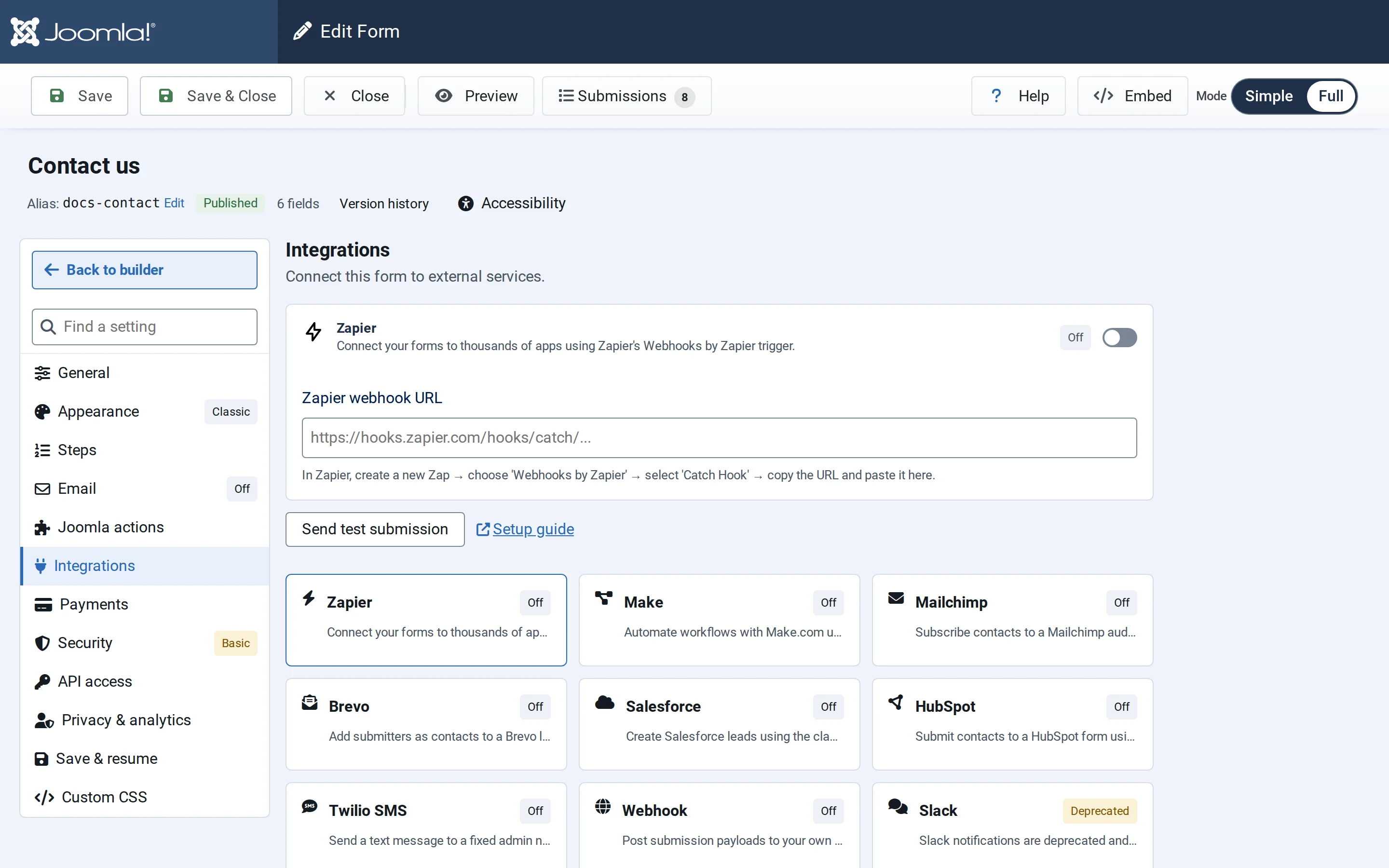
Select a service in the grid to see its settings, switch it on, fill them in, and save the form. A form can use several services at once.
| Service | What it does |
|---|---|
| Zapier | Sends each entry to a Zap |
| Make | Sends each entry to a Make scenario |
| Mailchimp | Adds the person to a Mailchimp audience |
| Brevo | Adds the person to a Brevo contact list |
| Salesforce | Creates a Salesforce lead |
| HubSpot | Sends the entry to a HubSpot form |
| Twilio SMS | Texts you when the form is sent |
| Webhook | Sends each entry to your own address, signed |
| Slack | Posts to a Slack channel (deprecated) |
Creating Joomla articles and user accounts is in the separate Joomla actions section: see Joomla actions.
When integrations run
Integrations run after the entry is stored. A visitor never sees an integration error: the form's success message shows either way.
On a form that takes payments, integrations wait until the payment is confirmed.
Test an integration
After saving the form, Send test submission sends an example entry, with the name "NXForms test" and the address nxforms-test@example.com, to the service. It's a real delivery: the test contact or message appears in the service, even while the integration is switched off. Remove it there afterwards if needed.
When a service doesn't answer
If a service is down or answers with an error, NXForms tries again after a minute and again after two minutes. After the third failed try, it gives up and writes the problem to the log.
The later tries are made by the NXForms — Integrations retry scheduled task. While it doesn't exist, Options → General shows Integration retry task not scheduled: select Create scheduled task, or create it under System → Scheduled Tasks.
A setup mistake, such as a missing list or email field, isn't retried: fix the settings and save the form.
Keys and privacy
- Keys and tokens are stored encrypted, per form. A saved key isn't shown again; Remove stored API key or Remove stored secret deletes it.
- Uploaded files are sent as links. They open only for a signed-in administrator unless the form's Public file links is on: see File uploads and privacy.
- Check what each page lists under "What is sent", and tell visitors on the form where their answers go.