

Appearance

Menu items, modules, articles and popups
A published form can be shown in four ways, and one form can be in several places at once.
The Embed button
Embed in the builder's toolbar collects the ways to show the open form. Save a new form first.
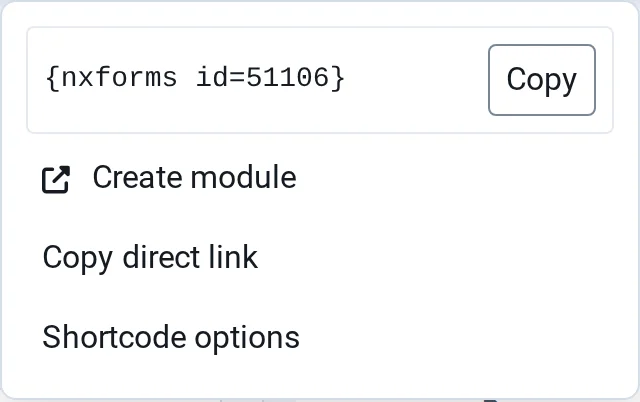
- Copy copies the form's shortcode, for articles.
- Create module opens a new NXForms module with this form already chosen.
- Copy direct link copies the address of the form's own page.
- Shortcode options, in Full mode, builds a shortcode for a popup.
On its own page: a menu item
- Go to Menus, choose a menu and select New.
- Next to Menu Item Type, select Select, open NXForms and choose Single Form.
- Under Form, select the form. A form that is paused because it uses Pro features shows Paused.
- Enter a title and save.
The menu item's Page Display options (Browser Page Title, Show Page Heading, Page Heading and Page Class) and its Metadata (Meta Description and Robots) apply to the form's page. Without a page title of its own, the browser shows the form's title.

In a module position
The NXForms module shows a form in any module position. Use Create module in the Embed menu, or go to Content → Site Modules, select New and choose NXForms. Then choose the Form, a Position, and the pages under Menu Assignment.
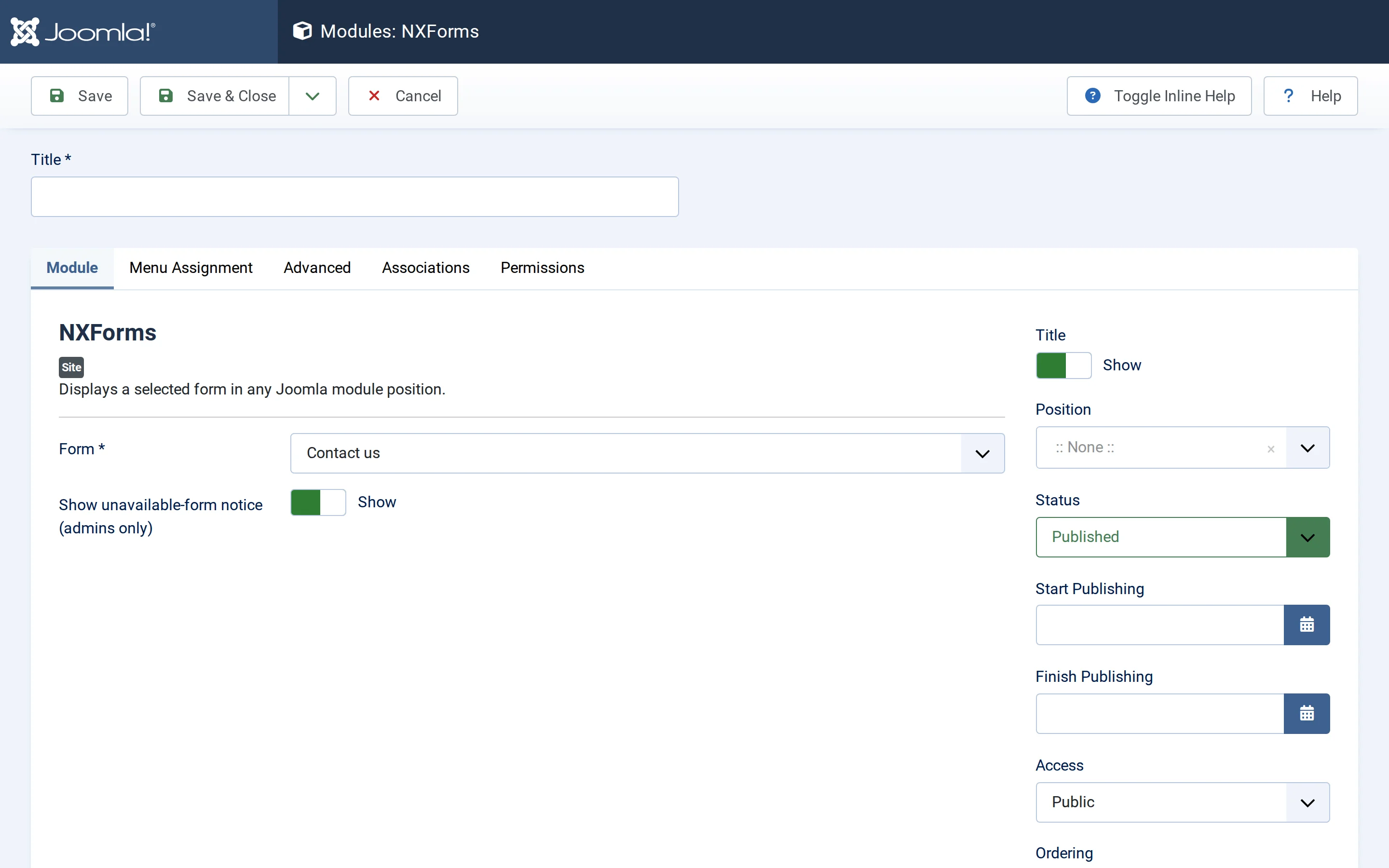
When the form can't be shown, for example because it's unpublished, Show unavailable-form notice (admins only) shows a note to users who can manage modules. Visitors never see it.
Inside an article: the shortcode
Type the shortcode where the form should appear:
text
{nxforms id=12}{nxforms 12} works too. The shortcode is replaced by the NXForms plugin of type content, which is enabled when you install NXForms. It also works in a Custom module with Prepare Content set to Yes.
If the form is unpublished, or the visitor isn't allowed to view it, the shortcode shows nothing. A paused form shows "This form is currently unavailable."
Old shortcodes
After moving from NXP Easy Forms, old shortcodes such as {nxpeasyform id=12} show the imported form once the old NXP Easy Forms content plugin is disabled. Use {nxforms …} for new ones.
In a popup
Add modal=1 and the shortcode shows a button that opens the form in a dialog:
text
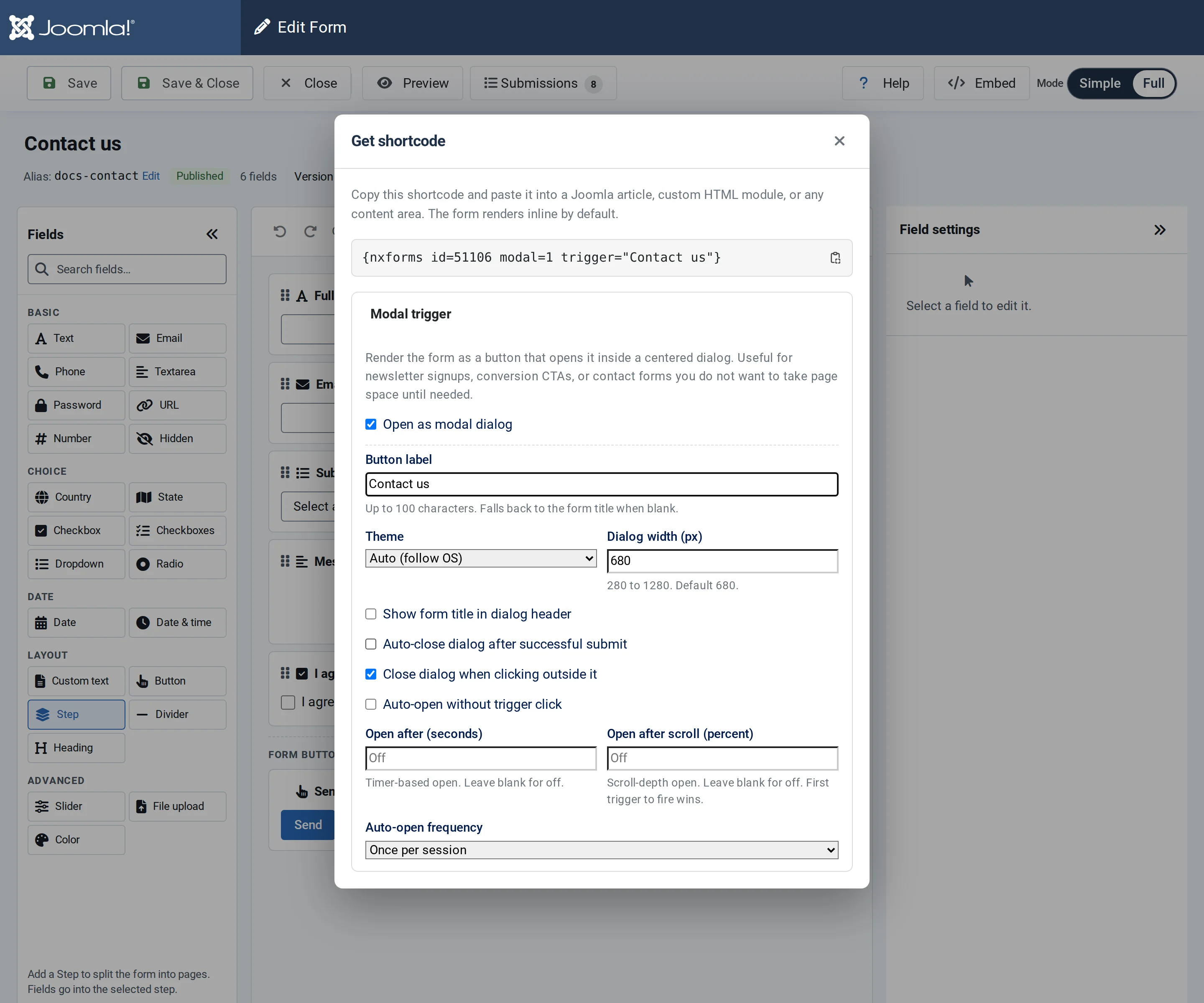
{nxforms id=12 modal=1 trigger="Contact us"}The same form can be inline on one page and in a popup on another. Shortcode options in the Embed menu builds the shortcode for you.
| Option | What it does |
|---|---|
trigger="…" | The button's text, up to 100 characters. Without it, the button shows the form title. |
theme=light, dark or auto | The colour scheme of the form and the dialog. auto follows the visitor's device. Works for inline forms too. |
width=680 | The dialog's width in pixels, from 280 to 1280. |
show-title=1 | Shows the form title at the top of the dialog. |
auto-close=1 | Closes the dialog after a successful submit, after auto-close-timeout seconds (0 to 30, 3 by default). |
close-on-overlay=0 | Keeps the dialog open when the visitor clicks outside it. |
auto-open=1 | Opens the dialog without a click: after auto-open-after seconds (up to 300), or once the visitor has scrolled auto-open-after-scroll percent of the page. With both, the first one wins. |
frequency= | How often it opens by itself: once-per-session (default), once-per-day or every-time. |
For example, a newsletter form that opens after 10 seconds, once a day:
text
{nxforms id=12 modal=1 trigger="Subscribe" auto-open=1 auto-open-after=10 frequency=once-per-day}The dialog can be closed with its close button or the Esc key, and keyboard focus stays inside it while it's open.