

Appearance

Moving from NXP Easy Forms
NXForms is the successor to NXP Easy Forms. NXP Easy Forms 1.3 is its final version: it won't receive any more updates, security fixes or support. Its last update, 1.3.2, shows a notice on its Forms list that links to NXForms and to this guide.
NXForms is a separate extension, so it doesn't update NXP Easy Forms in place. You install NXForms beside it, copy your data with the built-in importer, check the result, and then uninstall the old extension.
Before you start
- Update NXP Easy Forms to its latest version. The importer reads NXP Easy Forms 1.3.x; older versions must be updated first.
- Back up the site and its database.
- Use a fresh NXForms. The import needs an NXForms installation with no forms or entries yet, and an empty uploads folder.
- Pick a quiet time. NXP Easy Forms keeps working during the import; entries sent to it after the import starts must be moved by hand. Taking the site offline avoids that.
Some features that NXP Easy Forms included come with NXForms Pro in NXForms: payments, calculations, integrations and webhooks, Save & Resume, advanced fields and the Form API. If your forms use them, install and enable NXForms Pro before importing and those forms arrive ready to use. You can also add Pro later: until then, those forms are imported paused, with all their settings, and keep working in NXP Easy Forms.
Run the import
- Install NXForms, or only NXForms Pro if you need it: its package includes NXForms.
- Go to Components → NXForms → Forms. A notice says We found your NXP Easy Forms data; select it to open the import screen.
- Read Before you import. It shows how many forms, entries and files it found, lists anything that blocks the import, and names the forms that will be paused.
- Tick I have a backup of this site and database and select Start import.
The import runs in steps and shows its progress. If it stops, you can Resume import, or Start over, which deletes everything in NXForms (never anything in NXP Easy Forms).
What is copied
Forms, entries and uploaded files keep their IDs, so {nxforms id=12} shows the form that was number 12 before. NXForms Options and permissions are copied too. Credentials that can't be read must be entered again; the result screen lists them.
Some old records, such as unfinished drafts and payment records, are counted on the screen but not copied.
After the import
The result screen shows what was imported and skipped, and a checklist of what to do by hand:
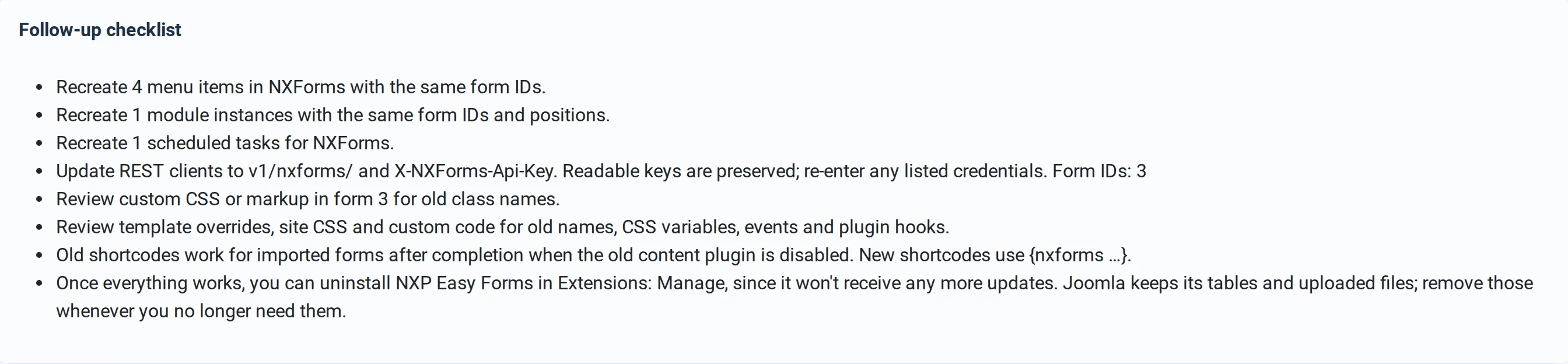
- Recreate menu items, modules and scheduled tasks for NXForms with the same form IDs. They aren't moved automatically.
- Make uploaded files private. Imported files are public, as they were in NXP Easy Forms; NXForms keeps uploads private. Make uploaded files private moves them to private storage and updates the links in their entries; images that articles show stay public. See File uploads and privacy.
- Update other systems that sent entries or received webhooks: the API address is now
v1/nxforms/with theX-NXForms-Api-Keyheader, and webhooks are signed withX-NXForms-Signature. - Review custom CSS and template overrides for old class names.
- Old shortcodes such as
{nxpeasyform id=12}keep working for imported forms once the old content plugin is disabled. New ones use{nxforms id=12}.
When everything works, uninstall NXP Easy Forms in System → Manage → Extensions. Joomla keeps its tables and uploaded files; remove those whenever you no longer need them.
The import runs once
The importer copies your data once. It doesn't keep NXForms and NXP Easy Forms in sync afterwards.