

Appearance

PDF downloads Pro
NXForms Pro turns an entry into a PDF, for printing, filing or sending on.
Download an entry
In Components → NXForms → Submissions, select an entry to open it, then select Download PDF at the top of the panel.
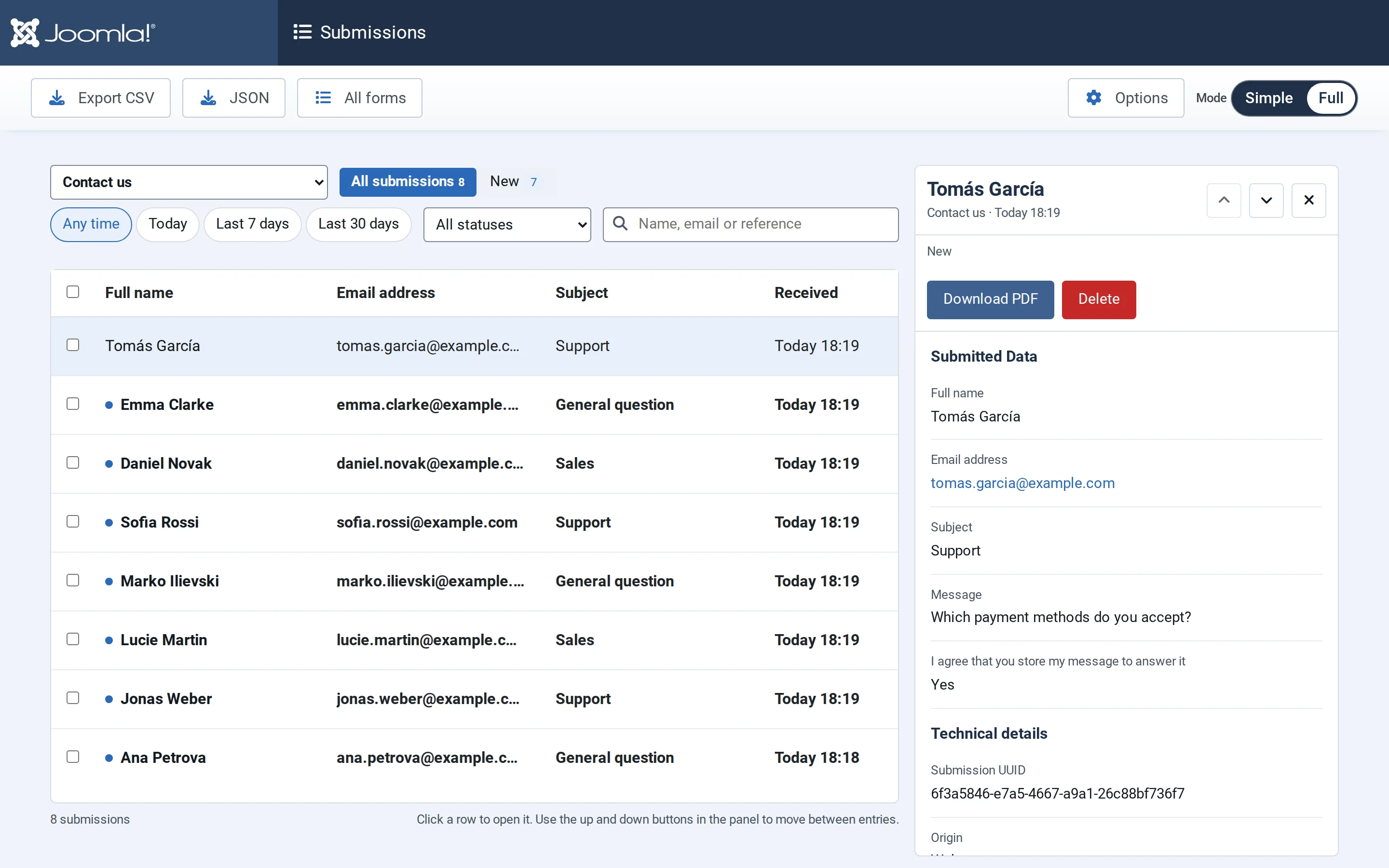
The PDF is an A4 page with the form's title, every answer, and the date the entry was sent. Downloading it marks the entry as read. PDFs are made one entry at a time, and only in the administrator: visitors can't download them.
Logo and footer
Options → PDF sets the look of every PDF:
- Show logo in PDF header, and the Logo image from your media library. Use a PNG or JPEG; other formats are left out.
- Footer text: one line at the bottom. Leave it empty for "Sent by" and your site's name.
The accent colour is the Brand accent color in Options → General.
Limits
- Text in Chinese, Japanese, Korean and Arabic scripts isn't supported yet.
- Layout fields such as headings, custom text and buttons aren't included.