

Appearance

Joomla actions Pro
A form can do three things in Joomla when it's sent: create an article, register a user account, or log a user in. Set them up in the Joomla actions section of the form settings, shown in Full mode. Each action has its own switch. Joomla actions come with NXForms Pro.
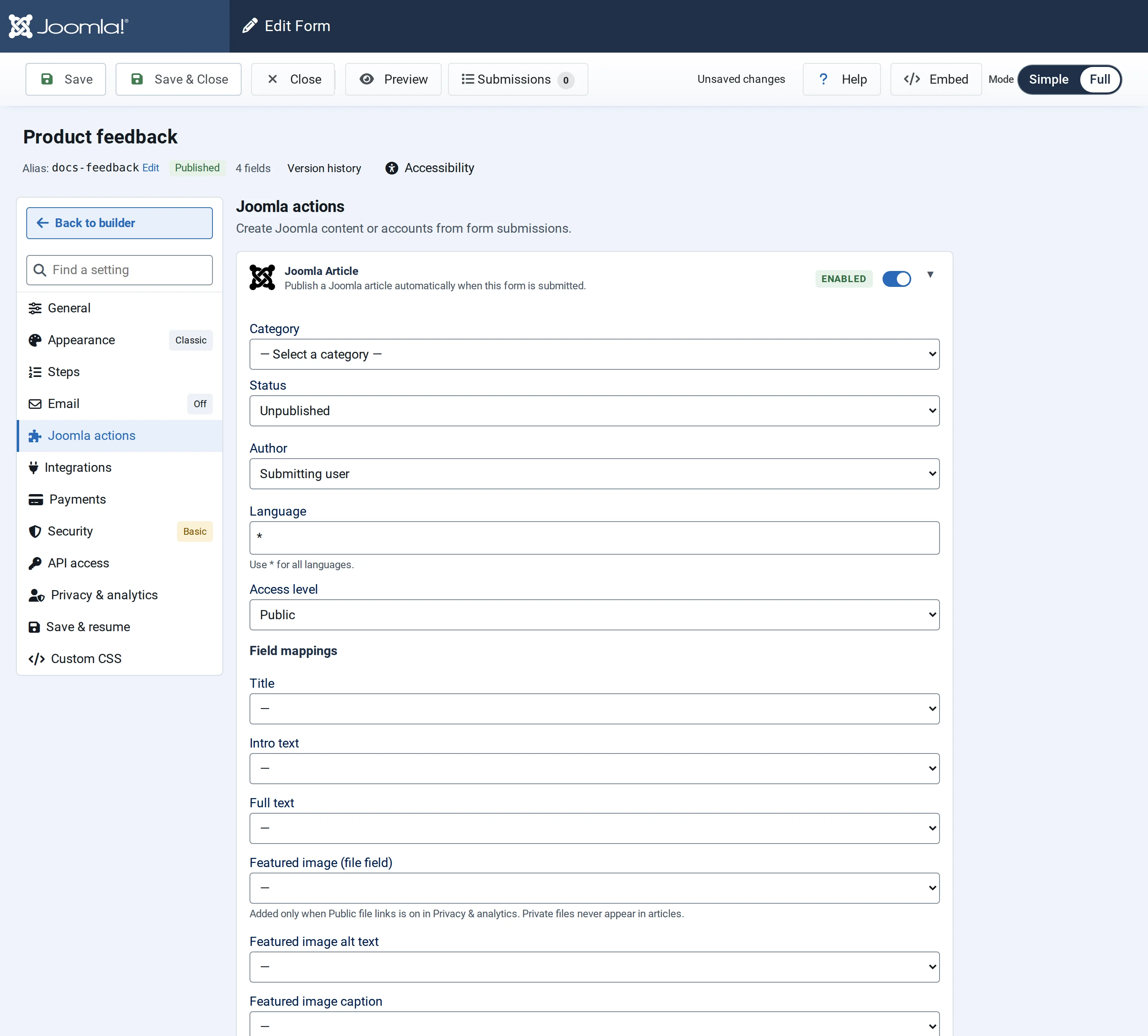
Create an article
Switch on Enable article creation, then choose:
- Category, Status (Unpublished by default, so you can check articles first), Author, Language and Access level.
- Under Field mappings, the form fields that become the article's Title, Intro text and Full text.
- Optionally a Featured image (file field), with alt text and caption. The image is added only when the form's Public file links is on, under Privacy & analytics: private files never appear in articles. See File uploads and privacy.
Without a category, the article goes into Joomla's default category. If the mapped title and texts are all empty, no article is created.
Register a user
Switch on Enable user registration, then map the Username field, the Email field, the Password field and the Name field, and choose the User group. Only Super Users can choose a group that may log in to the administrator.
- If the password field is left out, Joomla creates a password; it's emailed to the new user only when Send Password is on in Joomla's Users → Options.
- Account activation follows New User Account Activation in Joomla's Users → Options: none, by the user from an email, or by an administrator.
- If the username or email address is already registered, the visitor sees "This username is already registered." or "This email address is already registered." next to that field, and nothing is stored.
After a successful registration, the visitor sees "Registration successful! Your account has been created.", or, when the account still needs activation, "Registration almost done! Please check your inbox to activate your account."
Log a user in
Switch on Enable user login, then map the Username or Email field and the Password field. Identity mode decides whether the first field holds a username, an email address, or either. Map a Two‑factor code field (optional) for users with two-factor authentication.
A wrong password, or an account that is blocked or not activated, shows "Login failed. Please check your credentials and try again." After five failed tries within a minute, the form asks the visitor to slow down.