

Appearance

Usage
Admin workflows
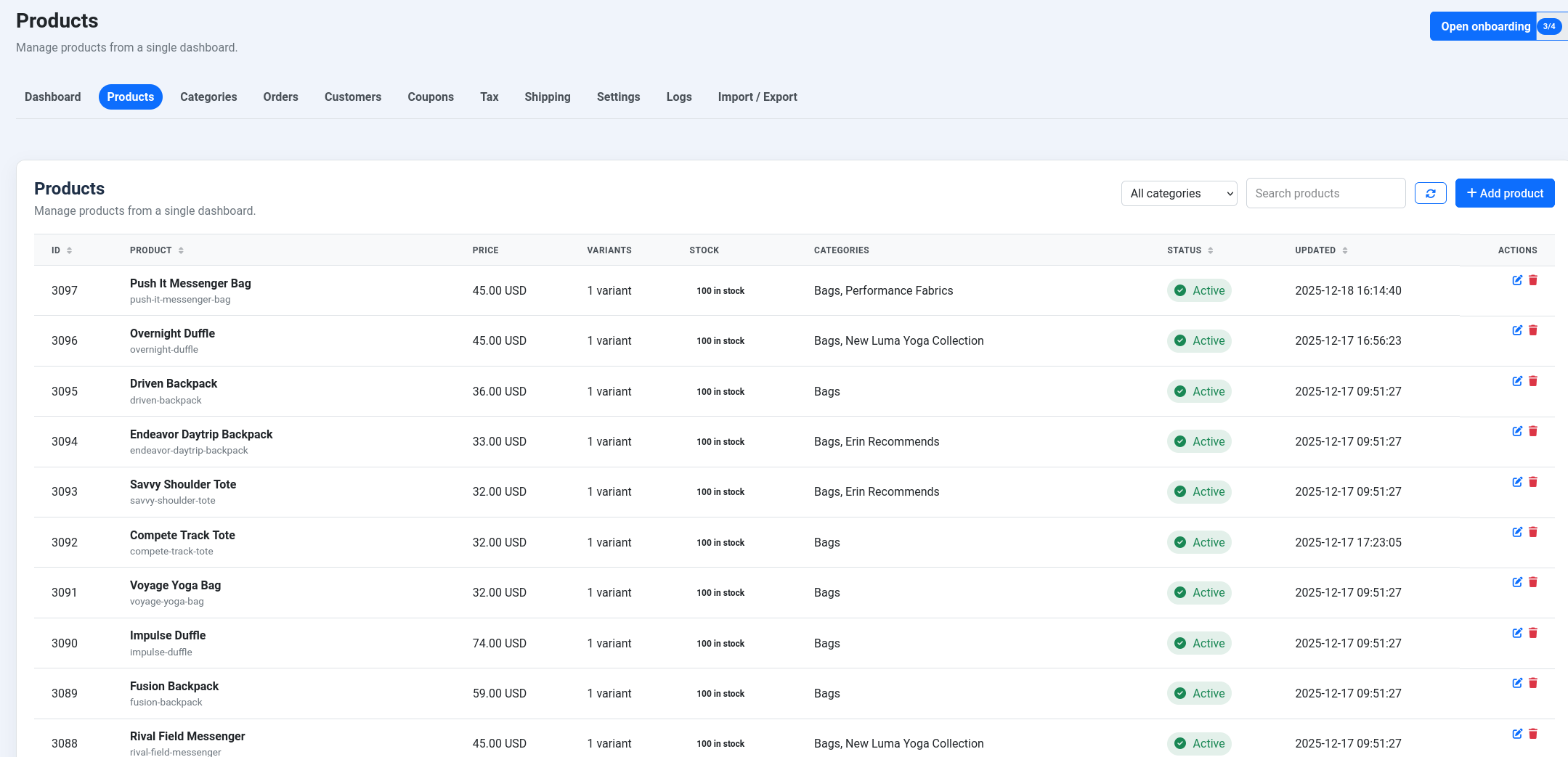
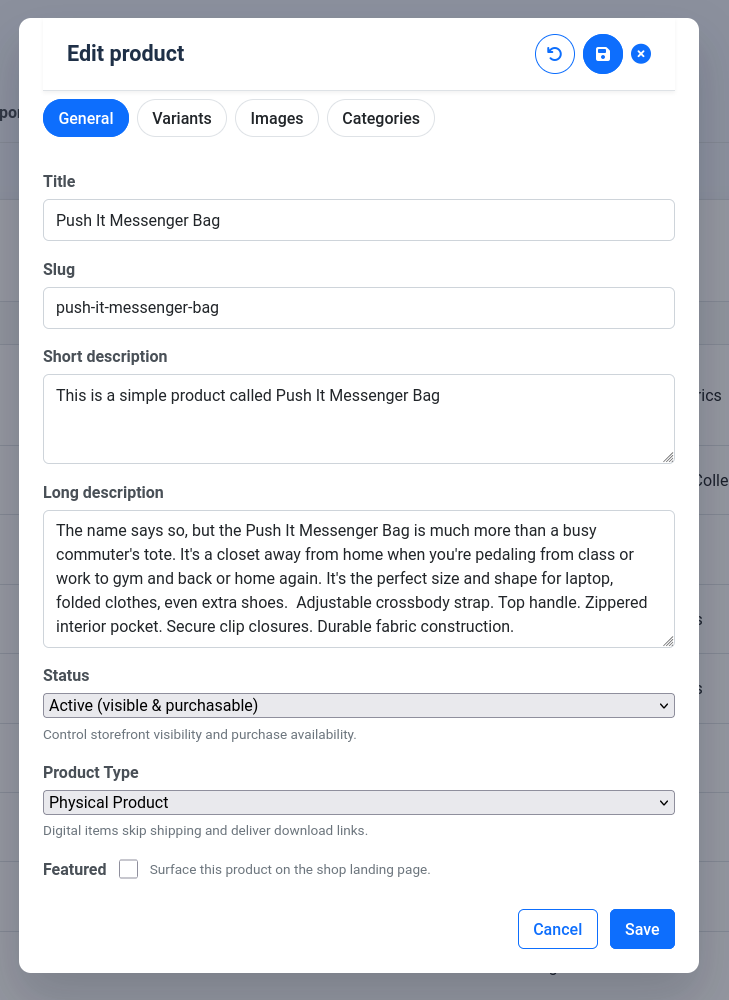
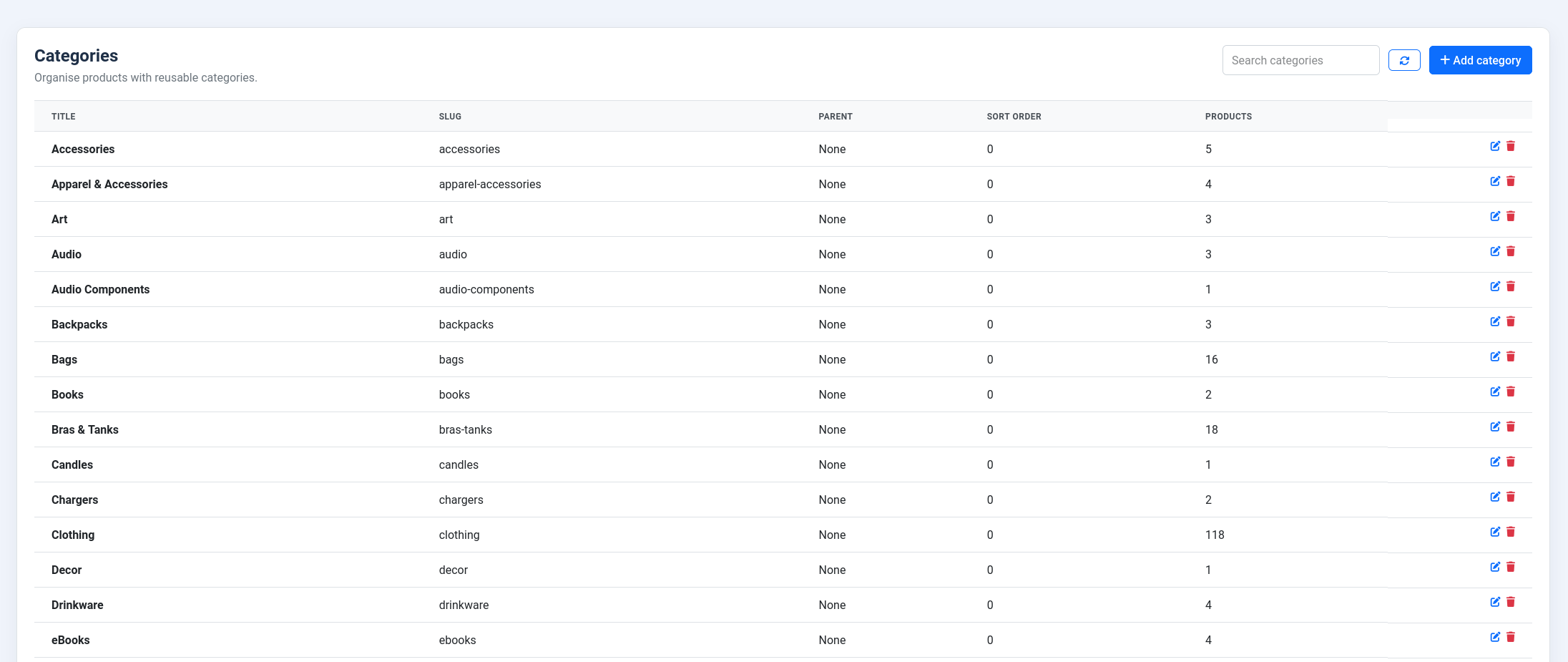
- Products & variants: create products, assign categories and a brand, manage variant pricing, and pick related products. The long description can use your Joomla editor (see Formatting product descriptions).
- Import / Export: migrate a catalog in from WooCommerce, Shopify, HikaShop, or VirtueMart, and export to CSV — see Import & Export.
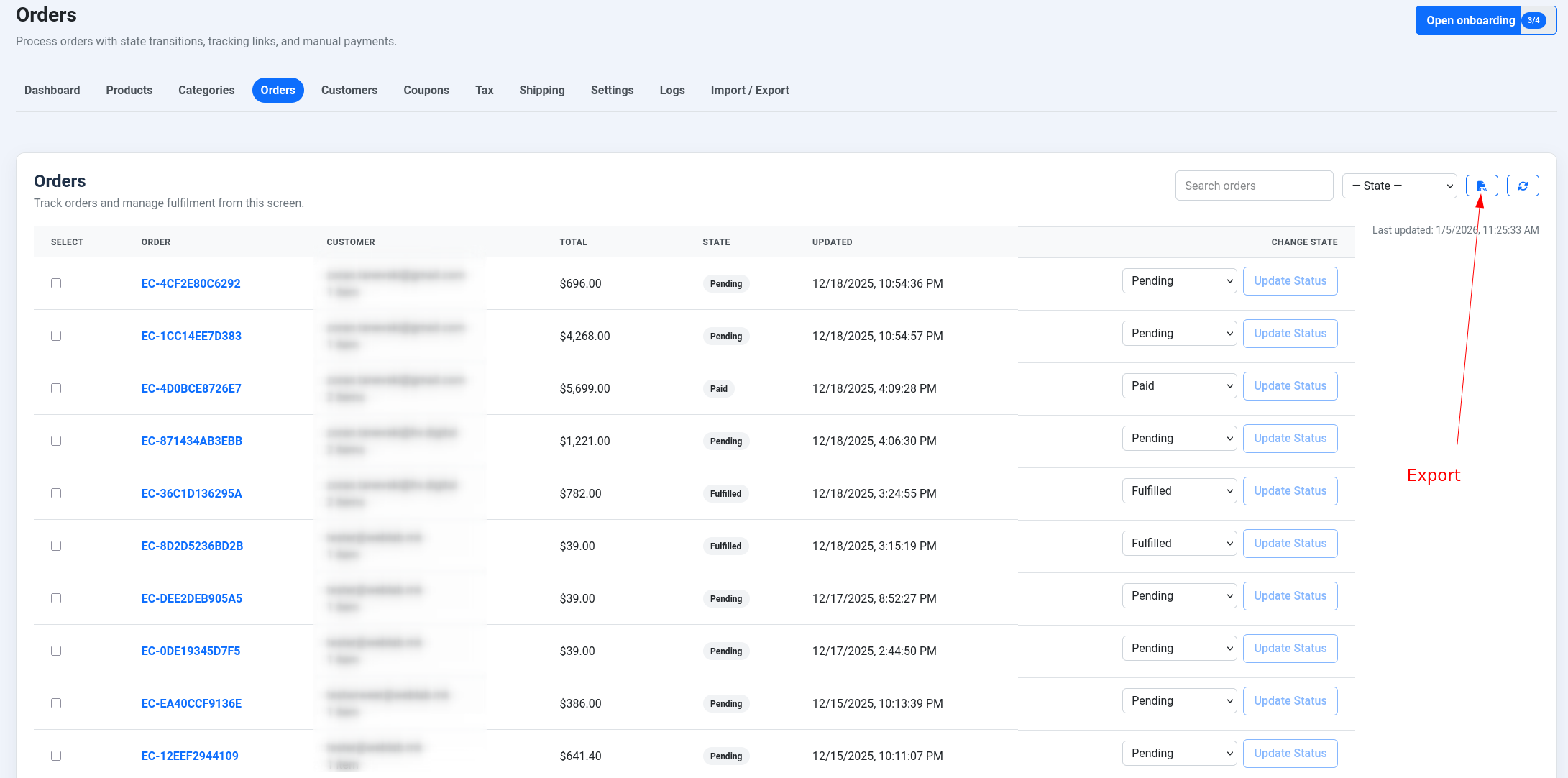
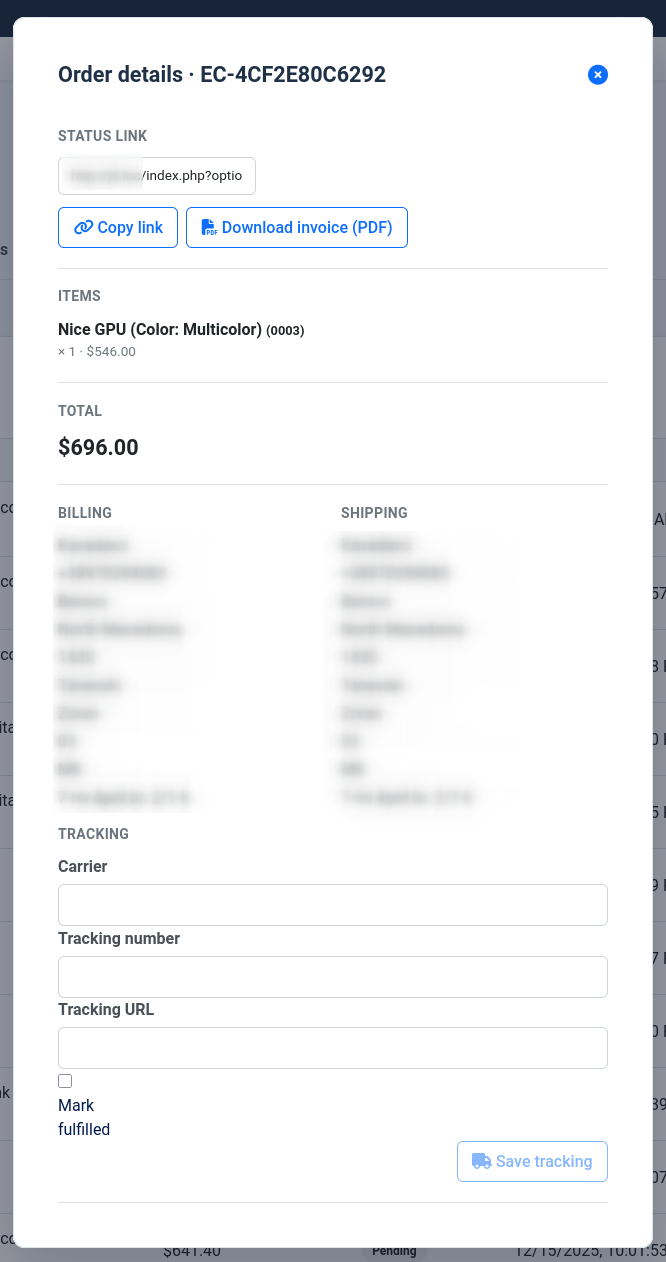
- Orders: review, transition statuses, record offline payments, and send order emails.
- Reports: track a placed → paid → revenue funnel by day, week, or month, and export it to CSV.
- Sample catalog: load a small demo storefront with one click: products with variants, categories, and two brands with complete EU product-safety details. A store that has no shipping rules or tax rates yet also gets sample ones (free shipping over an order value, a weight-based rule, an EU-only express rule, VAT for a few EU countries and a US state sales tax), so you can see how they work. Remove sample data takes all of it away again; your own rules are never touched.
Formatting product descriptions
Turn on Use the Joomla editor for long descriptions in NXCart → Settings → General → Product editing (it is off by default). The product's Long description then uses the editor you picked in Joomla (your user profile, or Global Configuration → Default Editor), such as TinyMCE or JCE, so you can add paragraphs, headings, lists, bold text and links. With the setting off, it is a plain text box, in which you can still type HTML. Scripts, frames and similar unsafe content are removed when the product is saved and again on the product page.
The editor's buttons for inserting articles, images, page breaks and "read more" are left out. For a slimmer toolbar:
- JCE: in Components → JCE Editor → Editor Profiles, create a profile with just the buttons you want and, under its Setup tab, limit it to the NXCart component.
- TinyMCE: in System → Plugins → Editor - TinyMCE, set up a smaller set and assign it to the user groups that manage products.
If the editor can't load, the plain text box is shown instead. The product page shows the formatting either way.
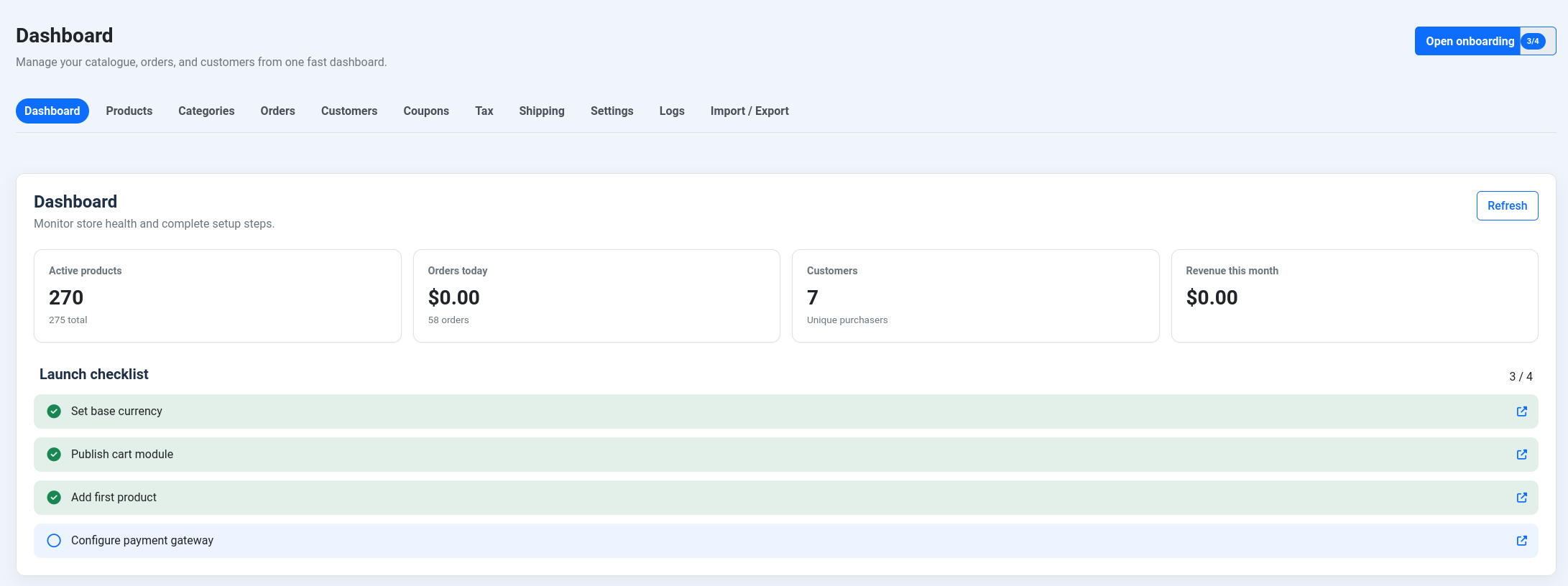
Dashboard
Products and categories
Orders
Customers
Coupons
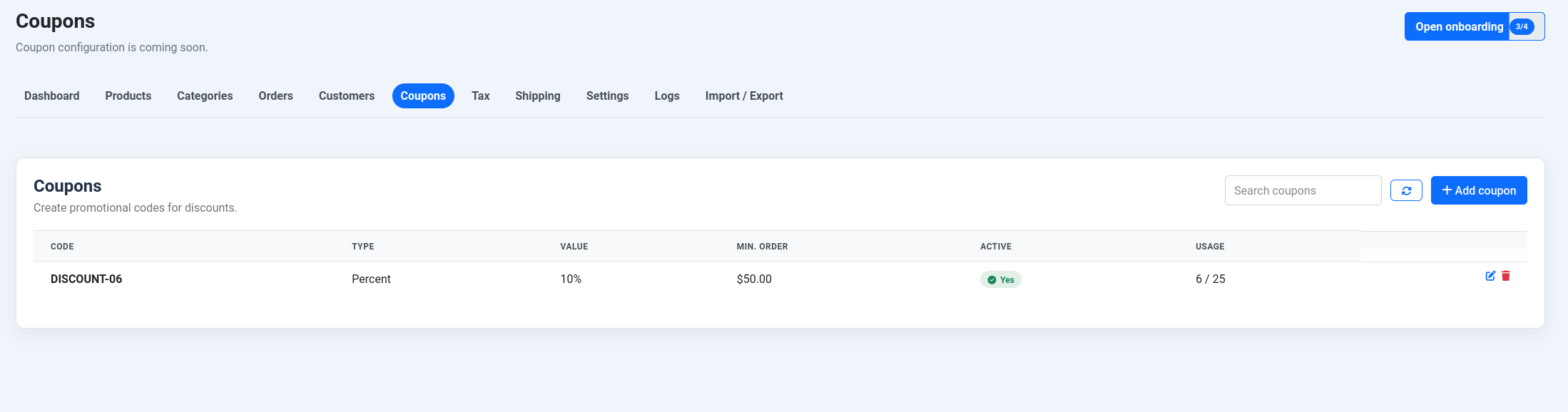
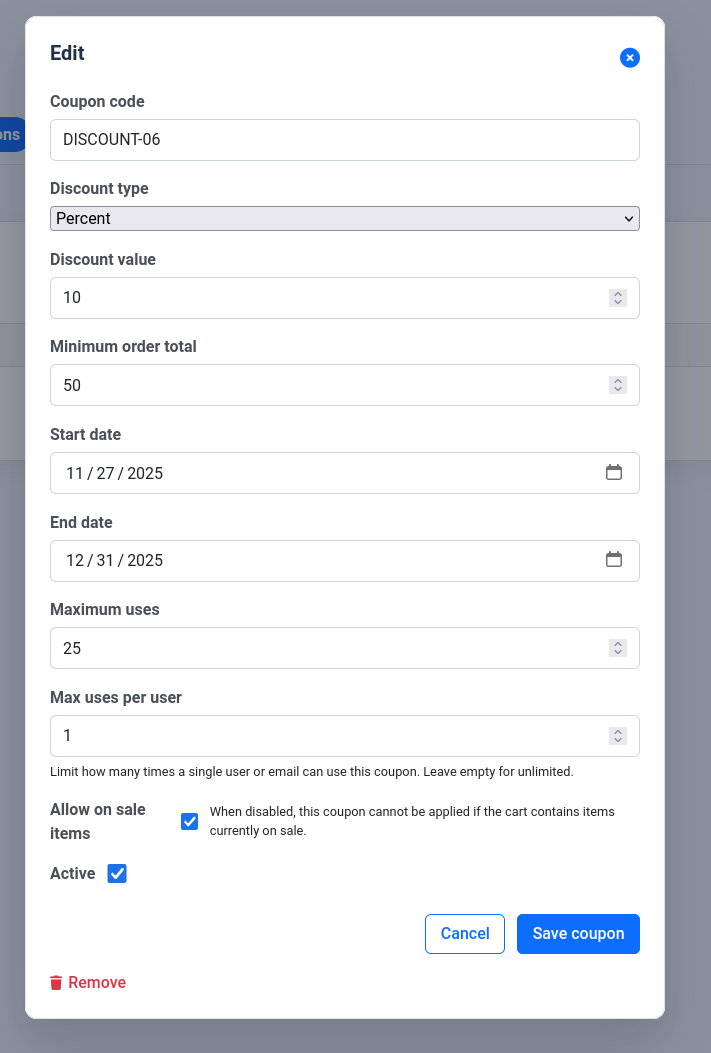
A coupon gives a percentage or a fixed amount off, and can also give free shipping. Besides the code, dates, minimum order and usage limits, each coupon has:
- Free shipping: the shipping method the shopper picks costs nothing. Set the discount to 0 for a coupon that only gives free shipping.
- Apply without a code: the coupon is applied by itself to every cart that qualifies, and the checkout says "A discount was applied automatically". A code the shopper types replaces it. When several could apply, the lowest Priority number wins, then the bigger discount. Leave the code empty and one is made for your records.
- First order only: for customers who have not bought before (a paid, fulfilled or refunded order), checked by their account and by the email address typed at checkout.
- Only for: products, categories and brands. With any of these filled in, the discount counts only the matching items in the cart, so "10% off hoodies" never discounts the rest of the order. A cart with no matching item gets "This coupon does not apply to anything in your cart."
The coupon is checked again when the order is placed, with the current coupon settings and the shopper's email, so a coupon that stopped applying cannot be used.
Storefront
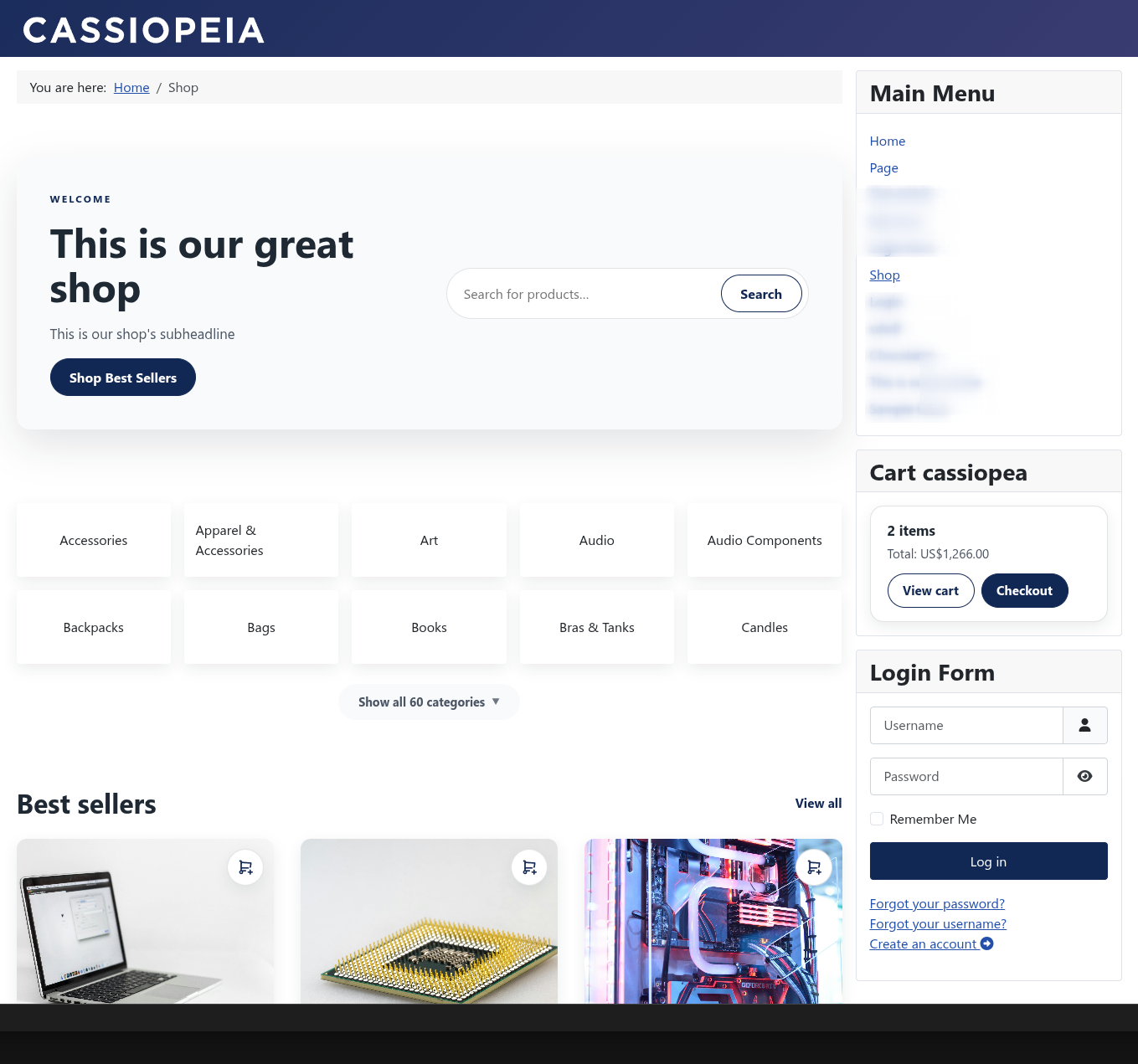
- Publish the shop landing page and product detail views, in a light, dark, or automatic theme, with a Flat or Classic structure preset.
- Drop a featured / latest / on-sale product grid into any module position with
mod_nxcart_products. - Add a mini-cart to any module position with
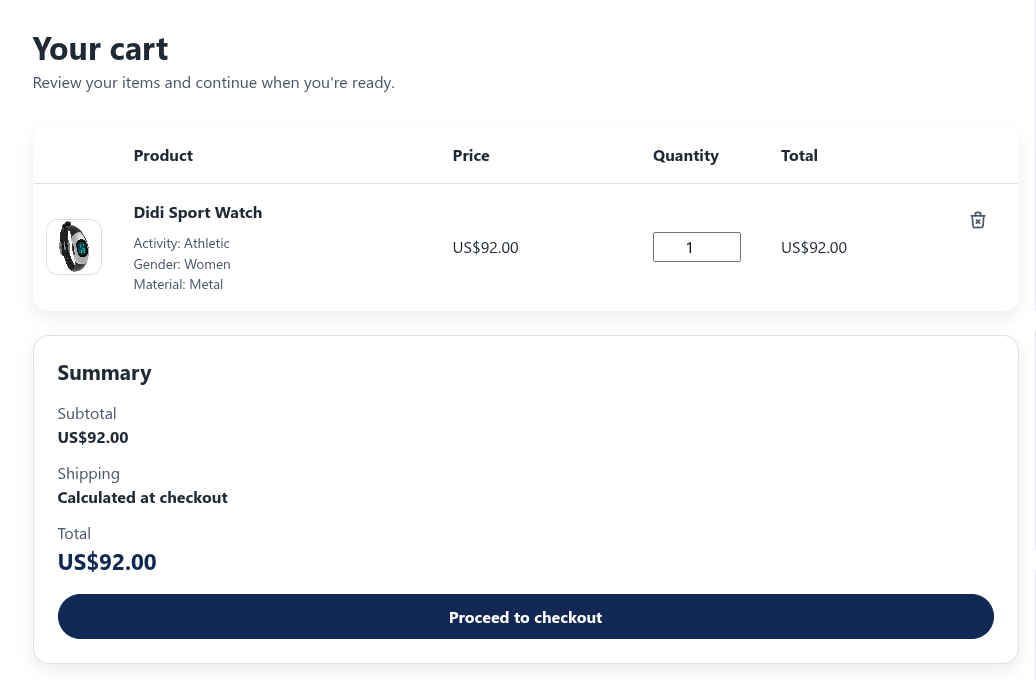
mod_nxcart_cart— a rich list with product thumbnails, an offcanvas drawer, or a compact mobile floating bar, with inline quantity changes and remove. - Show related products ("You may also like") on the product page, hand-picked or filled from the same category.
- Product images open in a lightbox with click/tap-to-zoom and pan.
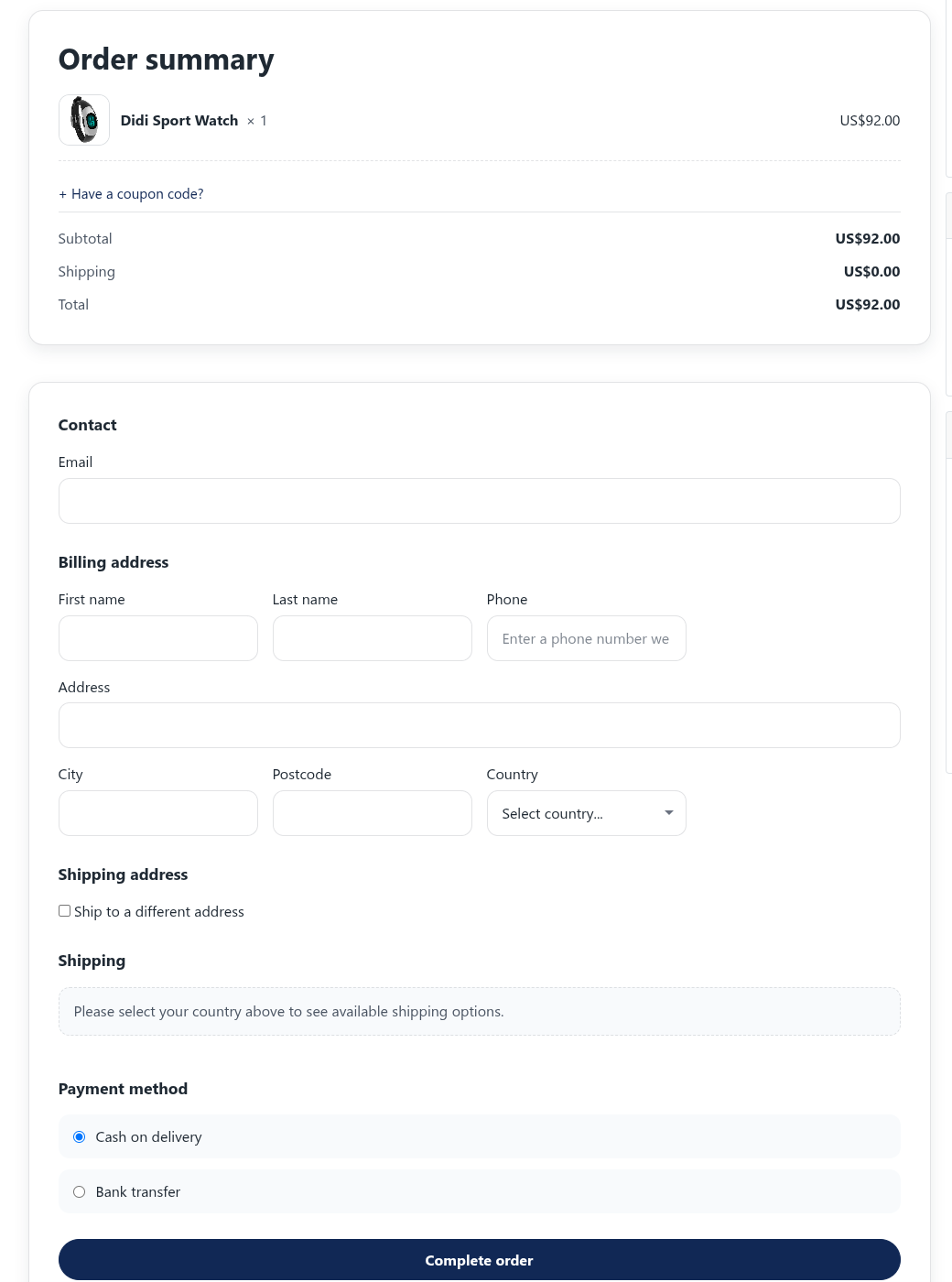
- Guest checkout is the model — buyers never need a Joomla account to order. When you enable it, the confirmation page offers them an account afterwards to track their orders.
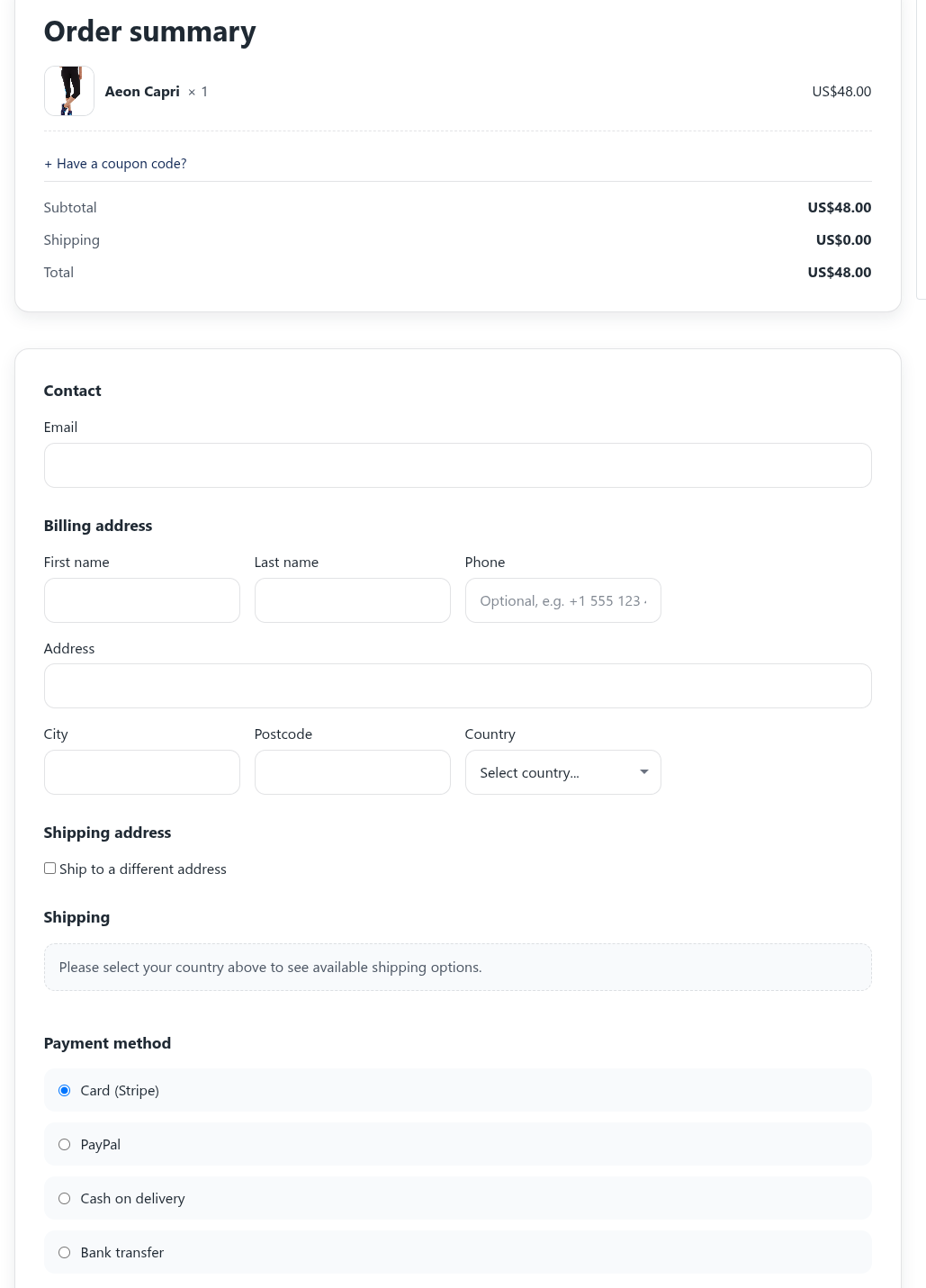
- Test the checkout flow with Stripe/PayPal sandbox credentials; zero-total orders (100% coupon or free digital goods) settle without a gateway.
- Encourage larger baskets with a free-shipping progress nudge ("Add €12.50 more to qualify"), shown in the order summary and the floating totals bar.
- Capture terms acceptance at checkout and show a right-of-withdrawal notice; flag individual products as final sale so the non-returnable notice shows before purchase.
- Monitor order confirmation and tracking pages.
- Use tokenized public order-status links and authenticated My Orders pages for customer self-service.
Shop landing page
Category browsing
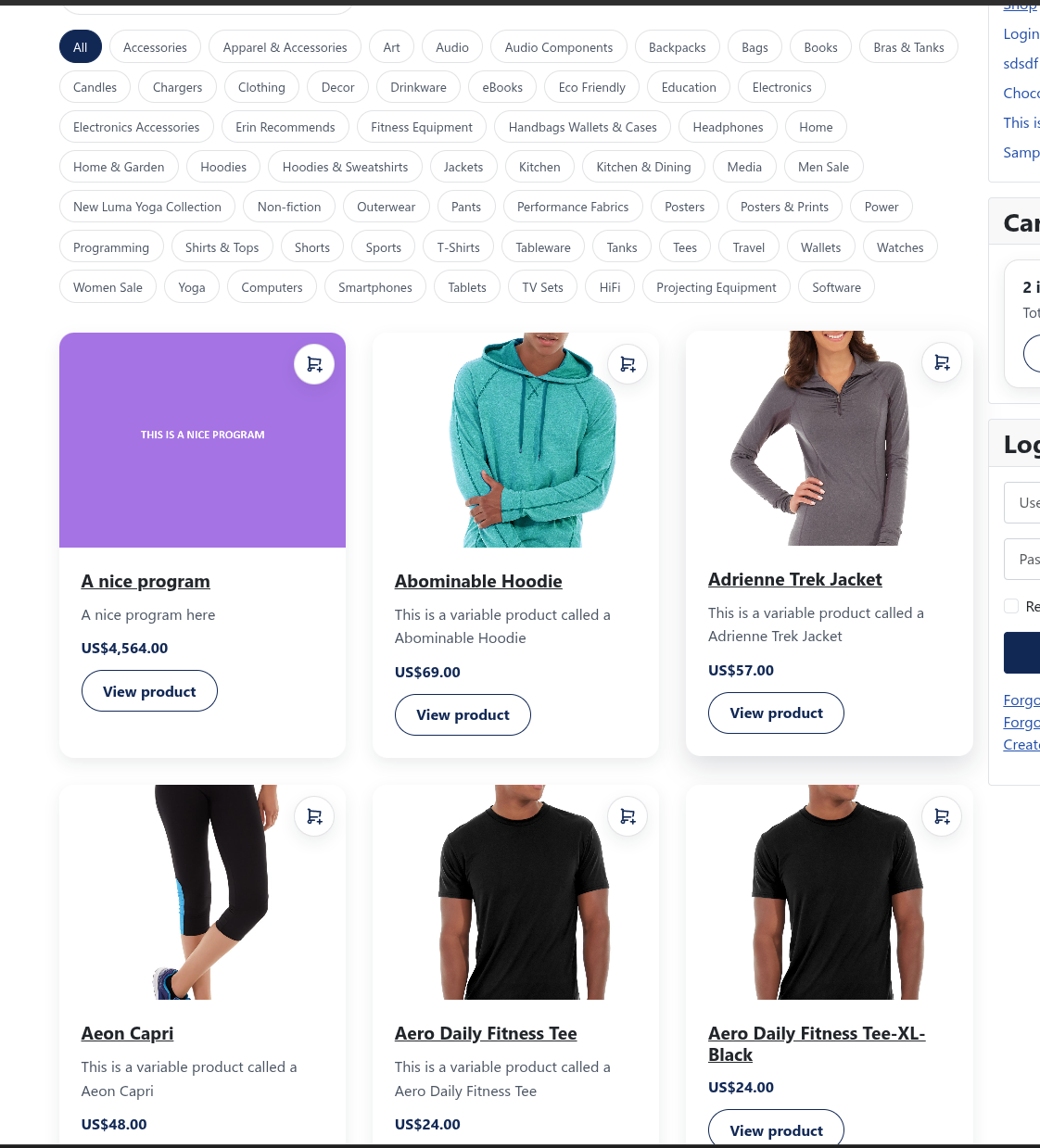
Shoppers can sort category pages and the All products page with Sort by: Featured, Price: low to high, Price: high to low, Newest, or Name: A to Z. The order they see first is the Default product order in Settings → General.
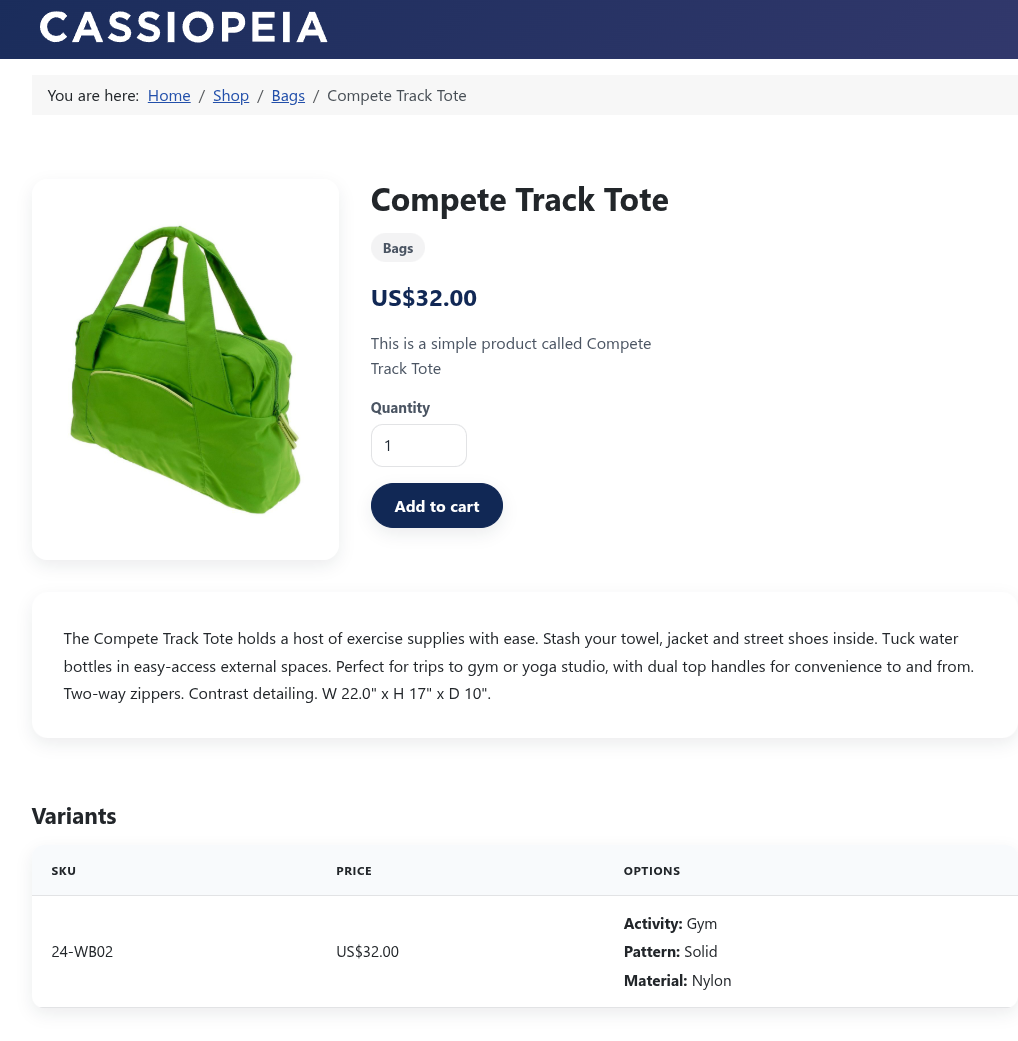
Product details
Cart
Checkout
Customer order access
- Public order page: tokenized links in confirmation emails.
- My Orders: authenticated customer list/detail views.
- Order tracking events: visible when admins add tracking data.
See Order Lifecycle for state transitions and payment handling details.
Digital products
Sell downloadable files like ebooks, software, music, videos, and documents. Digital products are delivered via secure download links after payment.
Setting up digital products
- Create a new product and set Product Type to Digital.
- The Digital Files tab appears - upload your files there.
- Save the product and publish it.
Supported file types
NXCart supports 47 file types across these categories:
| Category | Examples |
|---|---|
| Documents | PDF, Word, Excel, PowerPoint |
| Audio | MP3, WAV, FLAC |
| Video | MP4, WebM, MOV, AVI |
| Images | JPG, PNG, GIF, SVG |
| Archives | ZIP, RAR, 7z |
| Ebooks | EPUB, MOBI |
Download settings
Configure download limits in Settings → Digital Products:
- Max downloads - How many times a customer can download (0 = unlimited)
- Link expiry - How many days download links stay active (0 = never expires)
- Auto-fulfill - Automatically mark digital-only orders as fulfilled after payment
How customers receive downloads
- Customer completes checkout.
- Order confirmation email includes download links.
- Customer can also access downloads from their order status page.
- Each download link shows remaining downloads and expiry date.
TIP
Digital-only orders skip the shipping step at checkout, making the process faster for customers.
Related advanced docs
Sale pricing
Run time-limited sales on individual product variants with automatic start and end dates.
Setting up a sale
- Open a product in the editor.
- For each variant you want to discount, fill in:
- Sale price - The discounted price
- Sale start - When the sale begins (optional)
- Sale end - When the sale ends (optional)
- Save the product.
How sales appear
- Product pages: Show the original price crossed out with the sale price highlighted
- Category listings: Sale badges appear on product cards
- Cart and checkout: Display sale savings separately from coupon discounts
TIP
Leave start/end dates empty for an always-active sale price. Set both dates for scheduled promotions.
Selling in the EU? Turn on Compare sales with the 30-day lowest price so sales are shown against the lowest price of the 30 days before them, as EU law requires. See Sales against the 30-day lowest price.
Order notifications
NXCart sends automatic emails to customers at key points in the order lifecycle. The emails it sends you (new orders, withdrawals, low stock and more) are described under Store owner emails.
Email types
| When it sends | What it includes | |
|---|---|---|
| Order confirmation | After successful payment | Order details, items purchased, billing info, order status link |
| Order shipped | When you add tracking or mark as fulfilled | Tracking number, carrier name, tracking link |
| Order refunded | When you process a refund | Refund amount, support contact |
Configuring notifications
- Go to Settings → General.
- Enable Auto-send order emails to send shipped/refunded emails automatically when order status changes.
- Or leave it off and use the manual send buttons in each order's detail view.
Sending emails manually
- Open an order from the Orders list.
- For fulfilled orders: Click Send shipped email.
- For refunded orders: Click Send refunded email.
TIP
The button shows "Re-send" if you've already sent that email type, so you always know the current status.
GDPR compliance
Built-in tools help you respond to customer data requests required by GDPR (General Data Protection Regulation).
What you can do
| Action | Purpose | Who can do it |
|---|---|---|
| Export data | Give customers a copy of their order history | Any admin |
| Anonymise data | Remove personal information while keeping financial records | Super Users only |
Exporting customer data
When a customer requests their data:
- Go to Settings → GDPR.
- Enter the customer's email address.
- Click Export Data.
- Send the downloaded JSON file to the customer.
The export includes all orders, items purchased, and transaction records for that email address.
Anonymising customer data
When a customer requests deletion of their data:
- Verify the customer's identity first (required by GDPR).
- Go to Settings → GDPR.
- Enter the customer's email address.
- Click Anonymise Data and confirm.
Anonymisation removes:
- Name and email
- Billing and shipping addresses
- Tracking information
Financial records (order totals, tax, items purchased) are preserved for your accounting needs.
WARNING
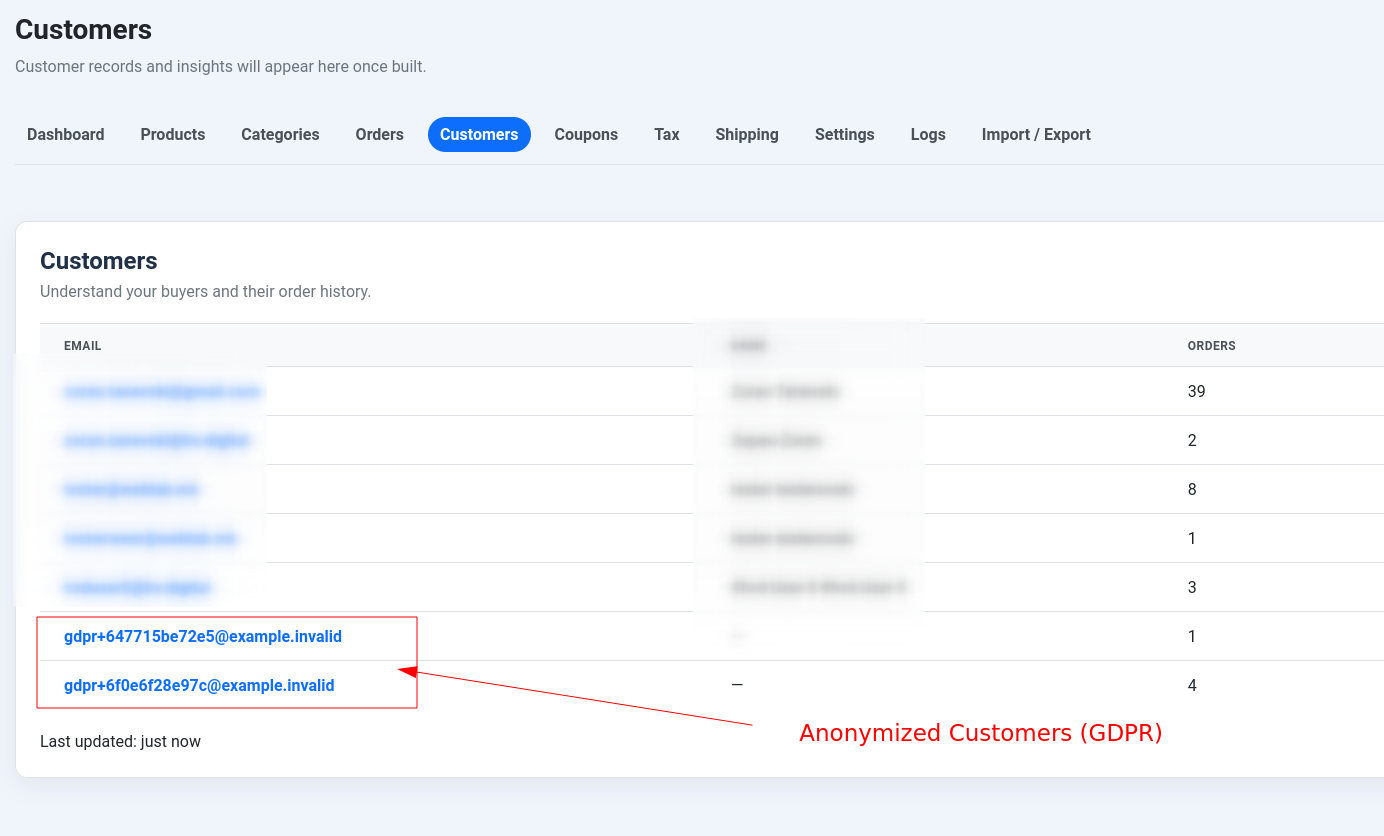
Anonymisation cannot be undone. The customer's orders will show an anonymised email like gdpr+abc123@example.invalid.
Stale order cleanup
The NXCart - Stale Order Cleanup task plugin automatically cancels abandoned orders and releases reserved stock. This keeps your order list clean and prevents inventory from being held indefinitely by incomplete checkouts.
How it works
- Customer starts checkout but doesn't complete payment.
- The order stays in "pending" status, holding reserved stock.
- After the configured time period, the scheduled task:
- Cancels the stale order
- Releases the reserved stock back to inventory
- Logs the cleanup action
Setting up the cleanup task
- Confirm the Task - NXCart Cleanup plugin is enabled (it's enabled automatically on a fresh install).
- Go to NXCart → Settings → General.
- Enable Stale order cleanup.
- Set the Stale order threshold (1-720 hours, default is 48 hours).
- Create a scheduled task in System → Scheduled Tasks:
- Select NXCart - Stale Order Cleanup as the task type
- Set your preferred schedule (e.g., every hour or once daily)
What gets cleaned up
| Order status | Age | Action |
|---|---|---|
| Pending | Older than threshold | Cancelled, stock released |
| Paid/Fulfilled | Any | Not affected |
| Already cancelled | Any | Not affected |
TIP
Set the threshold long enough to give customers time to complete payment (e.g., 24-48 hours), but short enough to prevent excessive stock reservation.