

Appearance

Catalog Import & Export
NXCart includes a CSV-based catalog importer and exporter in the admin. Use it to migrate an existing store into NXCart, move products between sites, or keep a catalog in sync from a spreadsheet.
Supported platforms
The importer auto-detects the source format from the CSV header row and maps the columns for you:
| Source | What it reads |
|---|---|
| NXCart (Native) | NXCart's own export format — the round-trip format for backup/restore and site-to-site moves |
| WooCommerce | The file of Products → Export in WooCommerce: simple and variable products with their variations (grouped and external products are skipped) |
| Shopify | Shopify's product CSV, in the current layout or the classic one (variants, options and all images) |
| HikaShop | The file of Products → Export in HikaShop, with variants and the category tree |
| VirtueMart | The product export of CSVI (VirtueMart has no export of its own); child products become variants |
| J2Store / J2Commerce | The CSV of J2Store's Simple CSV Import/Export app (one row per product) |
| Phoca Cart | The CSV from Phoca Cart's Export (semicolon-separated; options become variants) |
Moving a whole shop from VirtueMart, J2Store or Phoca Cart? Follow Moving from another Joomla cart.
Importing a catalog
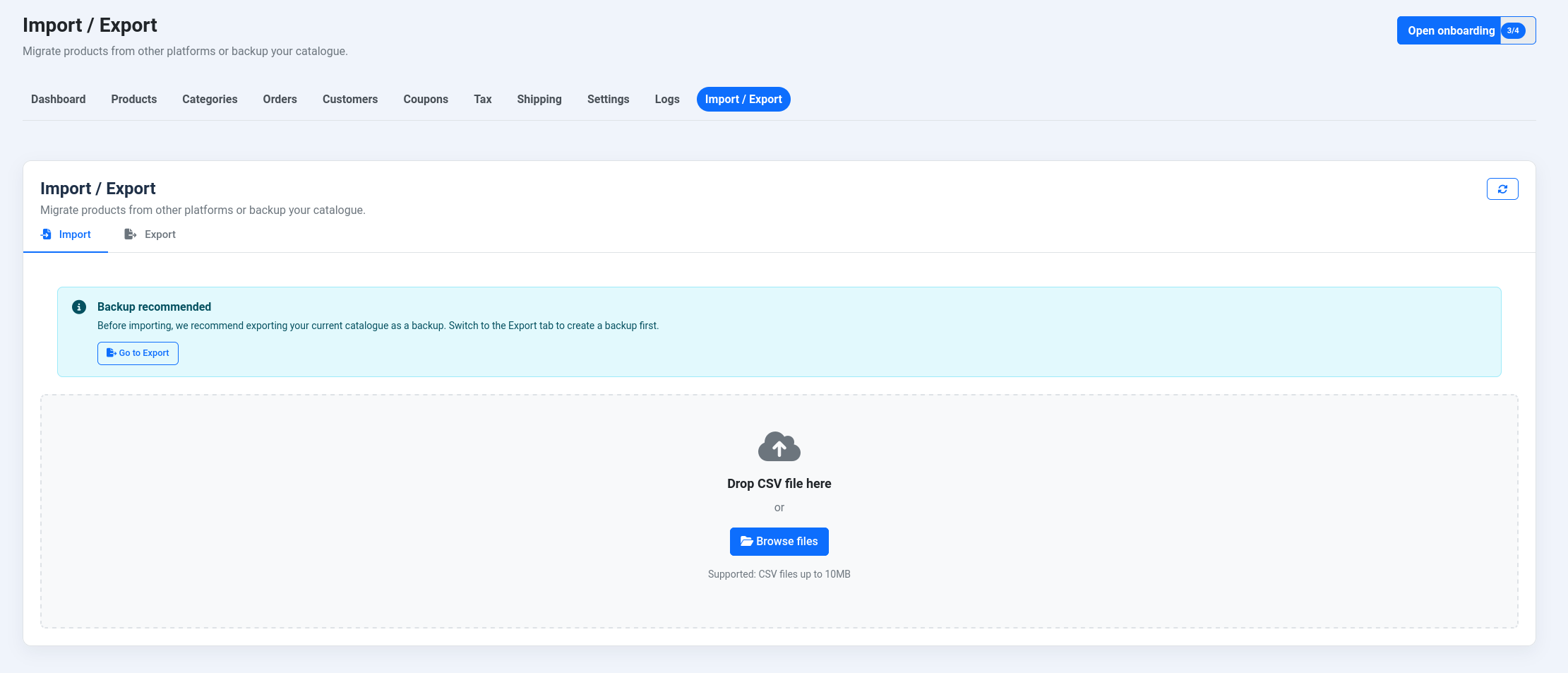
- Open NXCart → Import / Export in the admin.
- Choose your CSV file. NXCart detects the platform from the header row.
- (Optional) Enable Update existing products — see below.
- Start the import. Progress is shown live and the work runs in batches, so large files don't time out.
What gets imported
- Products with titles, descriptions, and images
- Categories, including nested category trees and products that belong to more than one category
- Variants with prices, SKUs, stock, weight, and options/attributes
- Sale prices and sale windows where the source provides them
- Digital vs physical product type (downloadable/virtual products import as digital)
Brands
Brands come across by name: the native format's brand column, Shopify's Vendor and WooCommerce's Brands. A brand that doesn't exist yet in NXCart → Brands is created automatically; you then add its manufacturer and safety details there. The native format also carries each product's safety identifier and warnings (gpsr_identifier, gpsr_safety_info).
This is the quickest way to give many products their brand at once: export in the native format, fill the brand column in a spreadsheet, and import the file with Update existing products turned on. An empty brand cell never removes a brand you set by hand.
Update existing products (catalog sync)
By default the importer only ever adds products, and it blocks re-importing the exact same file. Turn on Update existing products to keep a catalog in sync instead:
- A product is matched by its source identity (the platform it came from plus its original ID); a variant by its original ID, then SKU.
- A matched product is updated in place rather than duplicated; only genuinely new rows are inserted.
- The product's URL slug is left untouched, so existing links don't break.
- A hand-set primary category is preserved; category links are added, never removed.
- Fields cleared in the source are cleared in NXCart too, so a re-import faithfully reflects the file.
Leave the toggle off for a one-time migration. Turn it on when you re-import an updated export of the same catalog.
Large files: progress, cancel & resume
Imports and exports run in small batches driven from the browser, not in one long request:
- The progress bar reflects real work as each batch completes.
- Cancel takes effect between batches.
- An interrupted job (a timeout or a closed tab) resumes from where it stopped instead of starting over or getting stuck.
- A product's variant rows are never split across a batch boundary, so grouped variants always import as a single product.
File format notes
- CSV files exported from WooCommerce or saved by Excel often begin with a hidden byte-order mark (BOM). NXCart handles these transparently, so the first column is always read correctly.
- Each platform's column layout is mapped automatically — you don't need to rearrange columns before importing.
Exporting a catalog
- Open NXCart → Import / Export.
- Choose the NXCart (Native) export and start it.
- The catalog is written to a CSV file in batches; download it once the job completes.
The native export is the same format the importer reads back, so it round-trips cleanly for backups and site-to-site moves. It carries full category paths (Parent > Child trees) and per-variant pricing and stock.
Moving to Shopify
Choose the Shopify export and import the file in Shopify under Products → Import. It follows Shopify's own product CSV template: products with their variants and options, prices and sale prices, stock, barcodes, vendor (your brand), SEO title and description, and all images. Your categories become product tags, and each product's first category a collection. Short descriptions, featured flags and sale dates have no place in Shopify's file. As with WooCommerce, Shopify downloads the images from your NXCart site, so keep it reachable during the import.
Moving to WooCommerce
Choose the WooCommerce export to bring your catalog into a WooCommerce store, with Products → Import there. Leave WooCommerce's Update existing products unticked for the first import: with it ticked, WooCommerce only updates products it already has and skips every new one ("No matching product exists to update"). Products with options arrive as variable products with their variations, and categories, prices, sale prices, stock, barcodes and brands come along.
WooCommerce downloads each product's images from your NXCart site while it imports, so keep the site reachable until the import has finished. A product whose image can't be downloaded is not imported.
Tips
- Take a database backup before a large import or a sync run.
- Try a trial import on a staging site first to confirm category and variant mapping for your source.
- Migrating from a live store? Export fresh from the source platform right before importing so stock and prices are current.