

Appearance

Configuration
Core settings
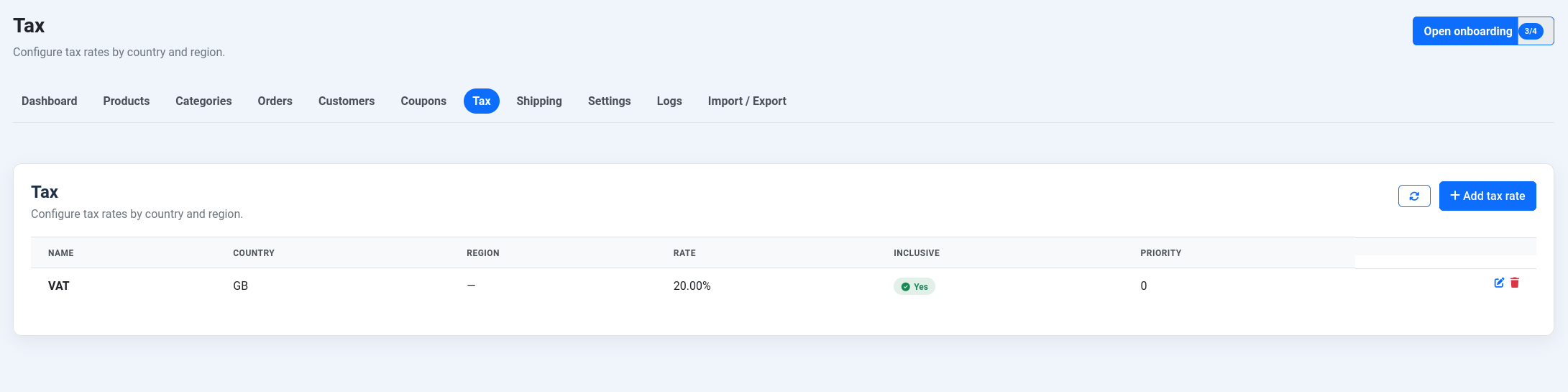
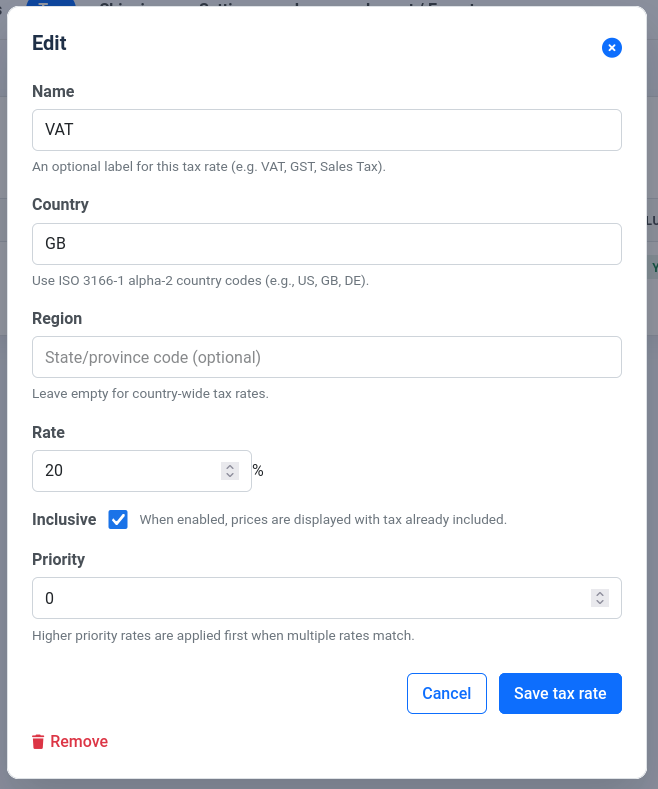
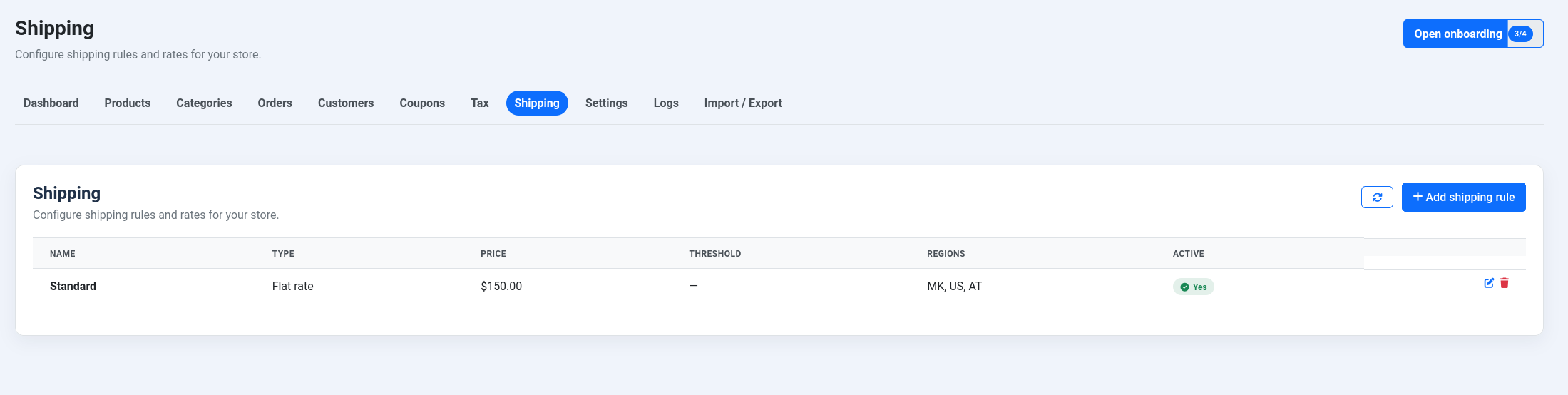
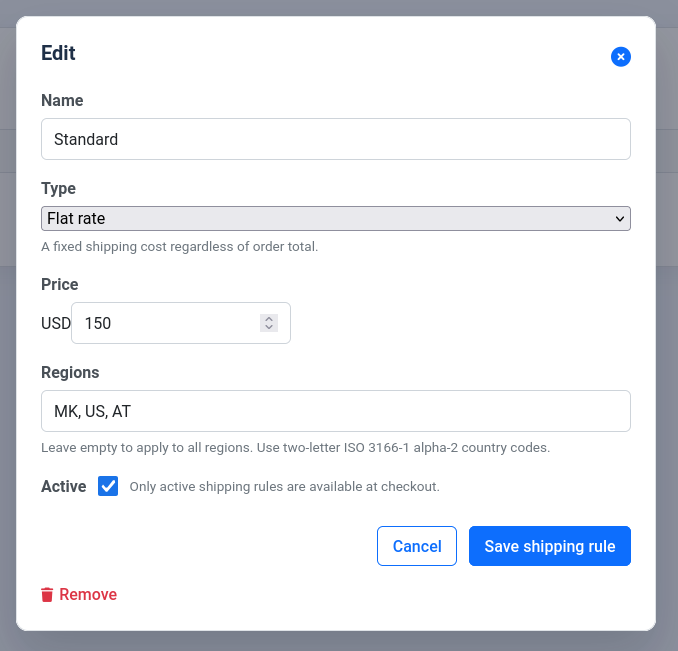
- Store defaults: base currency, locale formatting, and tax/shipping rules (including weight-based shipping bands).
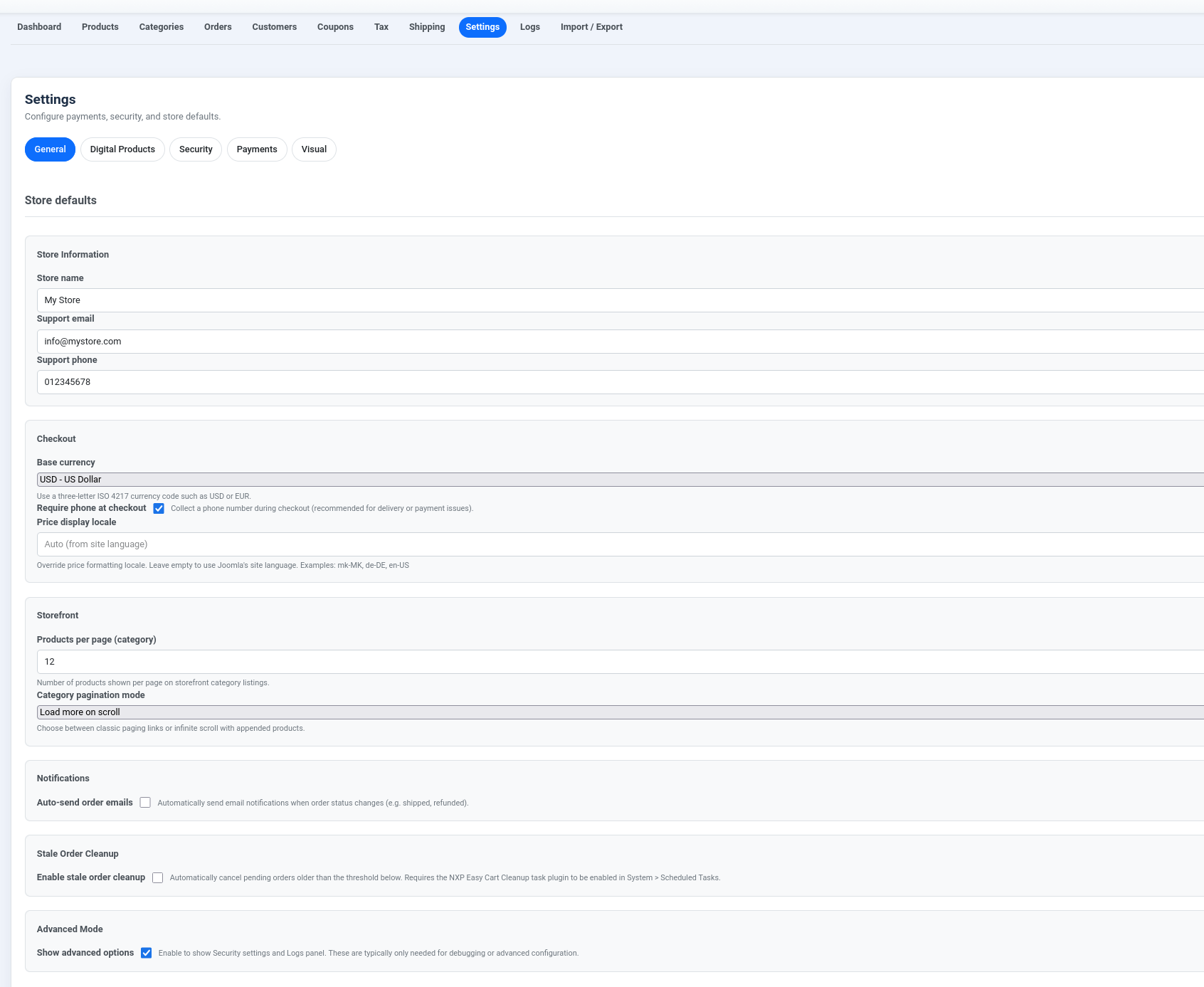
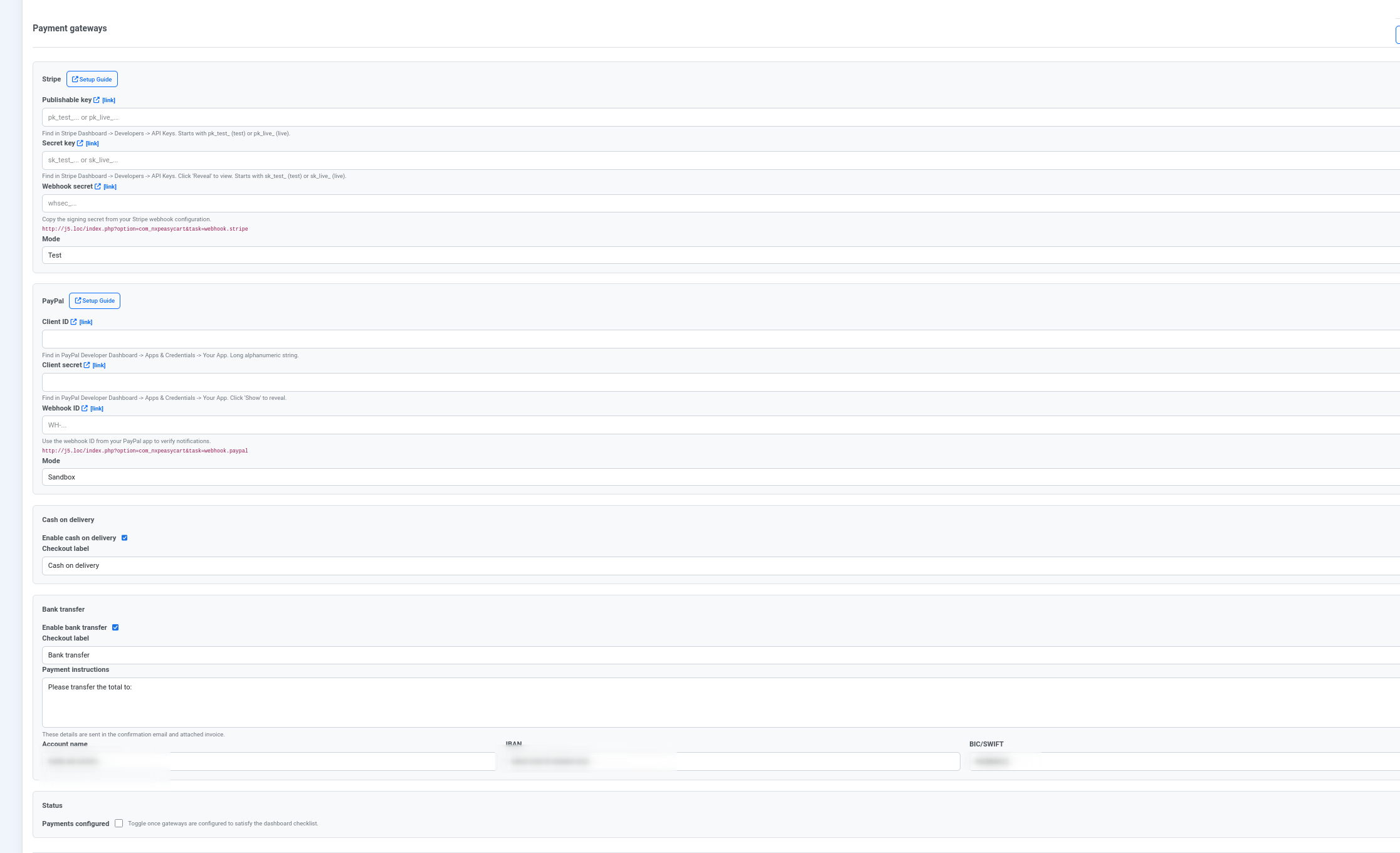
- Payment methods: configure Stripe and PayPal credentials, enable or disable each method, and choose redirect or on-page (express) checkout. Cash on Delivery and bank transfer are offline methods that need no gateway credentials — set the bank-transfer instructions customers see, and record payment manually when it arrives (see Bank transfer). COD is on by default.
- Email templates: enable order confirmation, shipped, and refunded notifications, and choose which emails you get yourself (see Store owner emails).
- Visual overrides: set storefront colors, choose a light / dark / automatic theme, pick a structure preset (Flat or Classic), and template adapter defaults. In the dark theme, your brand color is lightened automatically wherever it is used for text (prices, links), so it stays readable on the dark background; buttons keep the exact color you chose.
- Catalog & inventory: set the low-stock threshold that drives the "Only N left" / "Low stock" indicators (0 disables them), and the Default product order of category and All products pages (featured, price, newest or name; shoppers can pick another order).
- Checkout compliance: require a terms-acceptance checkbox (with a terms version and the link customers see), and show a configurable right-of-withdrawal notice.
- EU consumer rules: the withdrawal button, consent to immediate digital delivery, the legal guarantee notice, 30-day sale prices and product safety information, all off until you turn them on. See EU consumer rules.
- Security controls: require HTTPS at checkout (on by default; local, private, and development hosts —
localhost, private IPs,.test/.localdomains — are exempt automatically), set trusted proxy IPs when you're behind a reverse proxy or CDN (see Behind a reverse proxy), and tune checkout/coupon rate limits and webhook validation. - SEO: toggle canonical-URL redirects and set per-product / per-category meta title and description overrides.
- Order operations: configure stale-order cleanup, post-purchase account creation, and offline payment options.
Saving your changes
As soon as you change something, a bar with Cancel and Save settings appears at the bottom of the screen, so you can save from anywhere on a long page. It confirms the save and then goes away. The section you are editing is highlighted.
Unsaved changes are kept while you move between the settings tabs, and each tab saves its own. If you try to leave Settings before saving, NXCart asks first.
Store settings
Payment gateways
Tax rules
Shipping rules
Minimum and maximum order
Settings → General → Minimum and maximum order stops orders that are too small to be worth shipping, or too large to take online.
- Minimum order and Maximum order compare with the order subtotal after coupon discounts, before shipping and tax. Leave a field empty for no limit.
- No minimum for digital-only orders skips the minimum when nothing needs shipping.
- Per shipping country sets different amounts for orders shipped to a country (the billing country for digital-only orders). An empty amount uses the store-wide one; 0 means no limit for that country.
Shoppers see how much more they need on the cart page, in the mini-cart and at checkout, and the checkout amount follows the country they choose. An order above the maximum gets a message with your store email from Settings → General so they can contact you. The checkout refuses an order outside the limits even if the page was not updated, so the limits cannot be skipped.
Store owner emails
Settings → Emails chooses the emails NXCart sends you, and where they go. Each links straight to the order (or the review) in the admin.
| When it is sent | |
|---|---|
| New orders | When a card or PayPal payment is confirmed, and straight away for bank transfer and cash on delivery orders. |
| Orders held for review | When a payment does not match the order, or a buyer is charged twice. |
| Withdrawal requests | When a customer uses the withdrawal button on their order page. |
| Low stock | A daily list of products at or below the low-stock threshold. |
| New reviews | When a shopper submits a product review, which waits for your approval. |
Send to takes one or more addresses separated by commas; leave it empty to use the store email from Settings → General.
The low-stock list is sent by a scheduled task: in System → Scheduled Tasks, create a task of the type NXCart: Low-stock email and run it once a day.
Bank transfer
Turn bank transfer on in Settings → Payments → Bank transfer and fill in:
| Field | What it is for |
|---|---|
| Checkout label | The name of the method at checkout. |
| Payment instructions | Shown in the order email and on the payment request. |
| Account name, IBAN, BIC/SWIFT | Your bank details, printed on the payment request. |
A customer who pays by bank transfer gets an order email with a payment request PDF (a proforma invoice) carrying your bank details and the order number as the payment reference. The order stays pending until you record the payment; the real invoice is issued then. You can download the same payment request from the order in Orders with Download invoice (PDF).
When you save a new IBAN, NXCart checks its check digits and tells you when it does not add up, so a typo can't reach your customers.
Scan-to-pay QR code (SEPA)
Turn on Show EPC QR code (SEPA) and the payment request gets a QR code next to your bank details. Customers open their banking app, scan it, and the transfer fills itself in: your account name, IBAN, BIC, the amount and the order number as the reference. No typing, no forgotten reference, so payments are easier to match to orders.
The code follows the European Payments Council's standard (EPC069-12, known as "GiroCode" in Germany), which most banking apps in the euro area can read.
It appears only when:
- the order is in euro, since SEPA transfers are euro only;
- your IBAN is valid;
- the document is a payment request. The invoice issued after payment never shows it, so nobody is invited to pay twice.
If you use another currency, or leave the switch off, the payment request shows your bank details as before.
Recommended setup
- Set the base currency and locale formatting.
- Configure payment gateway credentials and test webhooks.
- Create tax and shipping rules.
- Review GDPR options and data retention settings.
Advanced configuration notes
- Price display locale: optionally force formatting (for example
mk-MK) instead of automatic Joomla language detection. - Product editing: use your Joomla editor (TinyMCE, JCE, …) for product long descriptions instead of a plain text box. Off by default.
- Stale order cleanup: enable scheduled cancellation of pending orders after a threshold.
- Auto-send emails: control whether shipped/refunded notifications are sent automatically or manually.
- Offline payments: enable COD/bank transfer only when your operational process is ready.
Behind a reverse proxy, load balancer, or CDN
When Joomla sits behind a proxy that terminates TLS — Cloudflare, an nginx/Apache reverse proxy, or a load balancer — every request reaches Joomla from the proxy's address. Unless you tell NXCart which proxy to trust, two things go wrong:
- Rate limits and audit logs collapse to the proxy. The checkout and coupon rate limits key off the client IP; behind a proxy that's the proxy's IP for every shopper, so they all share one budget (a busy store can throttle legitimate customers) and the security log shows the proxy instead of the real visitor.
- HTTPS at checkout can be blocked on a genuinely-HTTPS site. Most proxies forward an
X-Forwarded-Proto: httpsheader and checkout works automatically — but a proxy that forwards the scheme differently (e.g.X-Forwarded-Ssl: on) or not at all leaves NXCart seeing a plain-HTTP hop, so Require HTTPS for checkout blocks it and shoppers see "Secure connection required for checkout."
To fix both, list the proxy under Settings → Security → Trusted proxy IPs:
- Find the proxy's address — for a self-hosted reverse proxy that's usually the server's internal address (often
127.0.0.1/::1); for Cloudflare, its published IP ranges. - Enter it comma-separated; CIDR ranges like
10.0.0.0/8are allowed. - Save. NXCart now reads the real client IP from
X-Forwarded-Forand trusts the forwarded HTTPS scheme — but only from that proxy.
Listing a proxy is deliberately opt-in: until you do, forwarding headers are ignored so a visitor on a directly-exposed HTTP vhost can't spoof them. Set it only for a proxy you actually control.
For payment endpoint setup and diagnostics, see Payments & Webhooks.
For state flow, review flags, and manual transactions, see Order Lifecycle.