

Appearance
Usage

Create a form
- Open Formatrica → Forms and click New.
- Pick a template or start from scratch.
- Drag fields into the canvas and adjust settings.
- Preview the form and publish it.
Create a form from scratch:
Templates
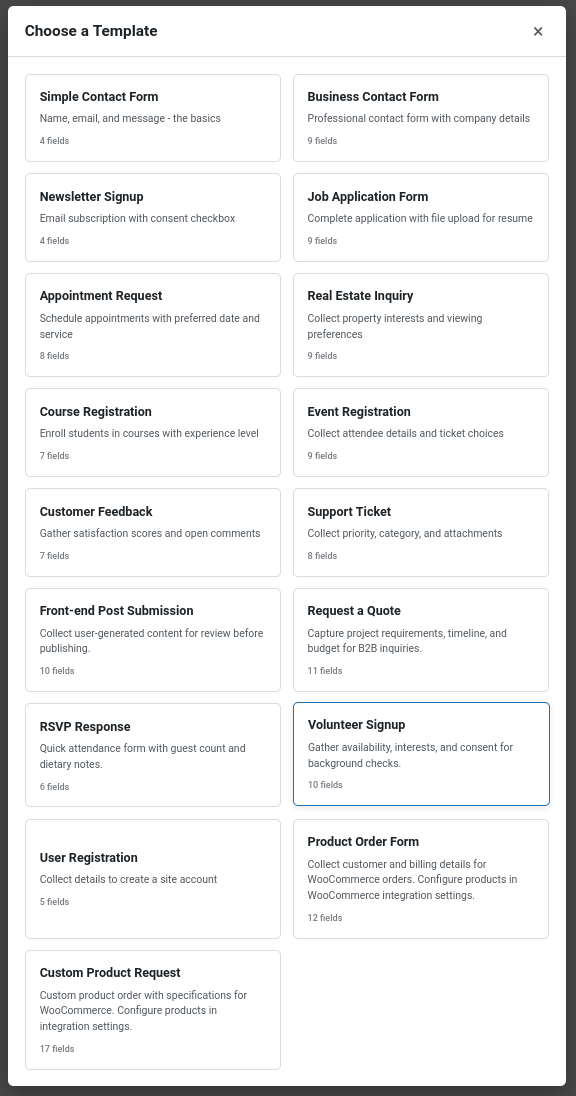
Start quickly with ready-made form templates:
| Template | Best for |
|---|---|
| Simple Contact Form | Basic inquiries with name, email, message |
| Business Contact Form | Professional inquiries with company and phone fields |
| Newsletter Signup | Email list subscriptions with consent checkbox |
| Job Application Form | Collecting resumes and candidate information |
| Appointment Request | Booking requests with preferred date and time |
| Real Estate Inquiry | Property questions with listing details |
| Course Registration | Educational sign-ups with course selection |
| Event Registration | Event bookings with attendee details |
| Customer Feedback | Satisfaction surveys and reviews |
| Support Ticket | Help desk requests with priority and category |
| Front-end Post Submission | Let visitors submit posts from the front end |
| Request a Quote | Service quotes with project details |
| RSVP Response | Yes/no event replies with guest count |
| Volunteer Signup | Recruiting volunteers with availability details |
| User Registration | Create WordPress accounts from form submissions |
| Product Order Form | Simple product orders without a cart |
| Custom Product Request | Bespoke or made-to-order product enquiries |
| Membership Application | Club and association membership applications |
| GDPR Data Subject Request | Privacy requests (access, erasure, rectification) |
The Pro edition adds 8 more templates: Client Onboarding, Bill Splitter, ROI Calculator, Loan/Lease Estimator, BMI Calculator, Product Payment, Bulk Order, and Donation.
Builder palette

Form builder

Embed the form
- Use the shortcode
[formatrica id="123"]in any post or page. - Use the Formatrica Gutenberg block for visual editing.
Manage submissions
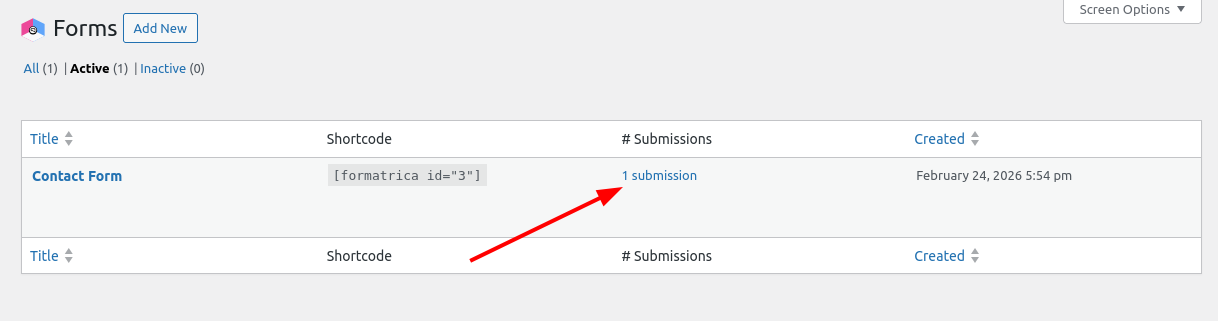
- View submissions from the Forms list.
- Export submissions for reporting or audits.
- Enable auto-deletion if you require data retention controls.
Submissions
Run integrations
Enable integrations in Settings → Integrations on each form. Use test submissions to confirm payloads and delivery.