

Appearance
Usage

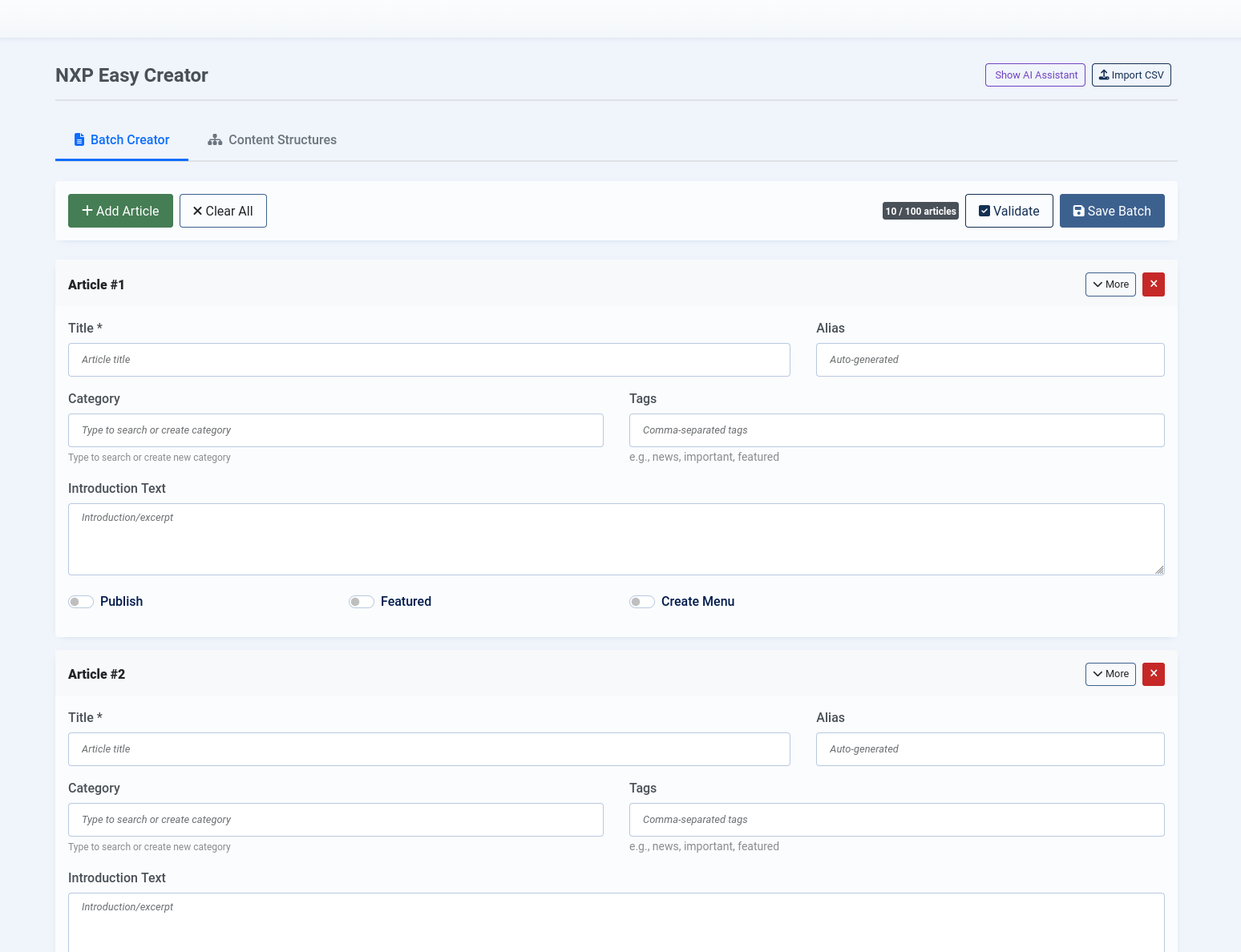
Create a batch
- Open Components → NXP Easy CREATOR.
- Add rows for each article you want to create.
- Assign categories, tags, access levels, and language options.
- Review validation warnings and submit the batch.
Batch creator screen
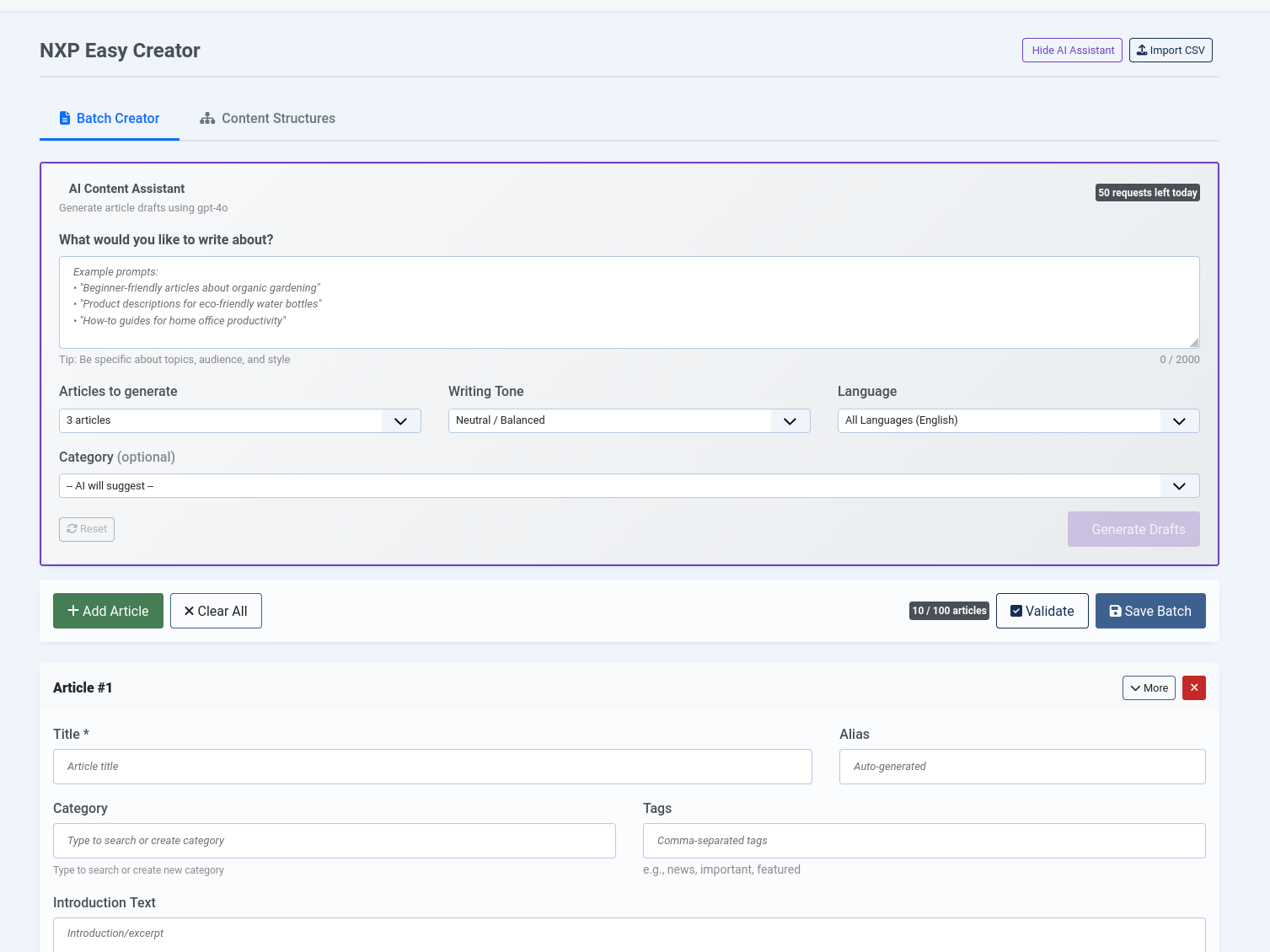
AI Content Assistant
Generate article drafts using AI by describing what you want in plain language. The AI creates drafts that you review and edit before publishing - it never publishes directly.
How to use
- Open the AI Assistant panel.
- Describe what you want, for example:
- "Create 5 beginner-friendly articles about organic gardening"
- "Write 3 FAQ entries about our return policy"
- Choose how many articles to generate (1-10).
- Click Generate.
- Review the drafts, edit as needed, then submit with your other articles.
What the AI generates
Each draft includes:
- Title
- Introduction paragraph
- Full article body
- Suggested tags
- Meta description for SEO
TIP
AI-generated drafts are clearly marked so you always know which content came from AI. Always review and edit before publishing.
Enabling AI
The AI assistant must be enabled by a Super User:
- Go to Components → NXP Easy Creator → Options.
- In the AI tab, enable the feature and enter your API key.
- Set daily limits to control usage.
Content Structures
Create complete site sections with one click using pre-built templates. Each template creates categories, sample articles, tags, and menu items following best practices.
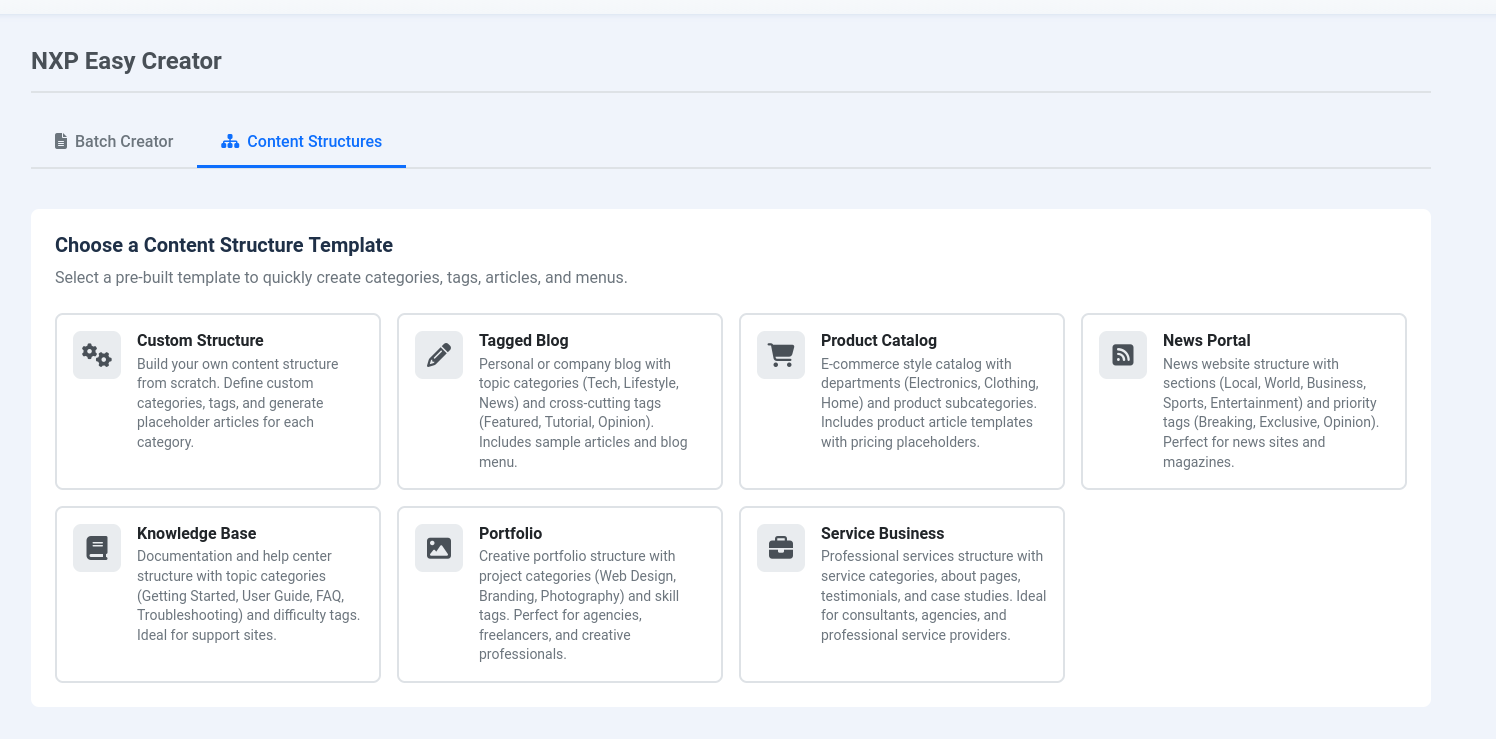
Available templates
| Template | What it creates |
|---|---|
| Tagged Blog | Blog using tags instead of categories - articles can appear in multiple sections |
| Product Catalog | Product categories and listings without a full e-commerce system |
| News Portal | News sections like Politics, Business, Tech with article templates |
| Knowledge Base | Help center or FAQ structure with topic categories |
| Portfolio | Project showcase with categories and gallery-style layout |
| Service Business | Services, About Us, and Team page structure |
| Event Calendar | Events organized by type with upcoming/past views |
| Restaurant Menu | Food menu with sections and dietary tags |
| Real Estate | Property listings with type categories and status tags |
| Course/Learning | Educational content with modules and lessons |
How to use
- Click Content Structures in the sidebar.
- Select a template that matches your needs.
- Customize the options:
- Names for categories and tags
- Number of sample articles
- Menu location
- Click Preview to see what will be created.
- Click Create Structure to build everything.
Why use Content Structures?
- Save hours of setup - No need to manually create categories, tags, and menus.
- Follow best practices - Templates are designed for common website patterns.
- Fully editable - Everything created is standard Joomla content you can modify.
- Consistent organization - Ensures your site sections follow a logical structure.
TIP
The Tagged Blog template solves a common Joomla limitation: articles can only belong to one category. Using tags instead, a single article can appear in multiple sections of your site.
CSV Import
Import articles from spreadsheet files for bulk content migration.
- Prepare a CSV file with columns for title, content, category, tags, etc.
- Click Import CSV and upload your file.
- Map your CSV columns to article fields.
- Preview the import and resolve any issues.
- Import the articles as drafts for review.
Advanced row data
When needed, configure each row with:
- custom fields,
- intro/full images plus alt/caption metadata,
- article metadata (meta description, keywords, robots),
- workflow and author assignment.
See Advanced Workflows for the complete workflow model.
Presets
Save common article configurations to reuse:
- Set up an article row with your preferred settings (category, tags, language, etc.).
- Click Save as Preset and give it a name.
- Next time, select the preset to auto-fill those settings.
Tips
- Use presets for repeated article formats.
- Start with smaller batches if your site enforces strict review workflows.
- Use Content Structures for new site sections, batch creator for ongoing content.
- Use autosave + undo/history features while preparing large batches.