

Appearance
Usage

Admin workflows
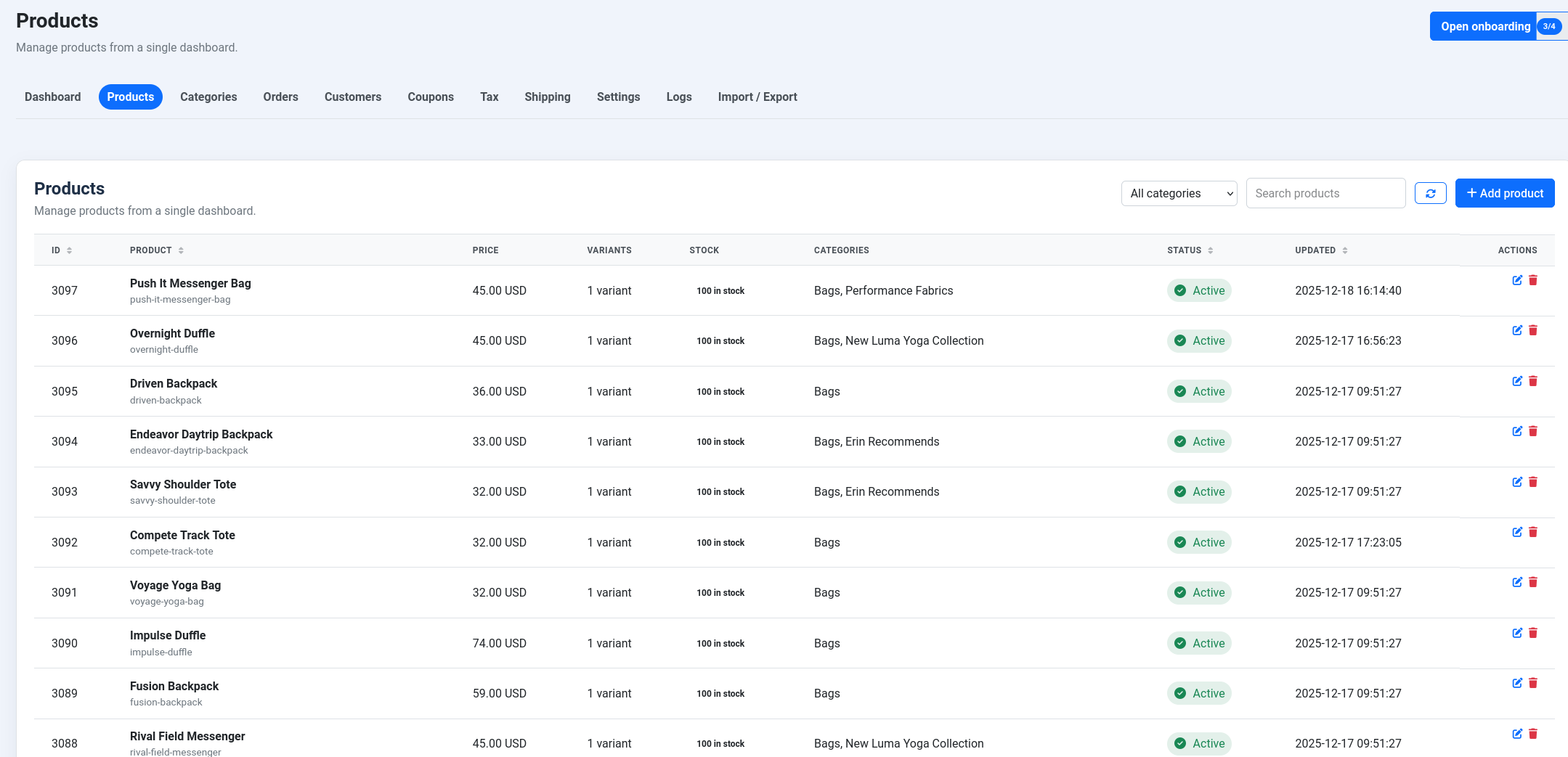
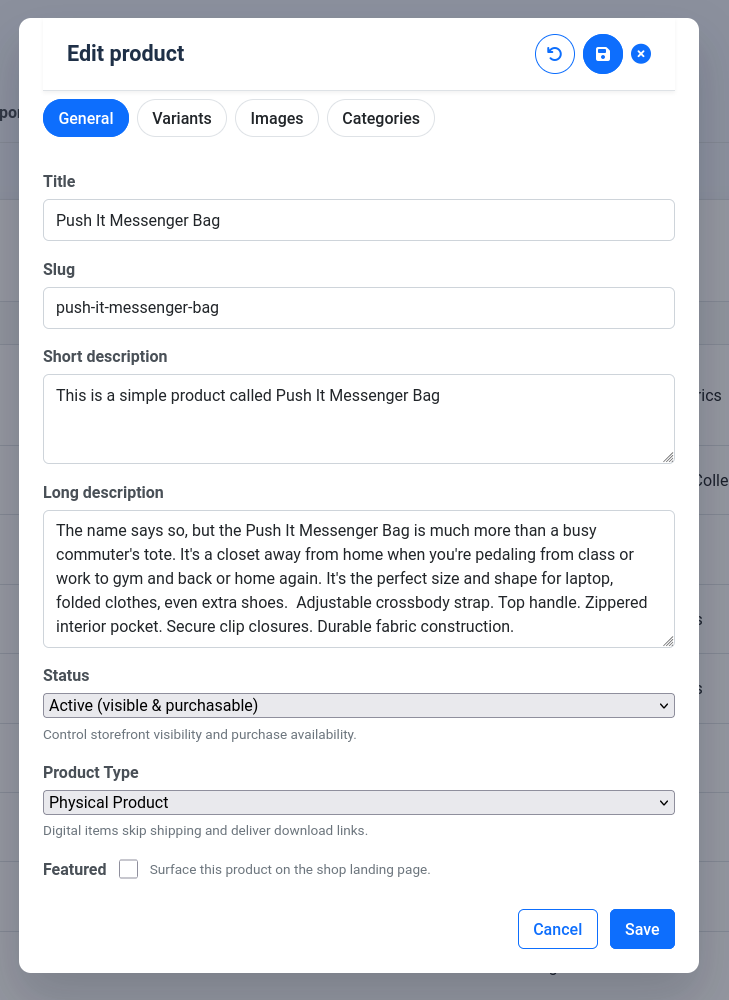
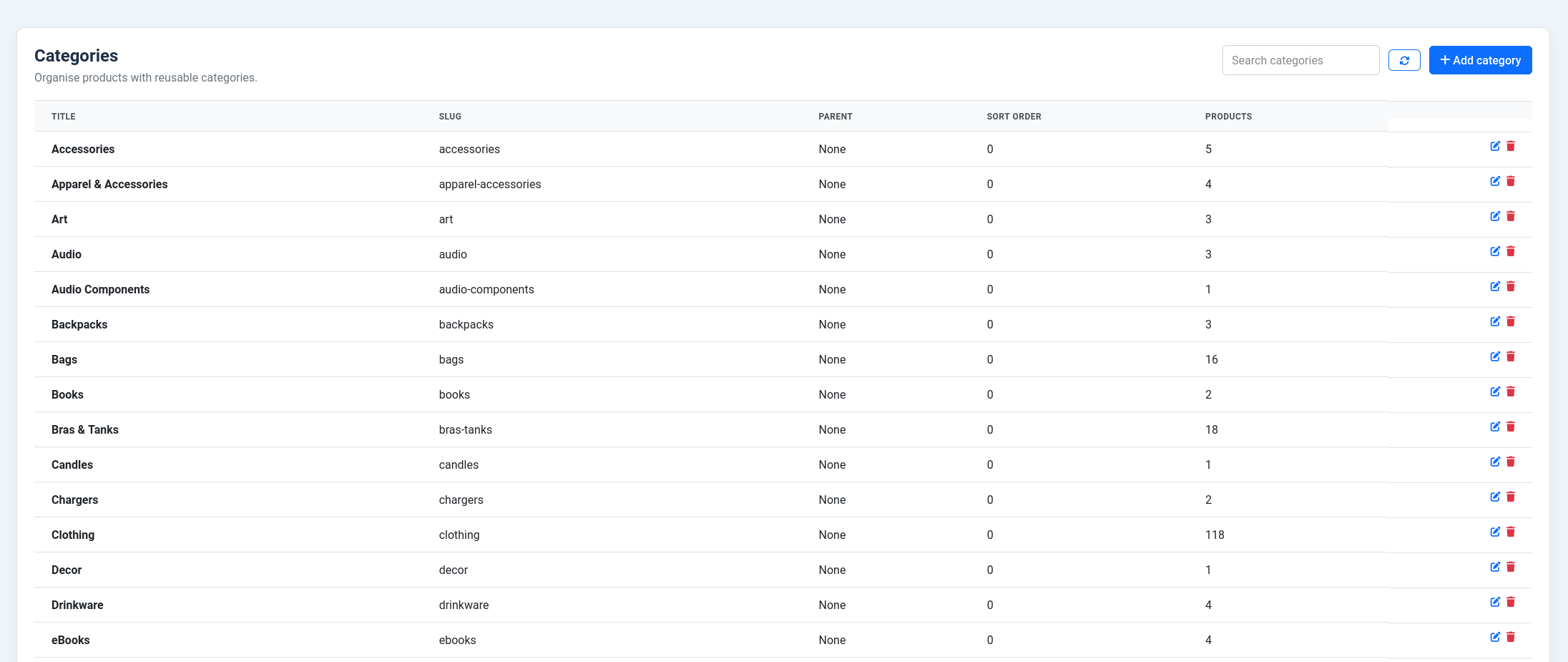
- Products & variants: create products, assign categories, and manage variant pricing.
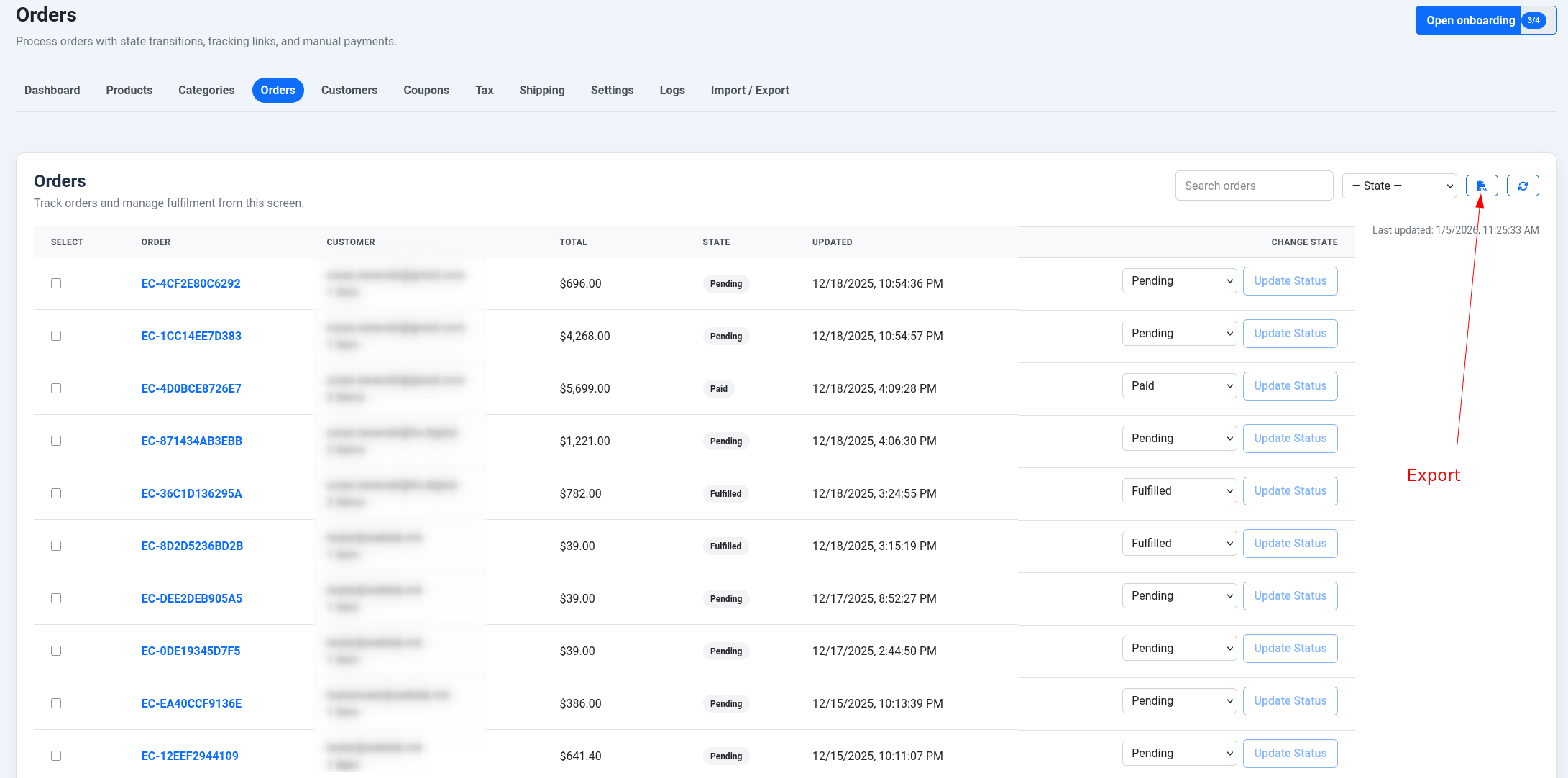
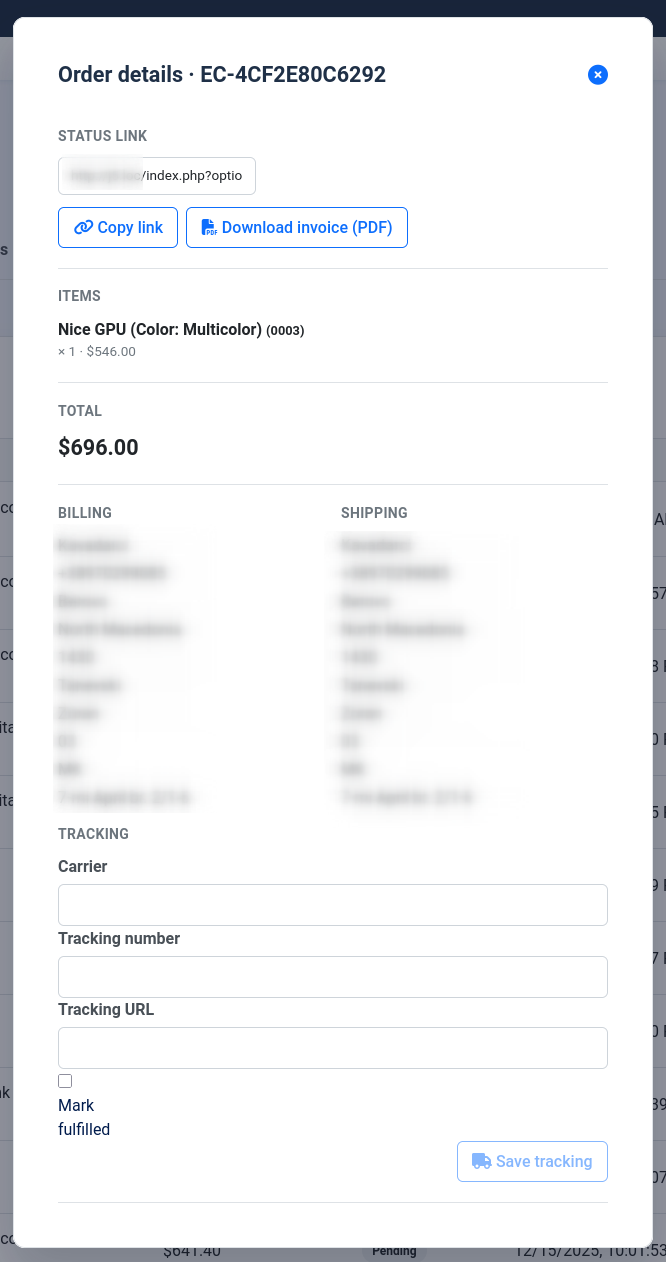
- Orders: review, transition statuses, and send order emails.
- Catalogue tools: use import/export adapters for VirtueMart, WooCommerce, HikaShop, and Shopify to migrate or backup catalogue data.
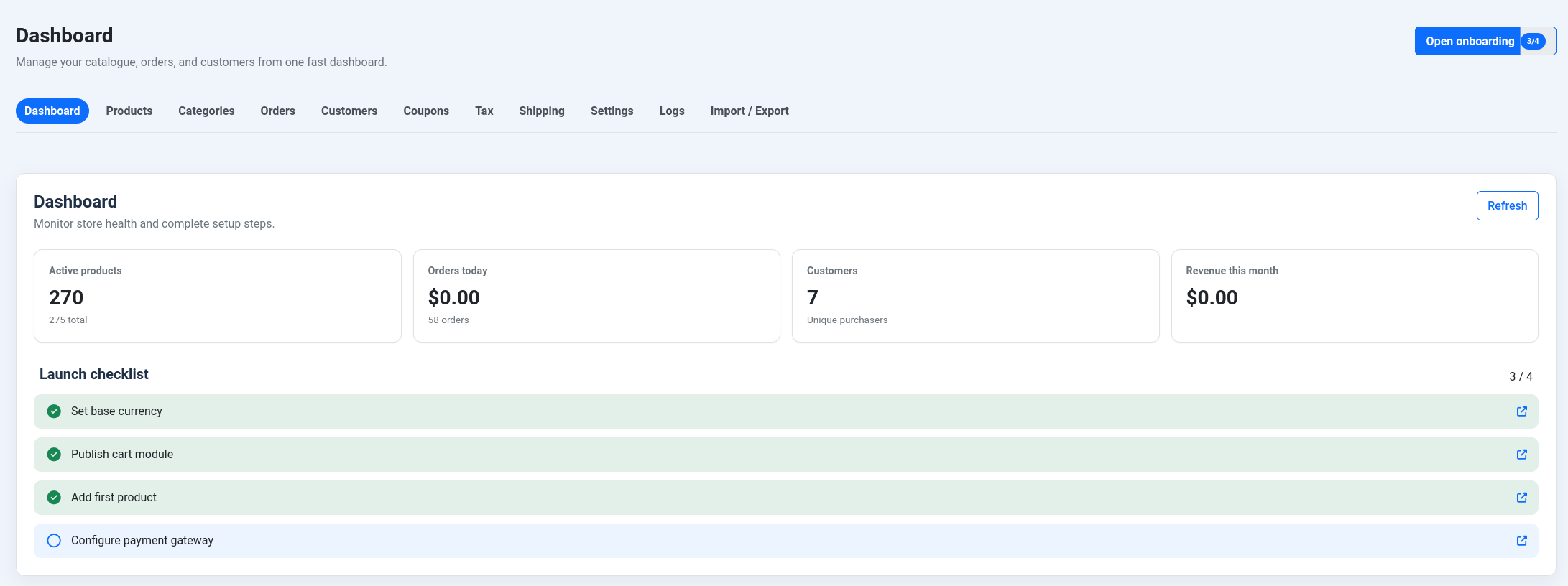
Dashboard
Products and categories
Orders
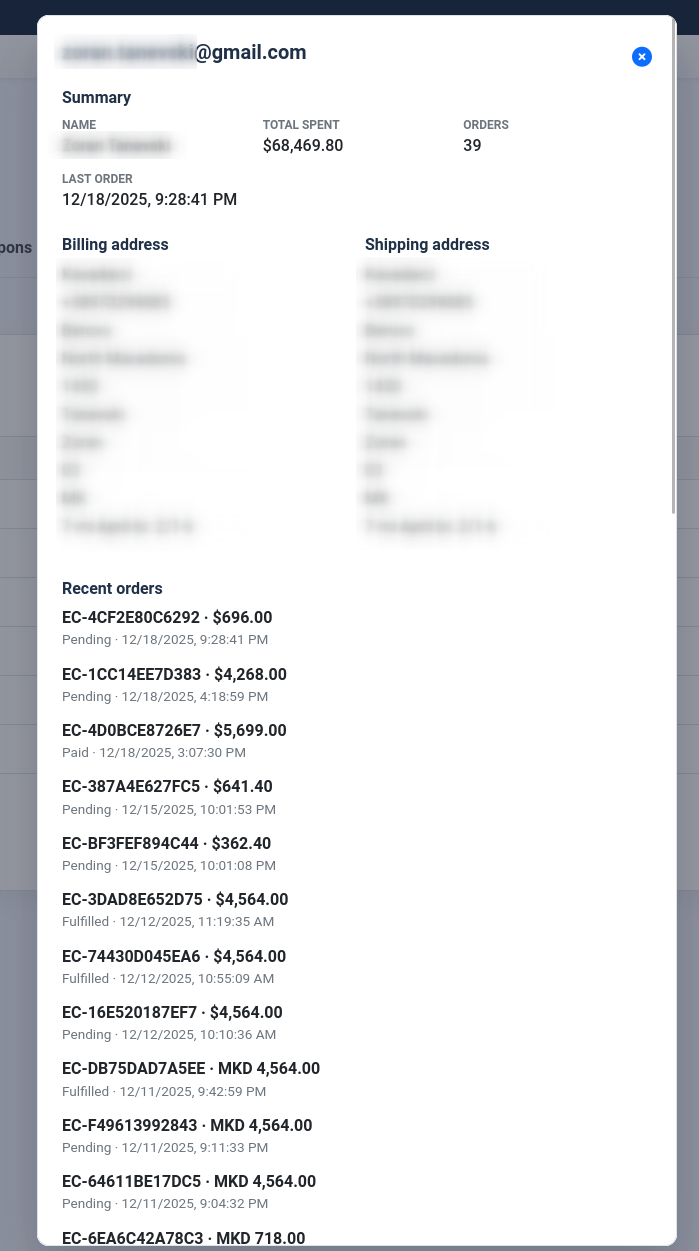
Customers
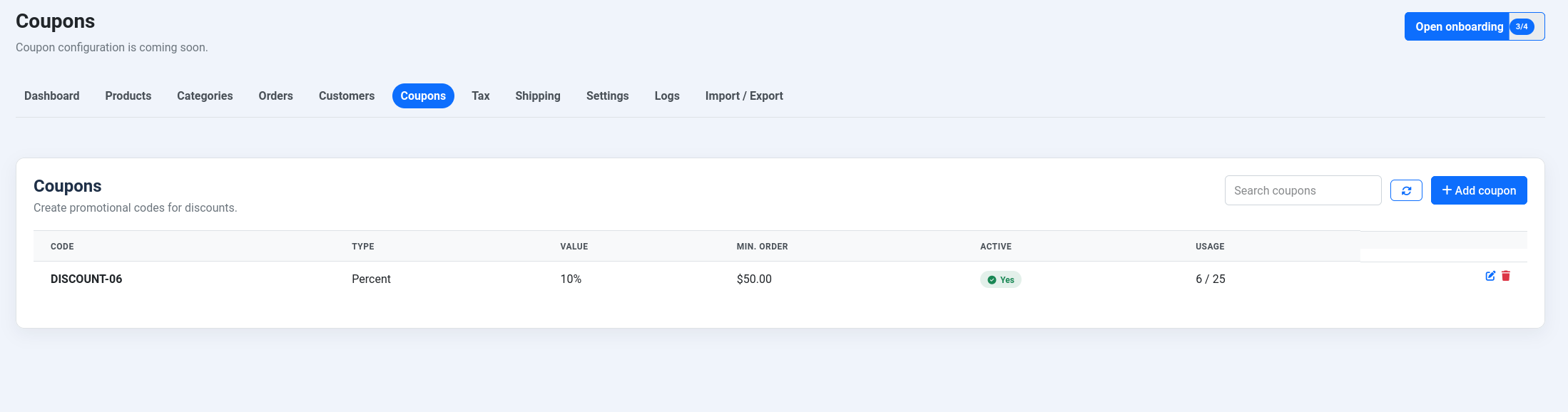
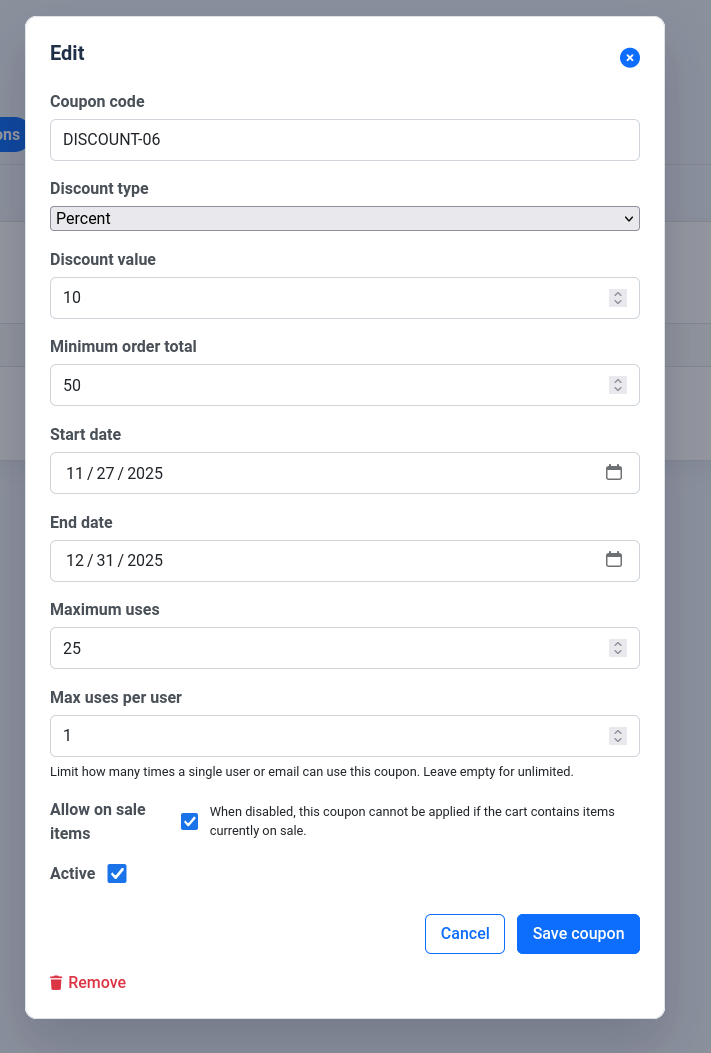
Coupons
Import/export
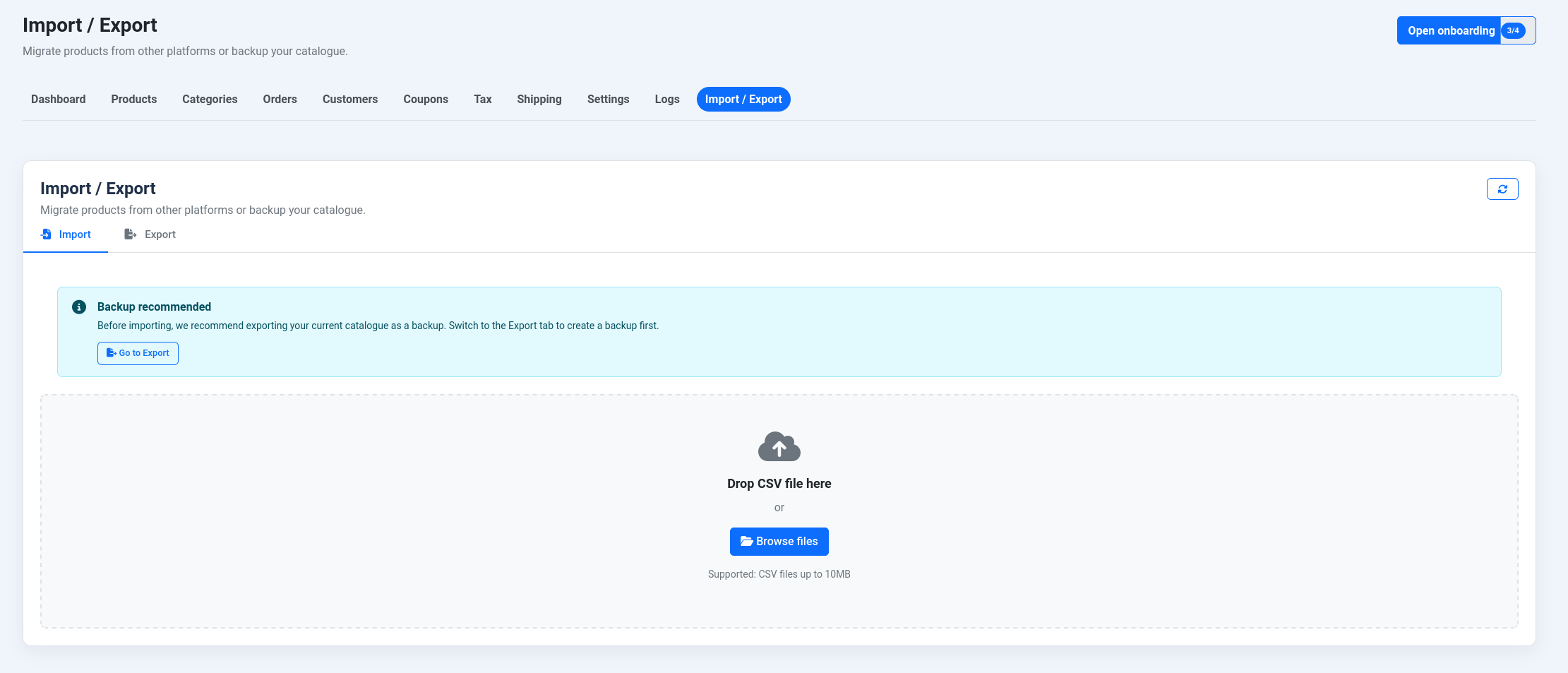
Supported adapters:
- VirtueMart
- WooCommerce
- HikaShop
- Shopify
Storefront
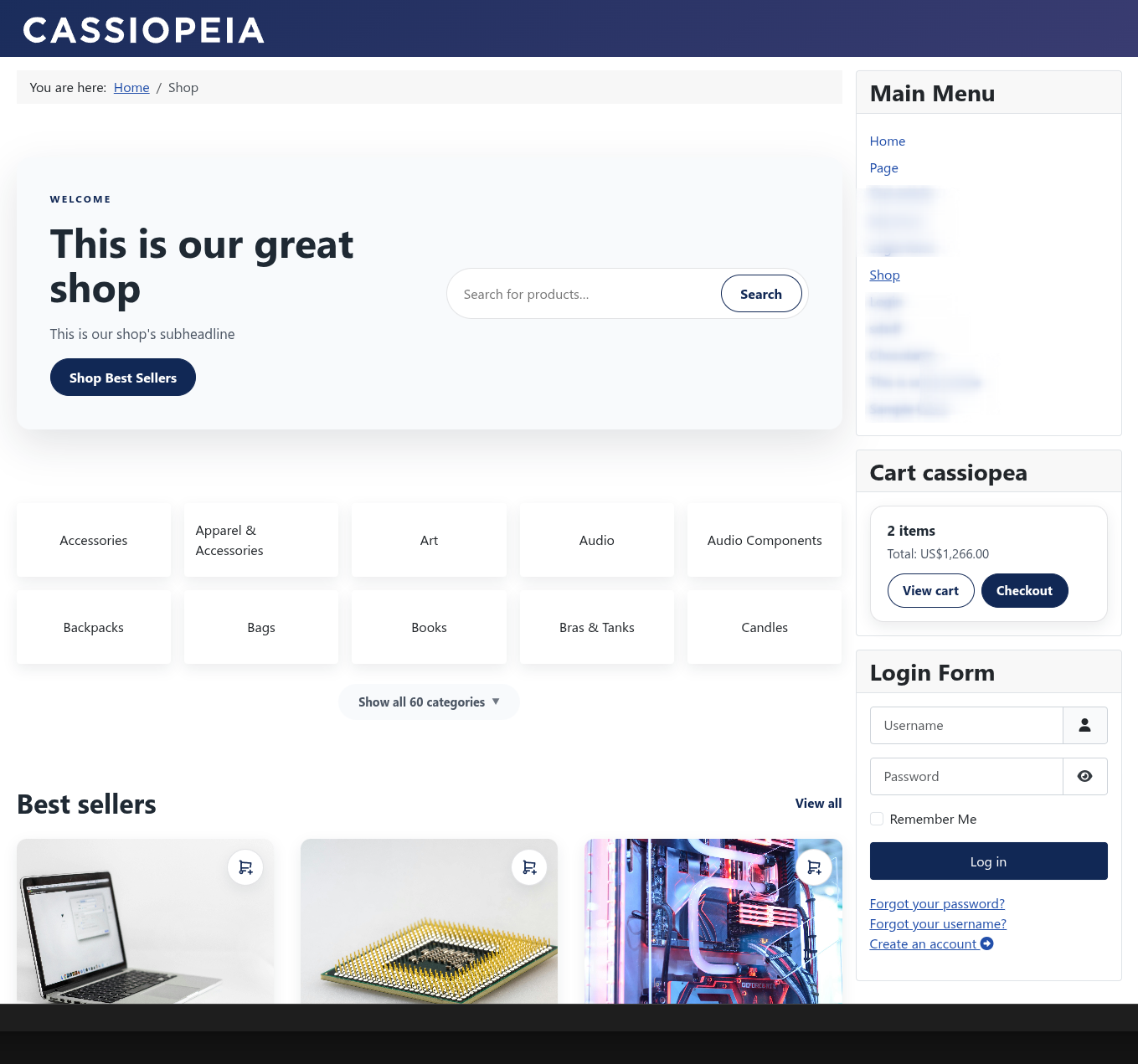
- Publish the shop landing page and product detail views.
- Test checkout flow with Stripe/PayPal sandbox credentials.
- Monitor order confirmation and tracking pages.
- Use tokenized public order-status links and authenticated My Orders pages for customer self-service.
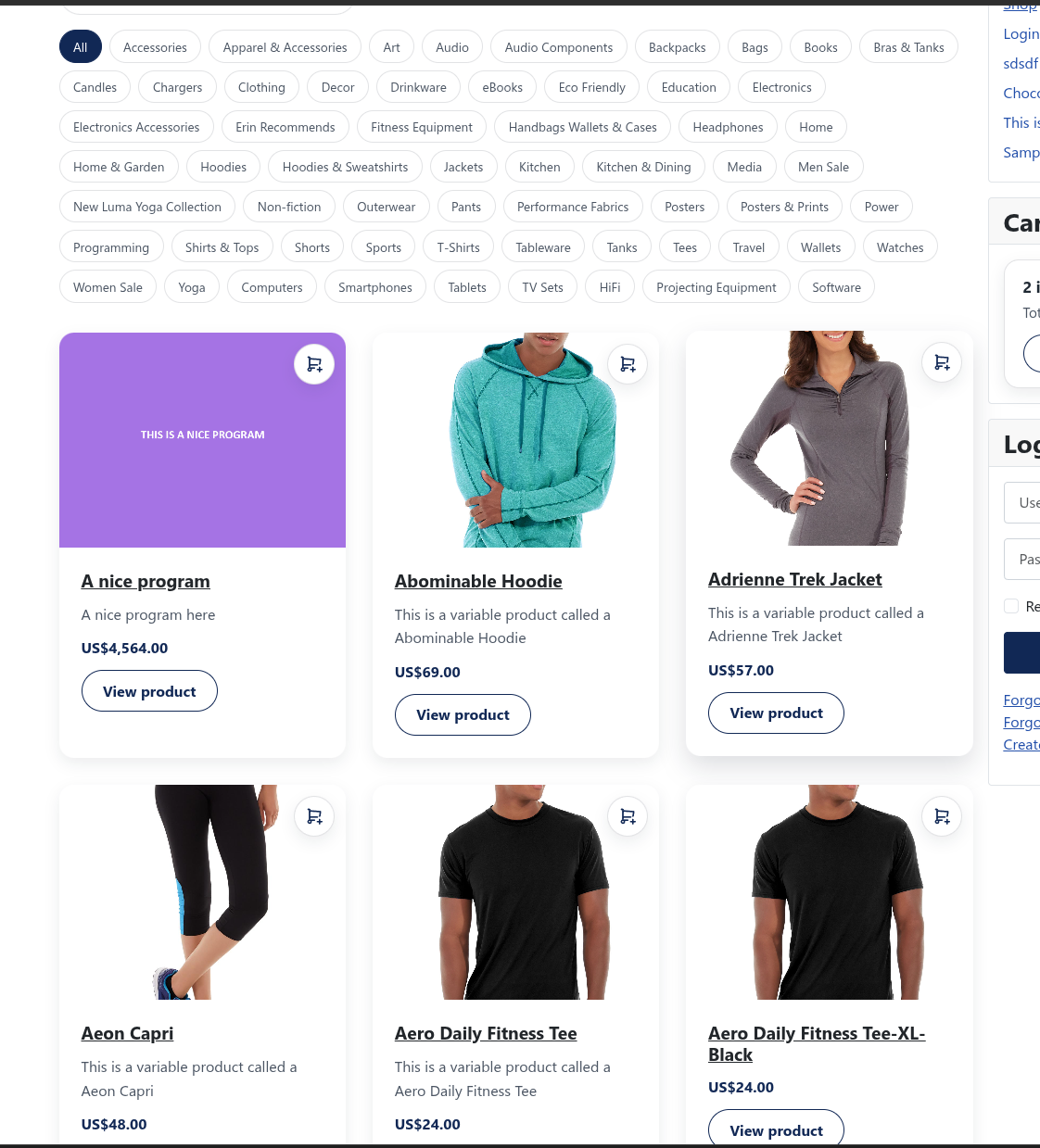
Shop landing page
Category browsing
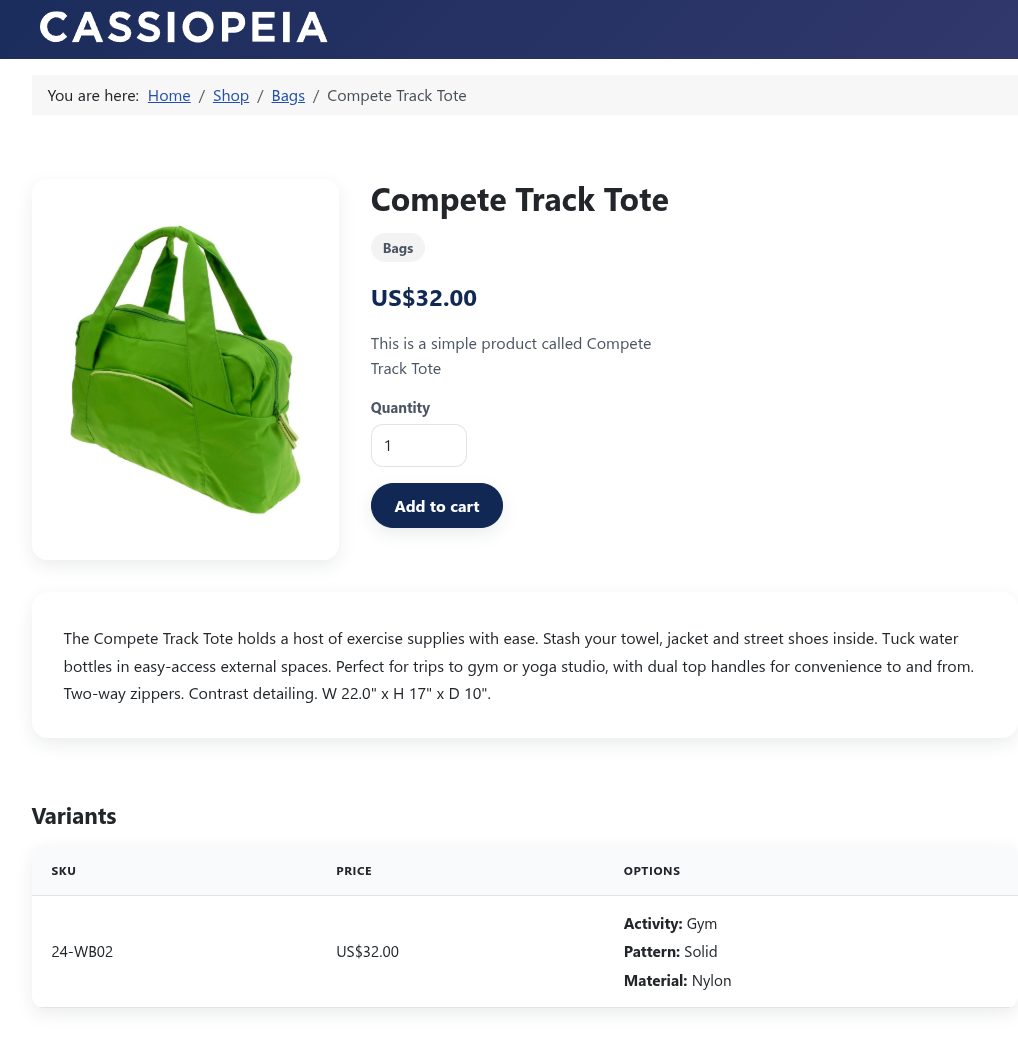
Product details
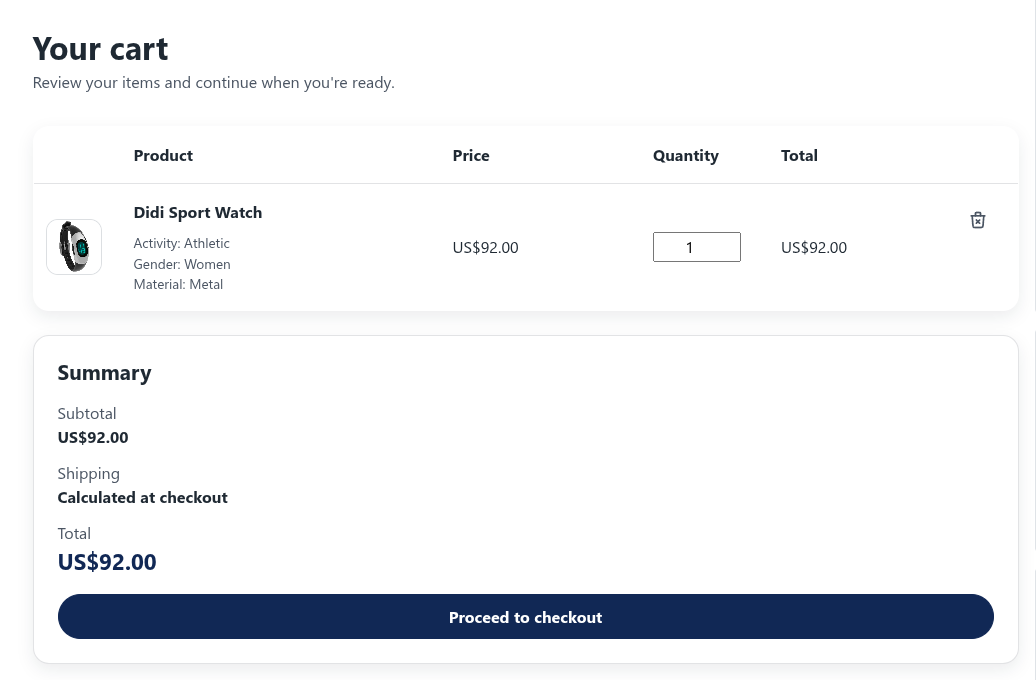
Cart
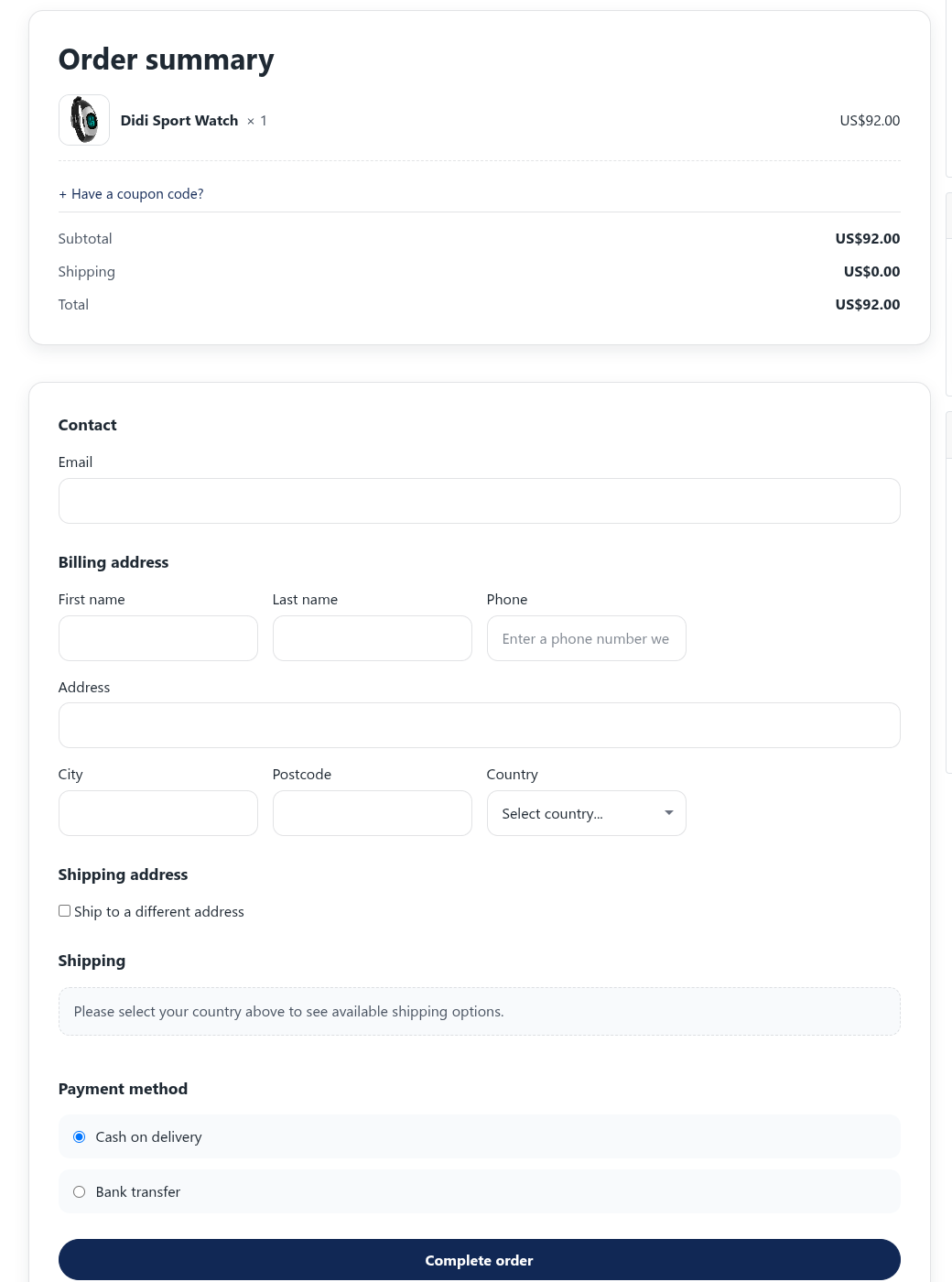
Checkout
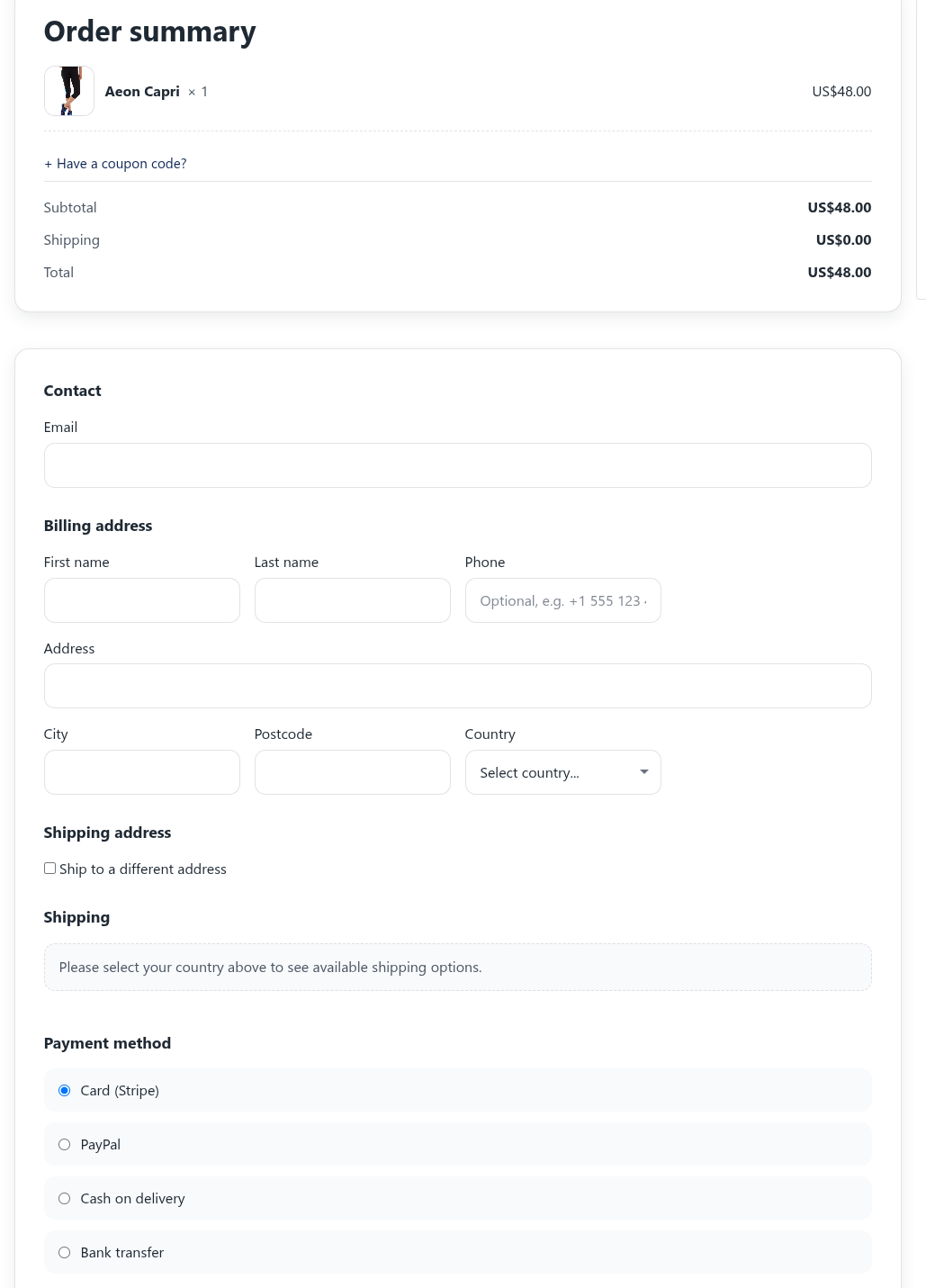
Customer order access
- Public order page: tokenized links in confirmation emails.
- My Orders: authenticated customer list/detail views.
- Order tracking events: visible when admins add tracking data.
See Order Lifecycle for state transitions and payment handling details.
Digital products
Sell downloadable files like ebooks, software, music, videos, and documents. Digital products are delivered via secure download links after payment.
Setting up digital products
- Create a new product and set Product Type to Digital.
- The Digital Files tab appears - upload your files there.
- Save the product and publish it.
Supported file types
NXP Easy Cart supports 47 file types across these categories:
| Category | Examples |
|---|---|
| Documents | PDF, Word, Excel, PowerPoint |
| Audio | MP3, WAV, FLAC |
| Video | MP4, WebM, MOV, AVI |
| Images | JPG, PNG, GIF, SVG |
| Archives | ZIP, RAR, 7z |
| Ebooks | EPUB, MOBI |
Download settings
Configure download limits in Settings → Digital Products:
- Max downloads - How many times a customer can download (0 = unlimited)
- Link expiry - How many days download links stay active (0 = never expires)
- Auto-fulfill - Automatically mark digital-only orders as fulfilled after payment
How customers receive downloads
- Customer completes checkout.
- Order confirmation email includes download links.
- Customer can also access downloads from their order status page.
- Each download link shows remaining downloads and expiry date.
TIP
Digital-only orders skip the shipping step at checkout, making the process faster for customers.
Related advanced docs
Sale pricing
Run time-limited sales on individual product variants with automatic start and end dates.
Setting up a sale
- Open a product in the editor.
- For each variant you want to discount, fill in:
- Sale price - The discounted price
- Sale start - When the sale begins (optional)
- Sale end - When the sale ends (optional)
- Save the product.
How sales appear
- Product pages: Show the original price crossed out with the sale price highlighted
- Category listings: Sale badges appear on product cards
- Cart and checkout: Display sale savings separately from coupon discounts
TIP
Leave start/end dates empty for an always-active sale price. Set both dates for scheduled promotions.
Order notifications
NXP Easy Cart sends automatic emails to customers at key points in the order lifecycle.
Email types
| When it sends | What it includes | |
|---|---|---|
| Order confirmation | After successful payment | Order details, items purchased, billing info, order status link |
| Order shipped | When you add tracking or mark as fulfilled | Tracking number, carrier name, tracking link |
| Order refunded | When you process a refund | Refund amount, support contact |
Configuring notifications
- Go to Settings → General.
- Enable Auto-send order emails to send shipped/refunded emails automatically when order status changes.
- Or leave it off and use the manual send buttons in each order's detail view.
Sending emails manually
- Open an order from the Orders list.
- For fulfilled orders: Click Send shipped email.
- For refunded orders: Click Send refunded email.
TIP
The button shows "Re-send" if you've already sent that email type, so you always know the current status.
GDPR compliance
Built-in tools help you respond to customer data requests required by GDPR (General Data Protection Regulation).
What you can do
| Action | Purpose | Who can do it |
|---|---|---|
| Export data | Give customers a copy of their order history | Any admin |
| Anonymise data | Remove personal information while keeping financial records | Super Users only |
Exporting customer data
When a customer requests their data:
- Go to Settings → GDPR.
- Enter the customer's email address.
- Click Export Data.
- Send the downloaded JSON file to the customer.
The export includes all orders, items purchased, and transaction records for that email address.
Anonymising customer data
When a customer requests deletion of their data:
- Verify the customer's identity first (required by GDPR).
- Go to Settings → GDPR.
- Enter the customer's email address.
- Click Anonymise Data and confirm.
Anonymisation removes:
- Name and email
- Billing and shipping addresses
- Tracking information
Financial records (order totals, tax, items purchased) are preserved for your accounting needs.
WARNING
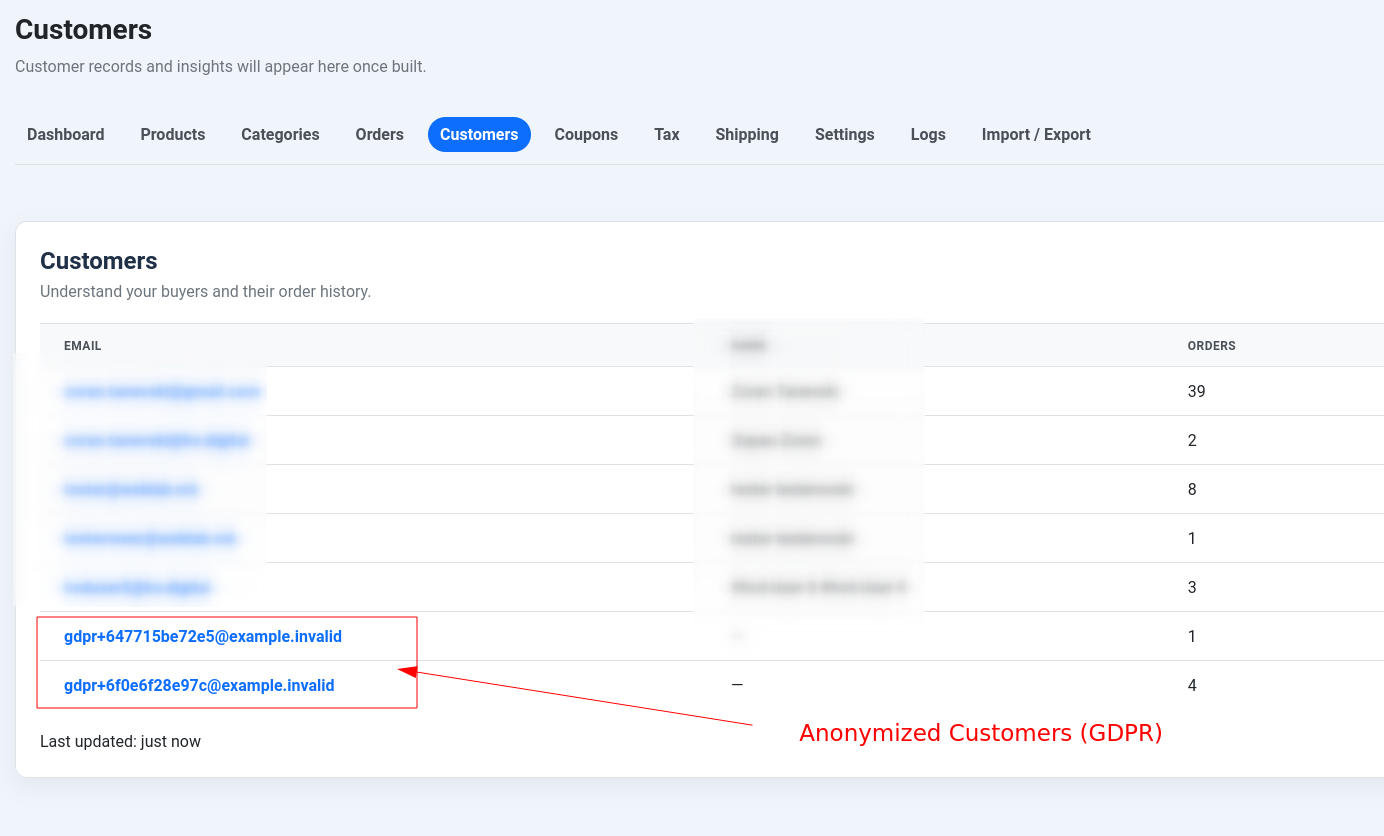
Anonymisation cannot be undone. The customer's orders will show an anonymised email like gdpr+abc123@example.invalid.
Stale order cleanup
The NXP Easy Cart - Stale Order Cleanup task plugin automatically cancels abandoned orders and releases reserved stock. This keeps your order list clean and prevents inventory from being held indefinitely by incomplete checkouts.
How it works
- Customer starts checkout but doesn't complete payment.
- The order stays in "pending" status, holding reserved stock.
- After the configured time period, the scheduled task:
- Cancels the stale order
- Releases the reserved stock back to inventory
- Logs the cleanup action
Setting up the cleanup task
- Install and enable the Task - NXP Easy Cart Cleanup plugin.
- Go to NXP Easy Cart → Settings → General.
- Enable Stale order cleanup.
- Set the Stale order threshold (1-720 hours, default is 48 hours).
- Create a scheduled task in System → Scheduled Tasks:
- Select NXP Easy Cart - Stale Order Cleanup as the task type
- Set your preferred schedule (e.g., every hour or once daily)
What gets cleaned up
| Order status | Age | Action |
|---|---|---|
| Pending | Older than threshold | Cancelled, stock released |
| Paid/Fulfilled | Any | Not affected |
| Already cancelled | Any | Not affected |
TIP
Set the threshold long enough to give customers time to complete payment (e.g., 24-48 hours), but short enough to prevent excessive stock reservation.